
Even the most passionate note-takers can struggle to find the best way to organize their notes and efficiently access the information they need for their projects, hobbies, and interests. That’s where personal knowledge management tools like Obsidian can help.
But what happens when the interface gets too cluttered? What if you want a program with different features or a more straightforward layout? In this guide, we’ll explore some alternatives to Obsidian that can help you achieve your note-taking goals so you can get on with what you enjoy.
AI notes manager by Constella is one of the best tools available to help you get your personal knowledge management tasks under control. This innovative tool lets you organize, understand, and manage your notes to get back to what matters most.
What is Obsidian?
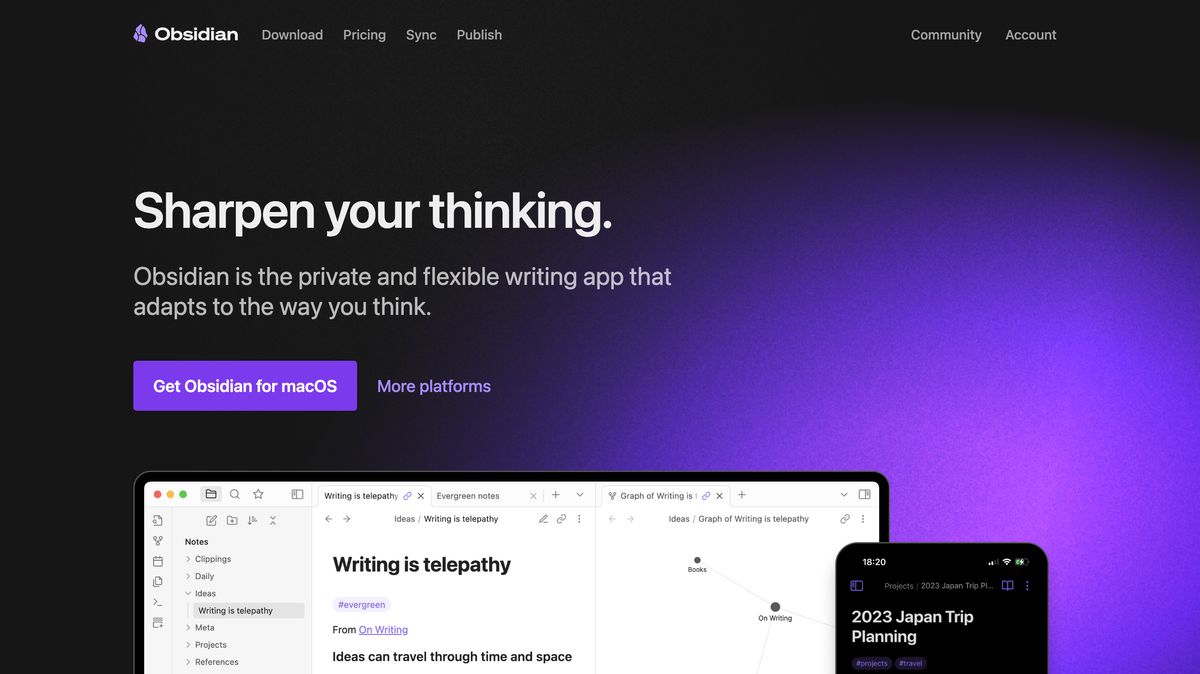
Obsidian allows users to connect directly between notes for easy reference and navigation. Instead of starting a blank page and typing away, you can link relevant text passages together as you build notes. This allows you to keep track of related ideas and revisit them later as you discover other passages that fit well together. This means teams can easily organize their thoughts, retain critical information, and build off each other’s work as they collaborate on projects. This is akin to the reference links in a research paper but on a much larger scale.
Mapping Knowledge with Obsidian’s Graph View
Forget about traditional note-taking. Obsidian’s graph view allows you to visualize your notes and their interconnections as a web of connected ideas. This unique perspective provides insight into your knowledge base, helping you see relationships, organize information, and brainstorm. The interactive maps highlight connections for each note, so you can hover your mouse over them to see related passages. The graph view is excellent for organizing related notes and helping you uncover hidden information that can spur creativity and further ideas.
Use Canvas to Organize Your Notes Visually
The canvas feature in Obsidian provides a flexible space where you can visually organize your thoughts and notes. The interface is similar to Figma, allowing you to arrange text boxes and images any way you conceive. You can visually organize and connect your notes in any layout you desire. For teams, you can manipulate audio, video, images, and PDFs in Canvas and use the workspace as a work view for notes and nest canvas views inside Canvas. It’s a unique way to approach note-taking that can enhance creativity and collaboration.
Plugins Extend Obsidian’s Functionality
Obsidian supports a wide range of community-developed plugins that extend the app's functionality. There are over 1,000 plugins, and there’s quite a variety. They have plugins for exporting, working with HTML, software integrations, AI assistants, annotating, and many more.
Sync Your Notes Across Devices
Obsidian Sync is a premium service that offers end-to-end encrypted synchronization of your notes across devices. It ensures that your data is securely updated and accessible, whether working from your desktop, laptop, or mobile device. For an additional $4 a month, you get end-to-end encryption, work offline features, version history for each note, and cross-platform functionality. If you want to maintain a consistent workflow across devices, then consider Sync.
Publish Your Notes Online
With Obsidian Publish, users can share their notes and knowledge bases. This service transforms your Obsidian vault into a publicly accessible website where you can share ideas and information on a personal or professional platform. It starts at $8 per month per site, and with it, you get hosting for up to 4 GB, a customizable theme and domain, priority email support, and SEO and mobile performance. These include hover previews, graph views, stacked pages and backlinks, and various authoring and collaboration options.
Related Reading
- PKM Tools
- Personal Knowledge Management Tools
- Second Brain Apps
- Second Brain Method
- Heptabase Alternative
- Zettelkasten Note Taking
Obsidian Price Plans

Obsidian offers a free version (called Personal) that anyone can use. You don't need to sign up or create an account to use it. However, the free version lacks many features that the paid packages have. The platform offers two paid plans: Catalyst and Commercial. The former requires a one-time payment of $25 and provides early access to insider builds, special badges, and access to an exclusive development channel. The latter is primarily for enterprise use and costs $50 per user annually.
You can also purchase two add-on services for the app: syncing and web publishing. The former costs $8 per month, billed annually, and the latter costs $16 per month per website. Some note-taking apps include syncing in their premium packages and don’t require extra payment, so we consider this characteristic of the Obsidian app as a drawback. The platform offers a 14-day free trial for the premium plans. You can also request a full refund within seven days of your purchase.
16 Best Obsidian Alternatives for Note-Taking
1. Constella: The Next-Gen Note-Taking Tool
Constella reimagines note-taking with an infinite canvas that lets you capture and connect ideas effortlessly, powered by AI search that makes finding information instantaneous. Whether you're a researcher trying to draw connections across numerous papers or someone who wants a more intuitive way to organize your thoughts and files, Constella's AI assistant helps you build and navigate your knowledge base without the constraints of traditional folder structures.
Constella transforms how you capture, find, and connect your ideas, perfect for busy knowledge workers and researchers limited by conventional note-taking tools. Research 10 times faster with Constella's AI notes manager.
2. Evernote: The Classic Note-Taking Tool
Evernote is a comprehensive personal knowledge management (PKM) and note-taking tool designed to help professionals capture, organize, and access information seamlessly across devices. As the name suggests, it lets you jot down random thoughts and store important files and documents to develop a knowledge base. What I like about Evernote is its functionality to record audio notes for personal and professional purposes.
Evernote's best features
- Digitize physical documents directly into Evernote so that there is easy access to relevant documents, papers, and lists
- Quickly locate information within your notes using natural language queries
- Easily sync information across devices to access it anytime from anywhere
Evernote limitations
- Some users find the mobile app to be less user-friendly than the desktop version
- The free version offers a limited amount of storage capacity
Pros
- Effortless note-taking and syncing
- Powerful search
- OCR for images
- AI-enabled plain language search
- Excellent and customizable organization options
Cons
- Expensive
- The free version isn't worth using
3. Tettra: A Great Tool for Team Knowledge Management
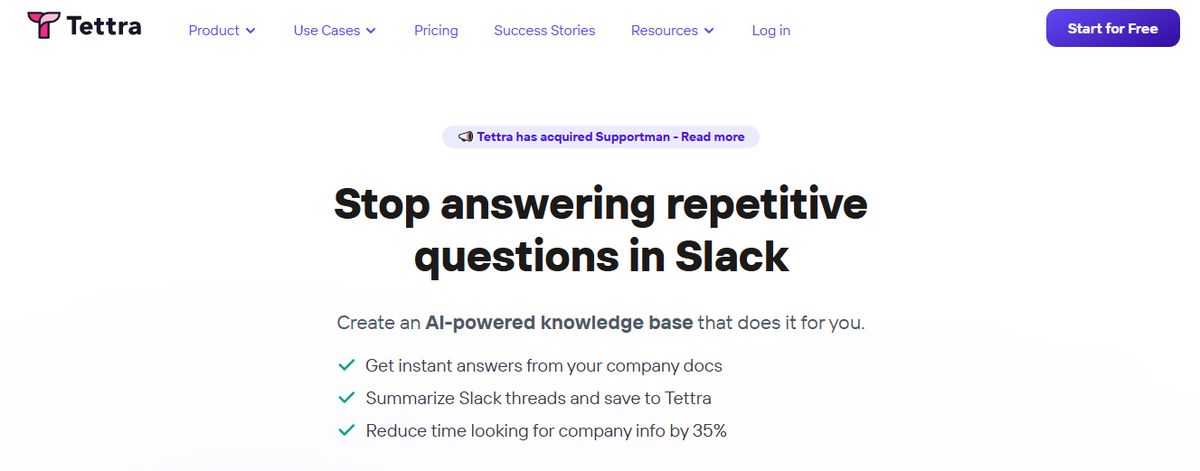
Tettra is a good software for building a centralized knowledge base and managing overall company knowledge. With Tettra’s simple editor, you can create new documentation or export existing content from tools like Google Docs, Notion, etc. Suitable for growing organizations, Tettra offers features such as AI-driven content suggestions and verification workflows to maintain accuracy and public knowledge-sharing capabilities.
Tettra best features
- Get answers to team questions from Tetra’s AI assistant, Kai
- Verify content on a set schedule with the help of subject matter experts through knowledge automation
- Add media and cross-link files within the knowledge base
Tettra limitations
- Provides limited formatting features compared to other personal knowledge management tools
- Users may find the Professional subscription too expensive
Pros of Tettra
- AI-assisted answers right inside of Slack (talk with your docs)
- Intuitive interface
- Native Slack integration
- Less learning curve
- Unique knowledge management features
Cons
- Lacks support for forums/discussion boards
- Limited document formatting
4. Confluence: The Documentation Powerhouse

Confluence is a powerful tool specializing in knowledge management and team collaboration, making creating, sharing, and collaborating on documents easy. Developed by Atlassian, it integrates seamlessly with Jira, enhancing its utility for software development teams.
Key Features
- Document Collaboration: Create and collaborate on documents with your team, ensuring everyone is on the same page and reducing the risk of miscommunication.
- Integration with Jira: Seamlessly integrates with Jira for project tracking, making it an excellent choice for software development teams and project managers who need to track issues and tasks.
- Knowledge Base Creation: Organize and manage knowledge articles to build a comprehensive repository of information that the entire team can access.
Pros
- Great for Documentation: Provides powerful tools for creating and managing documents, ensuring that all information is easily accessible.
- Integrates Well with Jira: Enhances project tracking capabilities, making it a preferred choice for software development teams.
- Strong Collaborative Features: Facilitates teamwork and knowledge sharing.
Cons
- Can Be Complex for New Users: The extensive features may be overwhelming for new users, requiring a learning curve.
- May Become Expensive: Larger teams may find the costs add up quickly, especially if using premium features.
5. Notion: The All-in-One Tool for Note-Taking, Tasks, and Databases
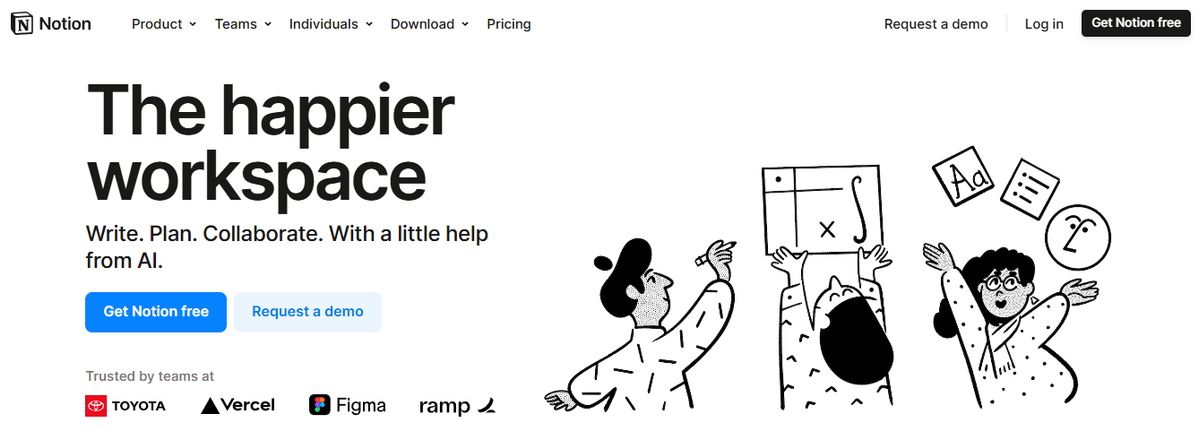
Notion offers a flexible workspace for note-taking, task management, and database creation, making it ideal for various projects. Known for its versatility, Notion allows users to customize their workspaces to fit their needs, whether for personal use, small teams, or larger organizations.
Key Features
- Customizable Templates: Use and create templates for different workflows, helping to standardize processes and save time.
- Integration with Various Tools: Connect with apps like Slack, Google Drive, and more, ensuring a seamless workflow across different platforms.
- Collaboration Features: Work with your team on shared documents and projects, enhancing teamwork and communication.
Pros
- Highly Customizable: Users can tailor Notion to meet their needs, from simple to complex workflows.
- Versatile: Suitable for various applications, from project management to note-taking and database creation.
- Great for Creative Projects: Offers flexibility and tools particularly useful for creative professionals.
Cons
- Steeper Learning Curve: New users might find Notion overwhelming due to its extensive features.
- Can Be Overwhelming for New Users: The vast array of features may take time to master.
6. Bear: A Beautiful Note-Taking App for Apple Users

Bear is a flexible note-taking app for macOS and iOS that features rich text editing, organization tools, and markdown support. Users can create notes in various formats, including text, images, links, and files, and organize them using tags, folders, and search functionality. Bear also offers themes, focus mode, and encryption for secure note-taking.
Pros
- Excellent Markdown Support: Seamless integration with Markdown formatting allows for quick and efficient note-taking with minimal distractions.
- Smooth Apple Ecosystem Integration: As an Apple-centric app, Bear syncs flawlessly across Mac, iPad, and iPhone devices using iCloud.
- Intuitive Tagging System: An easy-to-use hashtag system for effective note organization and retrieval.
- Good Export Options: Ability to export notes in various formats like plain text, HTML, and PDF.
Cons
- Limited Platform Availability: Bear is only available on Apple devices, making it inaccessible for users on Windows or Android.
- No Web Interface: Users cannot access Bear Notes through a web browser.
7. Roam Research: A Unique Approach to Note-Taking

Another great note-taking PKM tool is Roam Research. Popular among researchers, writers, and lifelong learners, this tool is designed for non-linear thinking and idea organization. Roam helps students create a ‘networked thought’ system, connecting concepts and notes to mirror how the brain naturally works. Bidirectional linking on Roam enables you to create a web of interconnected notes and quickly identify relationships between disparate pieces of information.
Roam Research's best features
- Generate a daily note to help you keep track of your thoughts and ideas on a day-to-day basis
- Refer to and reuse pieces of text across different notes
- Store your notes as plain text files, making it easy for you to read and share them
Roam Research limitations
- Roam Research’s design is not aesthetically pleasing
- Some users may find its pricing costlier than other tools due to no free options
Pros
- The first thing you need to know about Roam Research is that it focuses on creating interconnected knowledge. This platform uses a Directed Acyclic Graph (DAG) structure for flexible information organization, allowing you to develop a web of knowledge that connects concepts, ideas, and information seamlessly. It's like having a neural network for your thoughts!
- Roam Research offers a daily note-focused approach, reducing cognitive load and organizational overhead. By creating a new daily note every day, you can focus on what matters most to you in the moment without getting bogged down by trying to organize everything all at once.
- Roam supports many file extensions, allowing you to incorporate text, images, audio, and video into your notes. Plus, there's no cap on data usage, so you can store as much information as you want without worrying about running out of space.
Cons of Roam Research
- One downside to Roam Research is its higher price than alternatives like Obsidian. While Roam offers many features and functionality, the cost might be a barrier for some users.
- Another potential con is the perceived slow development of Roam Research. Some users feel that Roam doesn't release as many significant improvements as its competitors, which could be frustrating for those looking for the latest and greatest features.
8. Clickup: The All-in-One Project Management Software

ClickUp is an all-in-one platform designed to replace multiple apps, offering a comprehensive suite of project management tools. It’s known for its versatility and the ability to consolidate various functions into one platform, making it a popular choice for teams looking to streamline their workflows.
Key Features
- Task Management: Organize and prioritize tasks easily, ensuring nothing falls through the cracks.
- Document Collaboration: Collaborate on documents within the platform, eliminating the need for separate document management tools.
- Time Tracking: Monitor time spent on tasks and projects to improve productivity and ensure accurate billing.
Pros
- Comprehensive: Offers a wide range of features that can replace multiple tools, streamlining workflows.
- Affordable: Provides extensive functionality at a reasonable price point.
- Highly Customizable: Users can tailor the platform to meet their needs, enhancing productivity.
Cons
- Can Be Overwhelming for New Users: The extensive features might be daunting for those new to project management tools.
- Steep Learning Curve for Advanced Features: Advanced features may require time to master, potentially slowing down initial adoption.
9. Guru: The AI-Powered Knowledge Management Tool

Guru is an AI-powered knowledge management platform that converts your company’s collective knowledge into a single, centralized, and up-to-date Wiki for your employees. The AI search feature provides instant, personalized responses to your employees’ questions, enabling them to get back to their assigned tasks with clarity. Guru empowers teams to maintain a single source of truth, ensuring that information is accurate, up-to-date, and easily retrievable—integral to improving operations and making informed decisions.
Guru's best features
- Create a personalized intranet that serves as a centralized hub for company information
- Connect to your existing apps, chats, and documents through AI
- Provides role-based access control functionalities
Guru limitations
- Guru provides limited customization options compared to other software
- There are chances of outdated or duplicate content with the growth of the knowledge base
Pros
- Team collaboration: Facilitates seamless knowledge sharing across teams by allowing users to create, edit, and access information collectively.
- Integrations with other tools: Can integrate with platforms like Slack and Microsoft Teams, providing direct access to information within the workflow.
- Relevant suggestions: AI-powered suggestions help users discover related information quickly and efficiently.
Cons of Guru note-taking
- Limited text customization: The text editor may not offer extensive formatting options, potentially impacting the visual presentation of complex information.
10. Airtable: A Unique Approach to Knowledge Management

Airtable combines a database's power with a spreadsheet's simplicity, providing a versatile project management and collaboration platform. It is designed to be flexible and user-friendly, making it suitable for various applications.
Key Features
- Customizable Templates: Use and create templates for various types of work, helping to streamline processes and improve efficiency.
- Integration with Various Tools: Connect with apps like Slack, Google Drive, and more, ensuring a seamless workflow and reducing data silos.
- Collaboration Features: Organize and manage projects with your team, enhancing teamwork and communication.
Pros
- Highly Customizable: Offers extensive customization options to fit various needs.
- Versatile: Can be used for a wide range of applications, from simple task tracking to complex project management.
- User-Friendly Interface: Easy to navigate, making it accessible for all skill levels.
Cons
- Can Be Pricey: Advanced features and higher-tier plans can be expensive
11. Document360: A Knowledge Base Tool for Technical Documentation
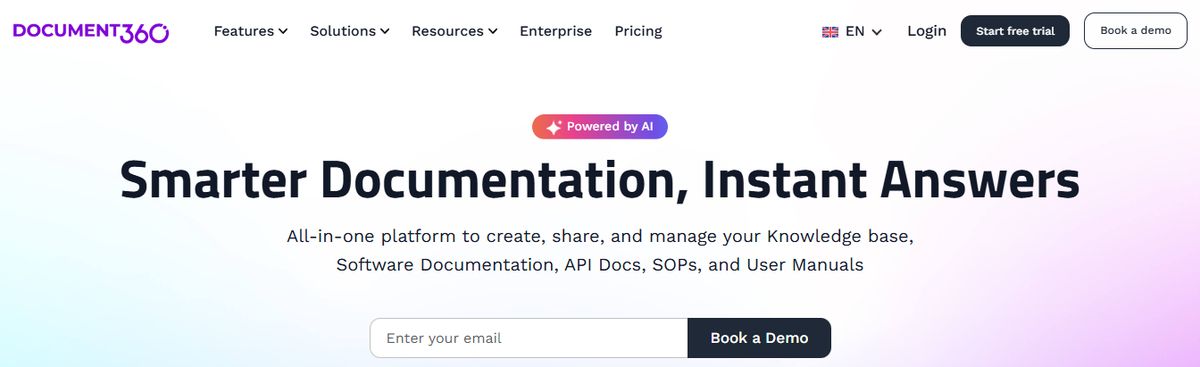
Another all-in-one workspace software for building customizable knowledge bases is Document360. This software helps you personalize your knowledge base with branded colors. It helps create dynamic, searchable, multilingual user manuals, SOPs, how-to guides, and other documents. Ideal for professionals seeking to streamline documentation processes, Document360 offers a user-friendly interface that caters to technical and non-technical users. Plus, it gives AI functionalities to simplify tackling all documentation needs.
Document360 best features
- Improve the context and relevance of documentation with real-time AI feedback
- Get insights into user behavior and content effectiveness to optimize knowledge management strategies
- Connect with popular tools like Slack, Microsoft Teams, Zendesk, and Intercom to build a cohesive workflow across platforms
Document360 limitations
- A few features are only available through costly add-ons
- New users might require time to leverage the platform’s extensive capabilities fully
Pros
- Great Editor
- Reliable Version Control
- Smart File Management
- Powerful Reports and Analytics
Cons
- Some features come at a cost
12. Quip: A Collaborative Tool for Documentation

Quip is a collaborative productivity software for teams, integrating documents, spreadsheets, and chat into a unified workspace.
Key Features
- Real-Time Collaboration: Collaborate on documents and spreadsheets in real-time, enhancing team communication and efficiency.
- Document Sharing: Share documents and collaborate with your team, keeping all relevant information in one place.
- Task Lists: Manage tasks and projects within the platform, ensuring everything stays organized.
Pros
- Excellent for Team Collaboration: Facilitates real-time collaboration, improving team efficiency.
- Integrates with Salesforce: Seamless integration with Salesforce, making it ideal for sales teams.
- Strong Mobile Support: Excellent mobile apps for on-the-go access.
Cons
- Limited Project Management Features: May lack some advanced project management functionalities.
- Can Be Expensive: The cost can increase, especially for larger teams.
13. Microsoft OneNote: A Free Note-Taking Software
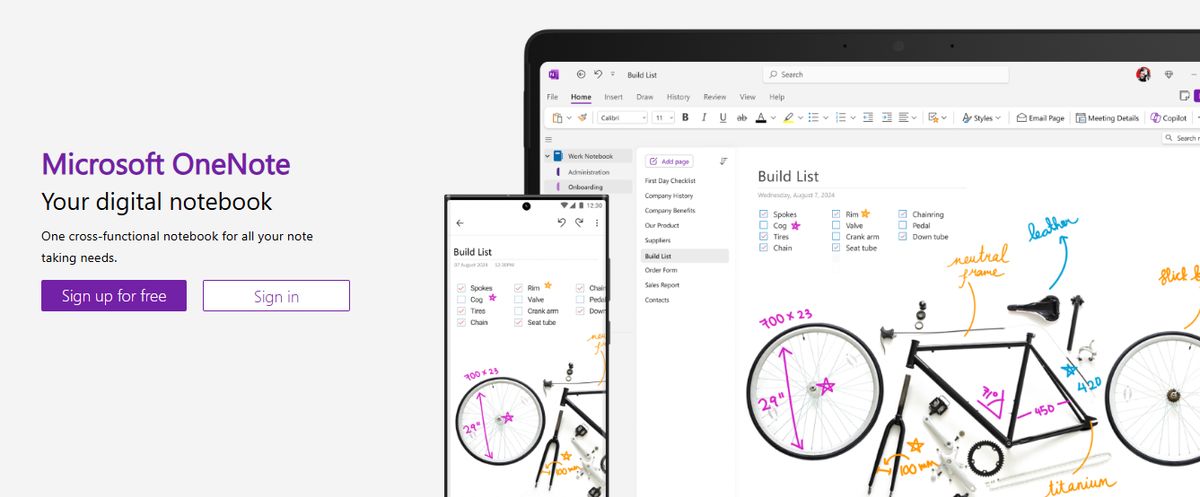
Microsoft OneNote is a digital note-taking app that integrates seamlessly with other Microsoft Office tools, providing a powerful solution for organizing notes.
Key Features
- Note Organization: Organize notes into notebooks, sections, and pages, ensuring that all information is easily accessible.
- Multi-Device Sync: Access your notes from any device, allowing you to stay productive on the go.
- Integration with Microsoft Office: Seamlessly connect with other Microsoft Office apps, enhancing productivity.
Pros
- Great for Note-Taking: Provides powerful tools for capturing and organizing notes.
- Seamless Integration with Office: Enhances productivity by integrating with other Microsoft apps.
- Free to Use: Offers comprehensive features at no cost.
Cons
- Limited Project Management Features: Primarily focused on note-taking, lacking some advanced project management functionalities.
- Can Be Overwhelming for New Users: The extensive features may take time to master.
14. Slite: A Collaborative Documentation Tool for Teams
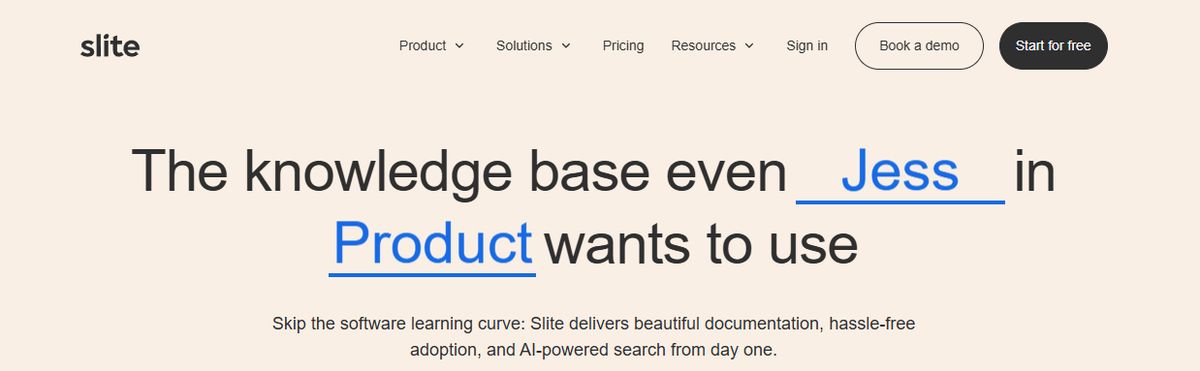
Slite is a collaborative documentation tool designed for teams, offering real-time collaboration and an easy-to-use interface.
Key Features
- Real-Time Collaboration: Work on documents with your team in real-time, enhancing teamwork and efficiency.
- Easy-to-Use Interface: Simple and intuitive interface for managing documents, making it accessible for all team members.
- Integration with Other Tools: Connect with apps like Slack, Google Drive, and more, ensuring a seamless workflow.
Pros
- Excellent for Team Collaboration: Facilitates real-time collaboration, improving communication and productivity.
- Intuitive: User-friendly interface that is easy to navigate.
- Strong Search Capabilities: Powerful search features make finding information quick and easy.
Cons
- Limited Task Management Features: Primarily focused on documentation, may lack some advanced project management functionalities.
- Can Be Pricey for Larger Teams: The cost can increase, especially for larger teams requiring premium features.
Related Reading
- Slite Alternatives
- Roam Research Alternatives
- Joplin Alternatives
- Notion Knowledge Management
- Coda Alternatives
- SiYuan Alternatives
- Logseq Alternatives
Pros and Cons of Obsidian

Obsidian Pros
Boosts Productivity
Obsidian helps you organize your notes and ideas in one place. This structure enables you to stay focused and improve productivity.
Enhances Learning
Obsidian’s unique linking feature encourages active learning. You can connect different notes to help you understand and remember information better.
Customizable Interface
Obsidian’s customizable interface lets you set up your workspace to suit your workflow. This flexibility helps you become more efficient while working.
Obsidian Cons
Slight Learning Curve
While Obsidian is intuitive, getting used to all its features might take some time. But once you familiarize yourself with them, you’ll appreciate their flexibility.
Requires Regular Maintenance
Obsidian demands regular maintenance and organization of notes to keep your knowledge base effective. This requirement might be a consideration for those with limited time.
Research 10 Times Faster with Constella
Constella is a personal knowledge management tool that helps users capture and connect their ideas. It does this with a unique infinite canvas that allows you to take notes and organize your research visually. You can freely create, move, and organize ideas without being constrained by traditional folder structures. This makes it easy to draw connections and find information quickly, powered by an AI search function that instantly retrieves your notes. With Constella, you can intuitively build and navigate your knowledge base to research more efficiently and find information faster.
How Can You Use Constella?
Constella is perfect for academics and researchers who must analyze large amounts of information and draw connections between different data sets. With the infinite canvas, you can visualize your research and organize your notes in a way that makes sense. The AI assistant can also help you uncover patterns in your data to make your research process smoother.
You can also use Constella for personal knowledge management to organize your thoughts, files, and ideas for any projects you’re working on. The flexible structure lets you capture and connect information on the fly to other notes or files on related topics. Whether preparing for a presentation, writing a book, or trying to learn something new, Constella can help you get organized and work more efficiently.
Related Reading
Want more insights like this?
Subscribe to get short productivity tips and useful summaries of new tools every week.
Want more insights like this?
Subscribe to get short productivity tips and useful summaries of new tools every week.