
How do you keep track of all the information you encounter in your daily life? If you’re like most people, you probably make notes by yourself, use a spreadsheet, or create folders on your computer to try and organize things. However, the more information you collect, the harder it is to find what you need when needed.
This is part of the experience of personal knowledge management (PKM). Choosing the right tools for your PKM system makes all the difference in how quickly and efficiently you can handle your notes and information.
This is where Evernote has helped many users in the past. But recently, people have been looking for Evernote alternatives to help them with their PKM system for a good reason. You're in the right place if you're also searching for a solid replacement for Evernote. This guide will help you find a suitable tool to help you note down, organize, and manage your information efficiently.
One excellent Evernote alternative is Constella's AI Notes Manager. This tool uses artificial intelligence to boost your personal knowledge management system and help you note down, organize, and retrieve your information faster than ever.
What is Evernote?
Evernote is a leading note-taking app that helps you save and manage all types of information, whether for professional or personal purposes. With Evernote, you can make notes, scan documents, create to-do lists, and upload attachments like PDFs, audio files, or photos. This versatile tool lets you save and organize information for future use. If you work as part of a team, Evernote also has features supporting collaboration and sharing. It has a variety of integrations to connect Evernote with your other favorite tools. Evernote has an intuitive interface and a rich feature set, making it a strong contender among note-taking apps available today.
Key Features of Evernote

Whether you’re a student, professional, or creative, Evernote’s versatile tools cater to all your organizational needs, making it an indispensable part of your digital toolkit.
Task Management
It’s easy to use Evernote for essential task management. You can simply create different tasks and monitor your checklists and action items. Luckily, your tasks are arranged with your meeting notes, project ideas, and other essential documents. This makes it easy to check off your to-do lists. The premium plan gives you even more task management capabilities, such as viewing tasks in one location, adding deadlines, scheduling routine tasks, setting up reminders, and delegating to others.
Calendar Integration
Evernote offers smooth integration with Google Calendar. Using this feature, you can connect your notes to specific events in your calendar. So you can use and find them easily. Evernote also lets you add details about the event to your notes, increasing the odds that you’ll be better prepared to assign tasks and follow up on action items.
Document Scanning
Evernote has a robust document-scanning feature. Using this functionality, you can scan whiteboards, receipts, menus, business cards, and handwritten notes. Reviewing Evernote, I realized that this handy feature has many practical applications. For example, you can digitize all your business cards to create a repository of your contacts.
Advanced Search
Evernote has a robust search function that lets you quickly find the information you need. It’s advanced enough to let you search for specific files and words in your saved notes. You can also search based on keywords, such as the location where you created a note or the date of creation or modification. The premium version gives you even more search options, such as searching and sorting through PDF and MS Word documents.
Web Clipper
Another valuable feature is the Web Clipper browser extension. This extension is available for all major web browsers. It gives you the convenience of instantly saving the photos and text you select while browsing the web. Clipping specific content from the web is great because you can return to it without the unwanted content and ads you encountered the first time.
Annotation
Next, in this Evernote review, let’s talk about annotation. If you’re part of a team, you’ll often need to exchange feedback, communicate your ideas visually, and collaborate in other ways. That means you’ll also need to annotate your pictures and PDF files. Evernote makes adding annotations such as shapes, lines, and arrows easy. However, PDF annotation is available only with premium plans.
Templates
Evernote gives you a handy set of 50+ templates to help you take notes quickly and easily. These include a meeting agenda template, a travel calendar, and a project overview template. If you have Evernote premium, you can create and use custom templates for your specific needs.
Audio Recording
Evernote lets you record and save audio notes straight from the app. This comes in handy when gathering and recalling information from an event, such as a team meeting, a class presentation, or a music concert. So, how much audio data can you store? That depends on your plan. The free plan lets you record up to 25MB per note; premium plans allow 200MB per note. While this is a great feature, I found it lacking in some aspects. For example, it’d be great if there was the option to convert audio to text or to search within a recording.
Integrations
Evaluating integrations is a crucial part of Evernote review. Evernote provides robust support for many external tools to make your workflow more efficient. Besides Google Calendar, Evernote’s paid plan lets you connect the app with software like Salesforce, Microsoft Teams, and Slack. IFTTT and Zapier are supported, too, allowing you to connect Evernote with hundreds of other applications.
Desktop and Mobile Apps
Evernote is an adaptable tool that works well on various operating systems and devices. These include laptops, desktops, smartphones, and tablets. With Evernote, all your notes are synced across all your devices. This way, you can retrieve them from anywhere, at any time. This is excellent news. This is because, with a mobile app, you can use Evernote while on the move. You can take photos, record audio, and scan documents quickly using a tablet or smartphone. Not just that. Evernote also provides desktop apps to access your notes without an internet connection.
Teamwork and Sharing
Evernote’s powerful collaboration and sharing features let you efficiently work with team members directly from the app. You can share your notes with other people. This helps you work together on projects and exchange ideas. You also have complete control over who can see or edit the notes. Besides that, Evernote provides a Work Chat feature that allows you to communicate with peers.
Clear Hierarchical Organization
Evernote’s hierarchical system is designed to keep your notes organized and easy to navigate. Think of it like this: at the base level, you have your notes—these can be anything from quick to-do lists to detailed project plans. Next up, you group related notes into notebooks. For example, you might have a notebook for a work project, another for personal goals, and another for travel plans.
But what if you have several notebooks for different aspects of a big project? That’s where notebook stacks come in. Stacks allow you to bundle related notebooks together, giving you a clear, structured way to manage large amounts of information. It’s like having a digital filing cabinet where everything has its place. So, its importance can’t be overlooked in an Evernote review.
Related Reading
- PKM Tools
- Personal Knowledge Management Tools
- Second Brain Apps
- Second Brain Method
- Heptabase Alternative
- Zettelkasten Note Taking
Evernote Pricing

Evernote’s Free Version Has Serious Limitations
Evernote offers a free version that lets you add only 60MB of data monthly. I'm not aware of any other note-taking app that limits its free version in this way. Most cap the overall amount of data you can store in the cloud. Evernote's free version doesn't work offline and can only sync between two devices, another limitation I've never seen anywhere else. Because of these two restrictions, I don't recommend even considering Evernote if you're looking for a free note-taking app.
Evernote’s Pricing Doubled in May 2023
Evernote's subscription prices doubled in May 2023 when Bending Spoons acquired it. The Personal version now costs $14.99 per month or $129.99 per year. Personal accounts include 10GB of monthly uploads, which should be enough for anyone not constantly uploading videos or other large files. You also get offline access to notes and due dates, the ability to connect to Google Calendar, and many more perks and features.
Professional Users Get More Upload Space and Features
Evernote's Professional account costs $169.99 annually, bringing the monthly upload limit up to 20GB. Professional users get everything that Personal users do, plus they can sync multiple Google Calendar accounts, assign tasks to others, and use Boolean terms for searches.
Research 10 times faster with Constella's AI notes manager.
22 Best Evernote Alternatives for Note-Taking
1. Constella
Constella reimagines note-taking with an infinite canvas that lets you capture and connect ideas effortlessly, powered by AI search that makes finding information instantaneous. Whether you're a researcher trying to draw connections across numerous papers or someone who wants a more intuitive way to organize your thoughts and files, Constella's AI assistant helps you build and navigate your knowledge base without the constraints of traditional folder structures.
Constella transforms how you capture, find, and connect your ideas, perfect for busy knowledge workers and researchers limited by conventional note-taking tools. Research 10 times faster with Constella's AI notes manager.
2. Bear
Bear is a flexible note-taking app for macOS and iOS that features rich text editing, organization tools, and markdown support. Users can create notes in various formats, including text, images, links, and files, and organize them using tags, folders, and search functionality. Bear also offers themes, focus mode, and encryption for secure note-taking.
Pros
- Excellent Markdown Support: smooth integration with Markdown formatting allows for quick and efficient note-taking with minimal distractions.
- Smooth Apple Ecosystem Integration: As an Apple-centric app, Bear syncs flawlessly across Mac, iPad, and iPhone devices using iCloud.
- Intuitive Tagging System: An easy-to-use hashtag system for effective note organization and retrieval.
- Good Export Options: Ability to export notes in various formats like plain text, HTML, and PDF.
Cons
- Limited Platform Availability: Bear is only available on Apple devices, making it inaccessible for users on Windows or Android.
- No Web Interface: Users cannot access Bear Notes through a web browser.
3. Google Keep
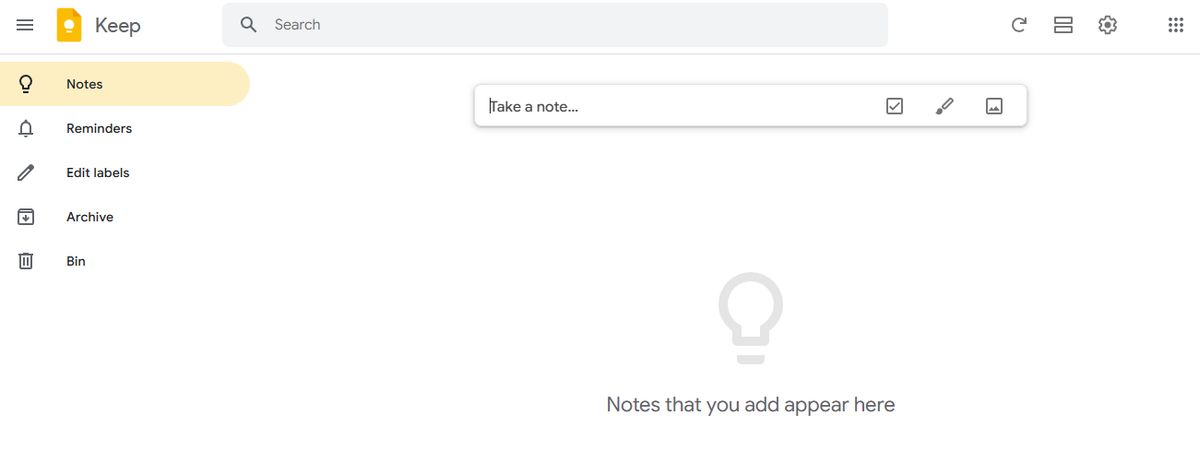
Google Keep is one of the many Google apps. It’s also one of the best Evernote alternatives in the market today. With a simple, easy-to-use interface, it’s no surprise that it was one of the most downloaded note-taking apps in 2019.
Google Keep key features
- User-friendly interface
- Sync smoothly across every Google device
- Organize notes via labels
- The app can handle handwritten notes, voice memos, and audio notes
Google Keep pros
- Supports rich text formatting
- Set reminders and add to-do lists to your notes
- The mobile apps are completely free
- Intuitive drag and drop interface is similar to Post-it notes
Google Keep cons
- No alternate themes on this app
- Lacks task management abilities
- No desktop app for Windows, Linux, or macOS platforms
4. Roam Research
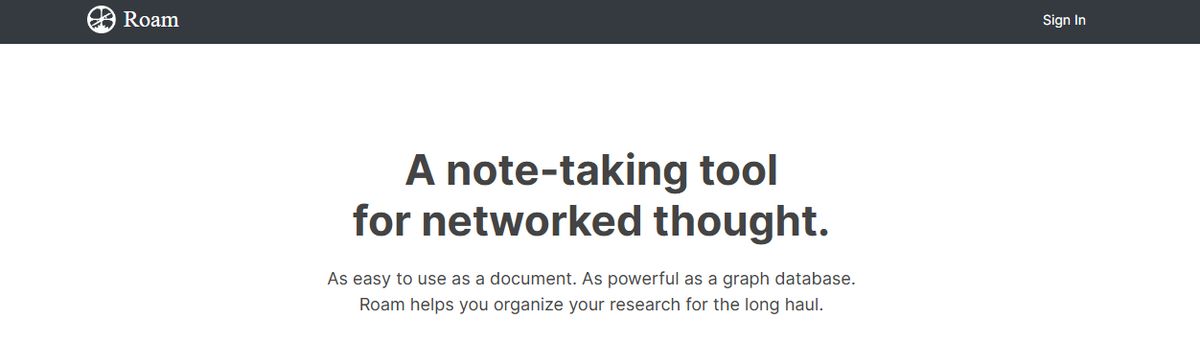
Another great note-taking PKM tool is Roam Research. Popular among researchers, writers, and lifelong learners, this tool is designed for non-linear thinking and idea organization. Roam helps students create a ‘networked thought’ system, connecting concepts and notes to mirror how the brain naturally works.
Roam Research's best features
- Generate a daily note to help you keep track of your thoughts and ideas on a day-to-day basis
- Refer to and reuse pieces of text across different notes
- Store your notes as plain text files, making it easy for you to read and share them
Roam Research limitations
Roam Research’s design is not aesthetically pleasing. Some users may find its pricing costlier than other tools due to the free options.
Pros
- The first thing you need to know about Roam Research is that it focuses on creating interconnected knowledge. This platform uses a Directed Acyclic Graph (DAG) structure for flexible information organization, allowing you to develop a web of knowledge that connects concepts, ideas, and information smoothly. It's like having a neural network for your thoughts!
- Roam Research offers a daily note-focused approach, reducing cognitive load and organizational overhead. By creating a new daily note every day, you can focus on what matters most to you in the moment without getting bogged down by trying to organize everything all at once.
- Roam supports many file extensions, allowing you to incorporate text, images, audio, and video into your notes. Plus, there's no cap on data usage, so you can store as much information as you want without worrying about running out of space.
Cons
- One downside to Roam Research is its higher price than alternatives like Obsidian. While Roam offers many features and functionality, the cost might be a barrier for some users.
- Another potential con is the perceived slow development of Roam Research. Some users feel that Roam doesn't release as many significant improvements as its competitors, which could be frustrating for those looking for the latest and greatest features.
5. Notion
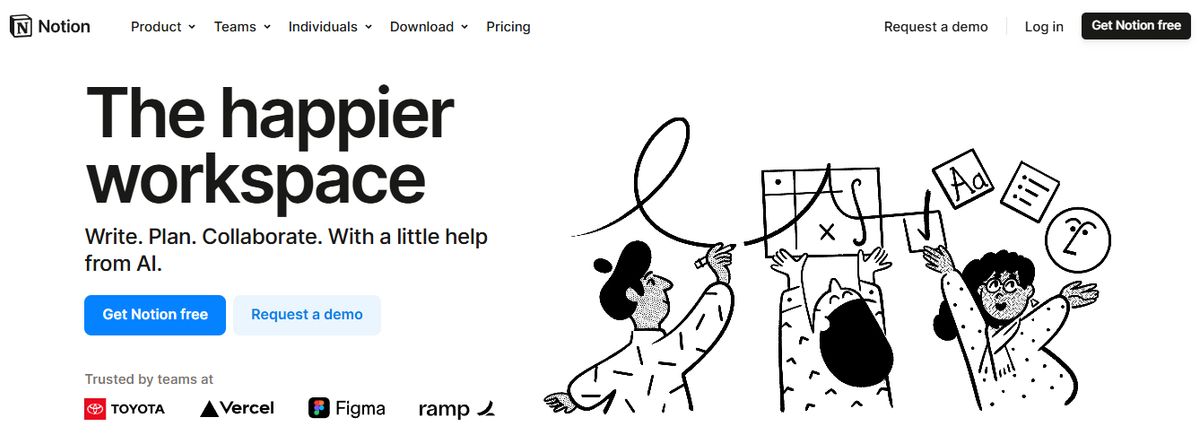
Notion offers a flexible workspace for note-taking, task management, and database creation, making it ideal for various projects. Known for its versatility, Notion allows users to customize their workspaces to fit their needs, whether for personal use, small teams, or larger organizations.
Key Features
- Customizable Templates: Use and create templates for different workflows, helping to standardize processes and save time.
- Integration with Various Tools: Connect with apps like Slack, Google Drive, and more, ensuring a smooth workflow across different platforms.
- Collaboration Features: Work with your team on shared documents and projects, enhancing teamwork and communication.
Pros
- Highly Customizable: Users can tailor Notion to meet their needs, from simple to complex workflows.
- Versatile: Suitable for various applications, from project management to note-taking and database creation.
- Great for Creative Projects: Offers flexibility and tools particularly useful for creative professionals.
Cons
- Steeper Learning Curve: New users might find Notion overwhelming due to its extensive features.
- Can Be Overwhelming for New Users: The vast array of features may take time to master.
6. OneNote
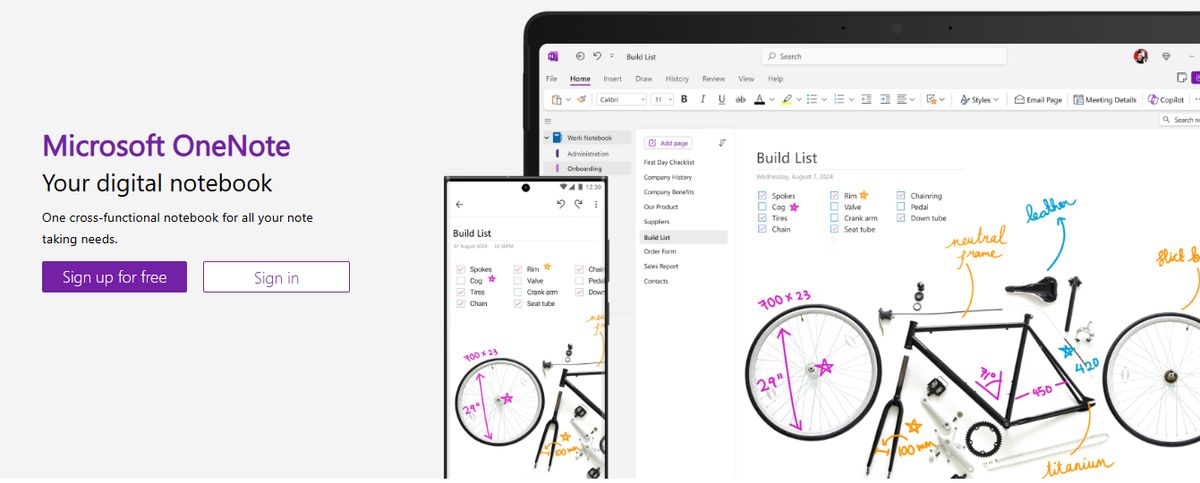
The Microsoft OneNote app is another powerful note-taker. Like Box Notes, Quip, and Zoho Notebook, it has basic collaboration feature options to work on notes together.
Microsoft OneNote features
- Customizable themes on the desktop application
- Supports text notes, voice memos, audio notes, and to-do lists
- This note-taker can encrypt notes before you share them
- Can organize notes via folders
- Offers digital sticky notes
Pros
- Supports handwritten notes
- You can easily share your notes and folders via email or URLs
- Tons of simple, handy shortcuts
- Access to sticky note feature
Cons
- The mobile app interface isn’t as intuitive as the web app
- The app can’t alphabetically sort note pages
7. Document360
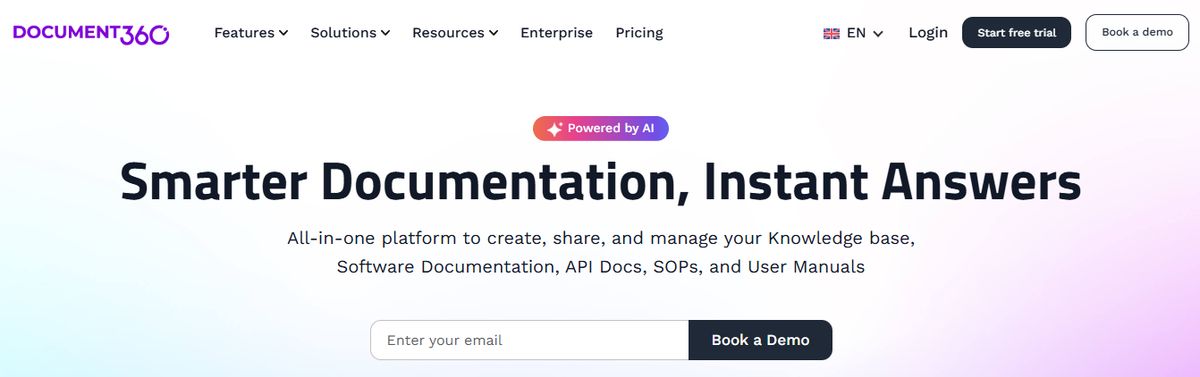
Another all-in-one workspace software for building customizable knowledge bases is Document360. This software helps you personalize your knowledge base with branded colors. It helps create dynamic, searchable, multilingual user manuals, SOPs, how-to guides, and other documents. Ideal for professionals seeking to streamline documentation processes, Document360 offers a user-friendly interface that caters to technical and non-technical users. Plus, it offers AI functionalities to simplify tackling all documentation needs.
Document360 best features
- Improve the context and relevance of documentation with real-time AI feedback
- Get insights into user behavior and content effectiveness to optimize knowledge management strategies
- Connect with popular tools like Slack, Microsoft Teams, Zendesk, and Intercom to build a cohesive workflow across platforms
Document360 limitations
- A few features are only available through costly add-ons
- New users might require time to leverage the platform’s extensive capabilities fully
Pros
- Great Editor
- Reliable Version Control
- Smart File Management
- Powerful Reports and Analytics
Cons
- Some features only available through costly add-ons
8. Dropbox Paper
Dropbox Paper is a note-taking tool that promises simple note-making coupled with an intuitive, user-friendly desktop interface.
Dropbox Paper features
- Simple user interface on the desktop app
- Organize your notes into folders
- Search for text and images with ease
- Get email reminders about your notes
Pros
- The notes app can embed code directly into notes
- The web app can handle simple task management
- Desktop and mobile apps are completely free
- Multiple device cross-platform syncs
Cons
- Lacks support for various font options
- Can’t italicize or underscore text
9. Logseq
Logseq is an open-source note-taking and knowledge management app that uses a graph database to help users organize and connect their notes. Users create and link notes using markdown and visualize their connections using graph view. Logseq also offers features like backlinks, search functionality, and synchronization across devices for easy access to information.
Pros
- Visualize notes with whiteboard
- Custom themes developed by a community
- Privacy focused note-taking
- Great for building backlinks between notes
Cons
- Can be difficult to learn and embrace
- Not best for basic note-takers
10. nTask
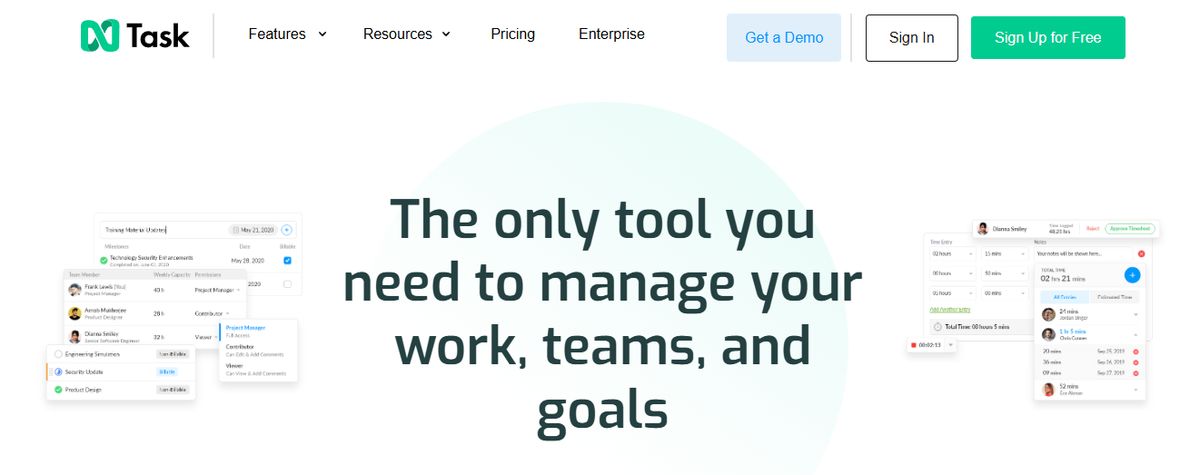
This Evernote alternative has capabilities for note taking, task management, project management based on notes and brainstorming sessions, meeting integrations module, etc.
nTask features
- Note-taking with support for text notes, to-do lists, Kanban boards, etc.
- Notes can be converted to activities with dedicated assignees
- Interactive Gantt Charts
- Meeting module
Pros
- Affordable pricing plans
- Easily export data in multiple file formats
- Intuitive user interface with a minimal learning curve
- Interactive Gantt charts, checklists, risk management module, and much more
Cons
- Cannot alphabetically sort tasks and notes
11. Apple Notes
Apple Notes is available on all Mac and iOS Apple devices. In recent years, Apple Notes received a considerable upgrade, making notes more accessible across all devices within the Apple ecosystem. Apple Notes is the most secure for note-takers on the go with FaceID, TouchID, or password.
Pros
- An Apple Pencil with a compatible iPad can create an instant note from the Lock Screen
- Gallery view allows users to find the note they’re looking for easily
- Automatic iCloud sync across all Apple devices
Cons
- Limited formatting options
- Not a full-fledged note editor
- Low storage space (additional space available at an extra cost)
12. ProofHub
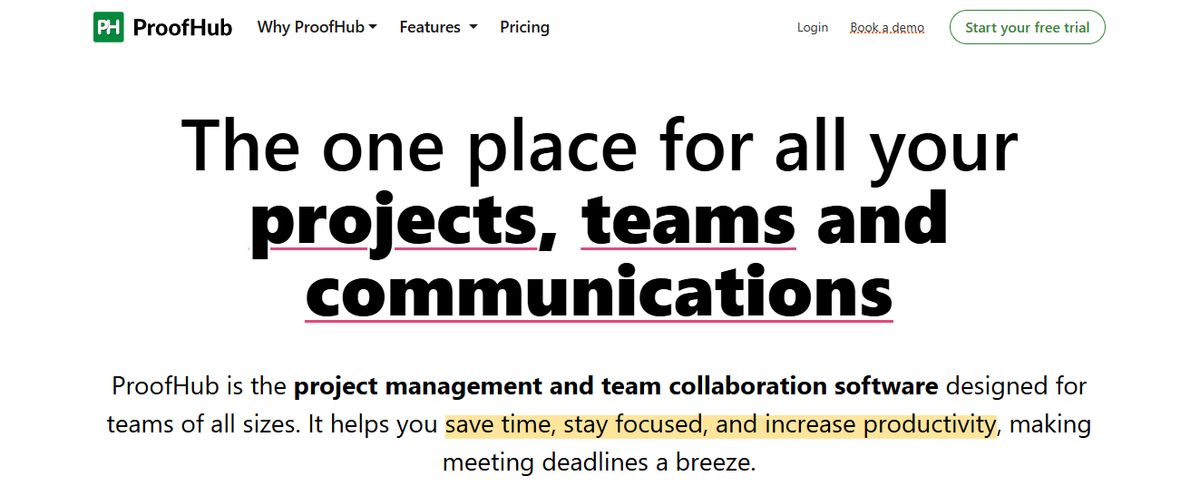
As a great Evernote alternative, ProofHub offers advanced project management and team collaboration features in addition to its intuitive and useful note-taking app. With an easy-to-interface, this feature-rich software helps teams stay in ultimate control of their tasks, projects, and communications.
ProofHub key features
- Intuitive note-taking app
- Create tasks with deadlines
- Custom workflows and kanban boards
- Online proofing tool
- Built-in chat app
Pros
- All-in-one tool
- Flexible task management
- Easy file sharing
- Powerful collaboration features
- Simple, no per-user pricing
Cons
- Limited number of app integrations
- No free plan
- No Linux support
13. Milanote
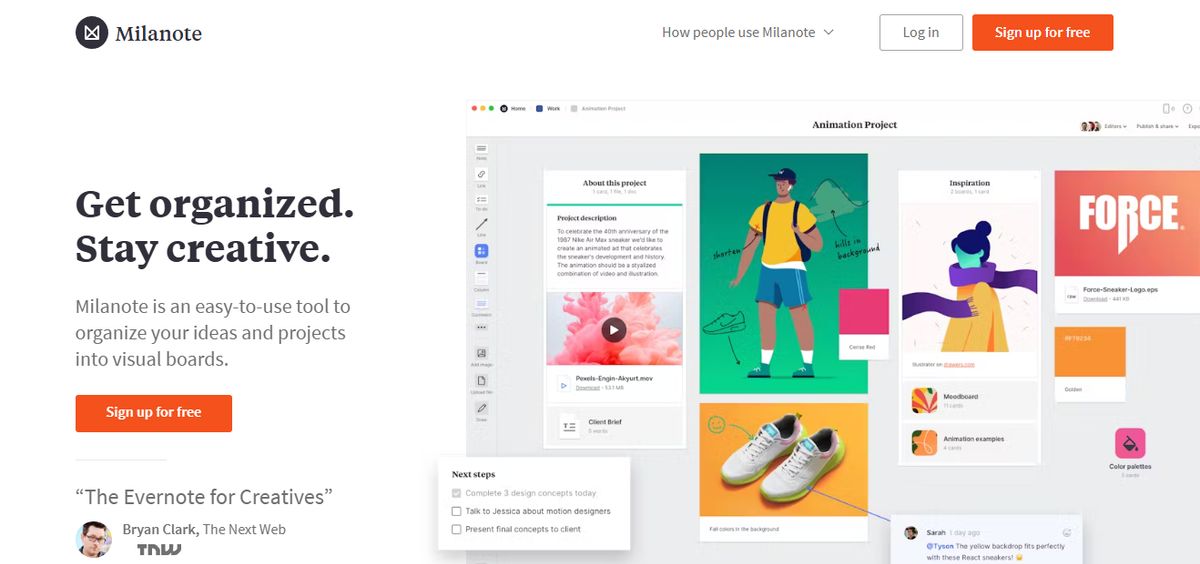
Milanote is a web-based app for visual collaborators such as product designers and photographers. It’s a flexible visual workspace for creating mood boards, capturing notes, and getting feedback on design concepts. The downside is that Milanote might be a complicated program to adjust if you’re uncomfortable with a scrapbook-style layout. You can easily misspend hours organizing notes and figuring out a system not meant for how you think and capture notes.
Pros
- Notes encrypted both at rest and in transit
- Videos, animated GIFs, fonts, and more are accepted
- Built-in templates available
Cons
- Not suitable for text-based or hierarchical outline users
- Limited integrations The learning curve is steep.
14. zoho Notebook
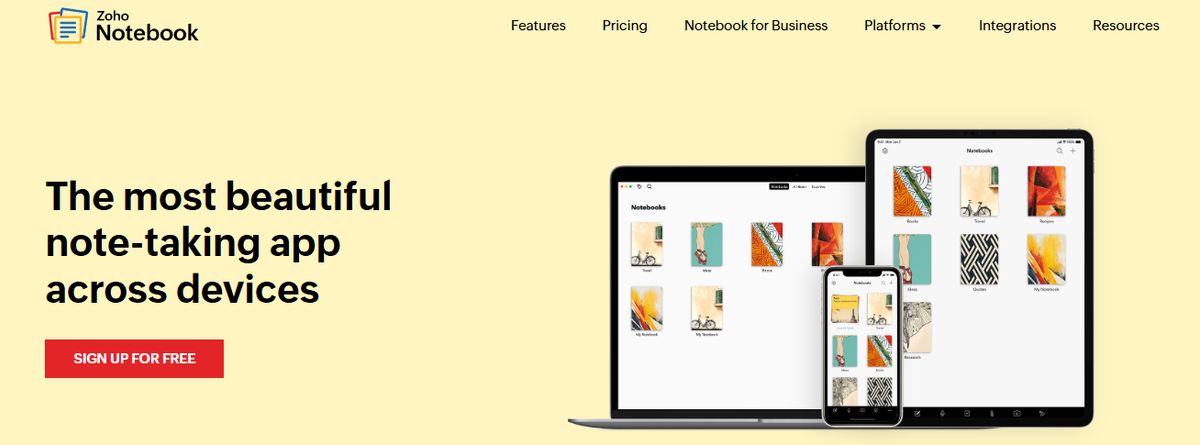
Zoho Notebook is very similar to Evernote. It lets you save notes across every device you use. This app makes it easy to share notes securely with your team. It makes work more streamlined if you already use other Zoho apps like Zoho Projects, Flow, Connect, etc.
Zoho Notebook key features
- Web clipper to save text, images, and articles
- Protect notes with touch ID
- Customize different notebooks with unique covers
- Assign card colors to organize
Pros
- Cloud sync across all devices
- Shareable notes
- Free for all
- Available for Windows, Mac, and Linux users
Cons
- Few direct integrations
- Limited view options
- No task management features like task creation, assigning, etc.
15. Notability
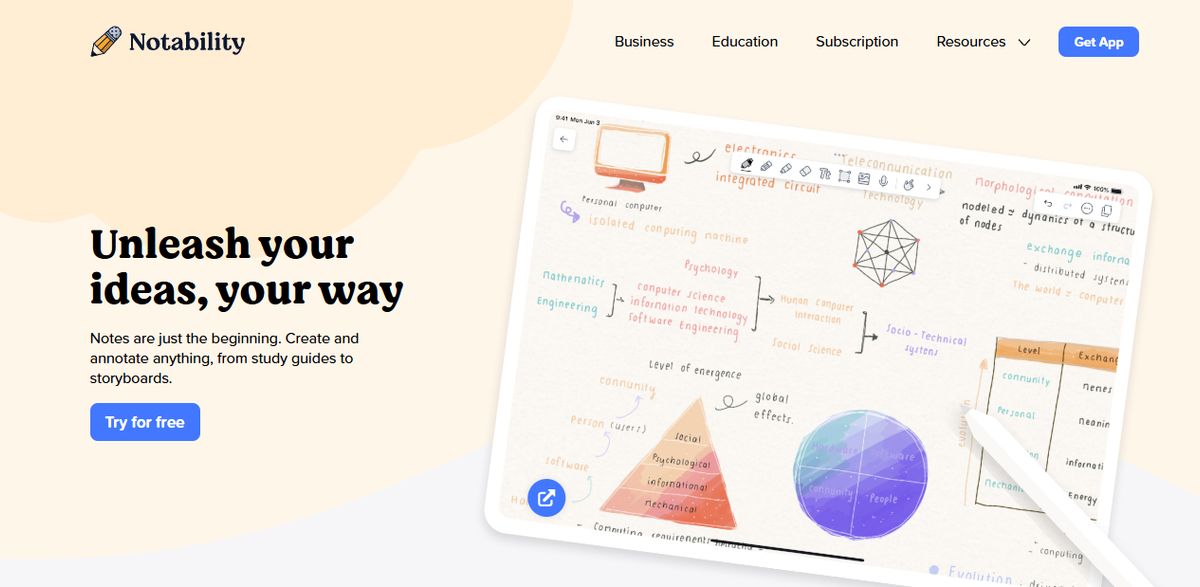
Notability is one of the popular subscription-based note-taking apps for tablet users. Combined with a stylus, this is an excellent option for paperless students taking lecture notes in the classroom. Notability’s clean UI, basic features, and built-in toolset make opening a quick note and drawing in seconds easy. What will make the switch from OneNote to Notability worth the cost, and for what reasons? If you prefer writing with a stylus 75% of the time.
Pros
- Budget-friendly option for stylus users
- Community-made notes available for download
- Mix between text and imagery
Cons
- Not a suitable project management tool
- Auto-backup is a paid feature
- Expensive subscription plan
16. Todoist
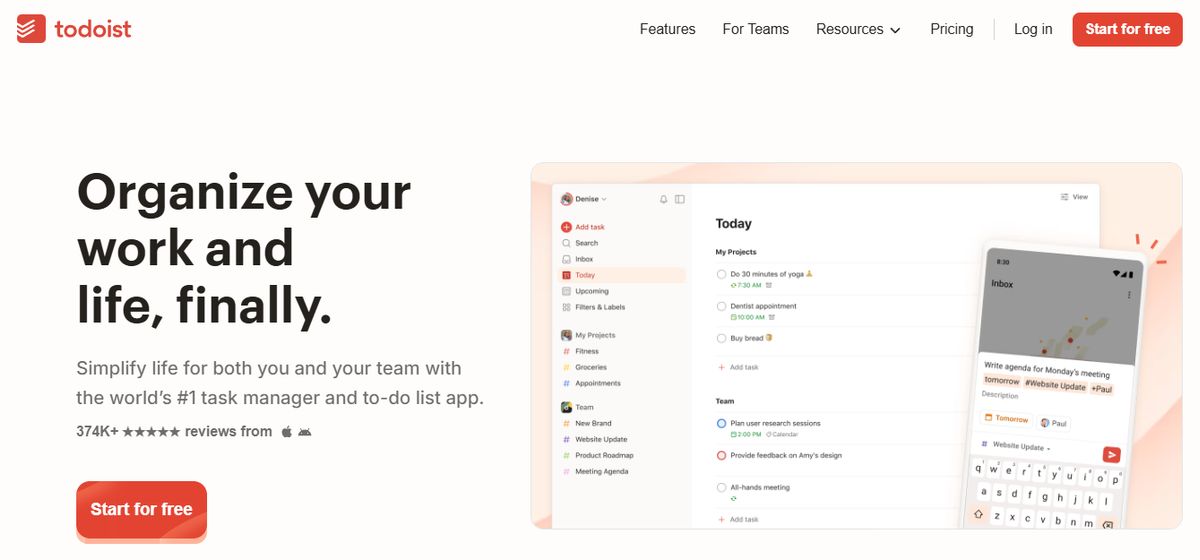
Todoist is an Evernote alternative available on Windows, Mac, and Linux. Use it to organize, prioritize, and manage projects while noting important information you need to remember. The app also comes with templates to help you get started in minutes.
Todoist key features
- Recurring due dates to remember deadlines
- Priorities for managing urgent tasks
- Templates for education, design, management, etc.
- Visualize daily or weekly productivity
Pros
- Lets you assign tasks
- Customize your workflow with labels, themes, etc.
- Add voice notes for more context in the comments
- Allows you to choose your favorite key tasks, labels, etc.
Cons
- No task statuses
- Doesn’t offer custom fields
17. Good Notes
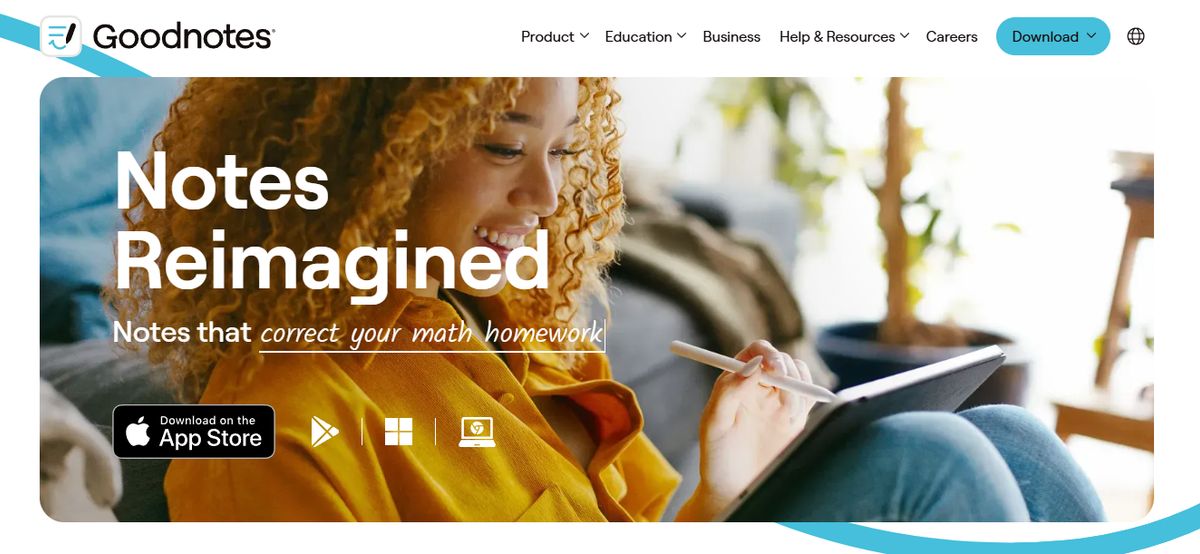
GoodNotes is a smart digital paper and social app for students who want to create shared notes with others worldwide studying the same subjects. This feature (at no extra cost) called Community allows users to create their profile so others can view their documents. While the Community feature is an incredible tool for people to connect, the note-taking features are limited or non-existent compared to Notability.
Pros
- Built-in flashcards study mode
- Shared Documents feature gives you a shareable link to collaborate
- No extra cost for the Mac app
Cons
- Not suitable for high-stakes project planning
- Limited plans available
- No task management features
18. Hive
Hive is a project management tool with a dedicated feature for meeting notes. 🗒. It’s a great alternative to Evernote that you can use to take down every meeting note, assign tasks, and collaborate with your team.
Hive key features
- Shareable notes for external participants
- Supports real-time collaboration
- Link notes to projects in the Hive workspace
Pros
- Offers templates for product roadmaps, onboarding, etc.
- Lets you create recurring meeting notes
- Convert meeting notes into action items
- Offers an Android and iOS app
Cons
- You need add-ons for timesheets, analytics, and resourcing feature
- No idea management feature like mind maps or a whiteboard
- No embed view to access apps from Hive
19. Notejoy

Notejoy is for teams who favor easy, real-time collaboration. Users can quickly integrate features such as note reactions and library overviews into conversations. It can also smoothly import existing notes from OneNote! If you’re looking for a digital note-taking app for personal use, other OneNote alternatives will support your writing goals.
Pros
- Available on multiple platforms, including web, desktop, and mobile
- Web Clipper is a browser extension
- Rich syntax highlighting across a wide variety of languages
Cons
- Not a suitable project management tool
- Text editing options are limited compared to other software on this list
- No drawing tools
20. SimpleNote
Simplenote, as its name suggests, is a simple note-taking app that provides a distraction-free environment in which to brain dump and organize thoughts. Equipped with markdown support, users can write, preview, and publish any note. Unlike OneNote, SimpleNote lacks collaboration and sharing features that move thoughts into action. As a result, teams can easily overwhelm themselves (and each other) with a running list of notes.
Pros
- Available in iOS, Android, Mac, Windows, Linux, or in your browser
- Insert links from one note into another note to cross-reference information
- Write, preview, and publish notes in Markdown format
Cons
- Lacks task management
- Notes are not encrypted
- Not optimized for organizations with sensitive data
21. Workflowy
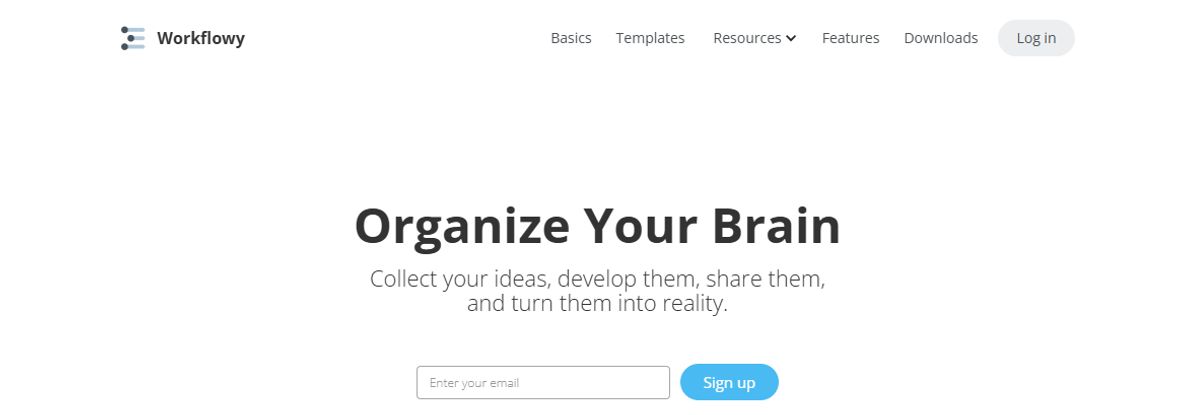
Workflowy is a hierarchical note-taking app built to capture, organize, analyze, and share content. Notes are organized into nesting structures that can also convert to Kanban boards. This allows users to view their work at a high level or zoom into specific details. Don’t have enough time to look at a shared note from a colleague? Easily save the note to view later.
Pros
- Mobile app for iOS and Android
- Keyboard shortcuts allow organized content to expand or collapse smoothly
- Backlinks to anything
Cons
- Monthly bullet point limit in the free plan
- Not suitable for free-form writing
- Limited formatting features
22. Typora
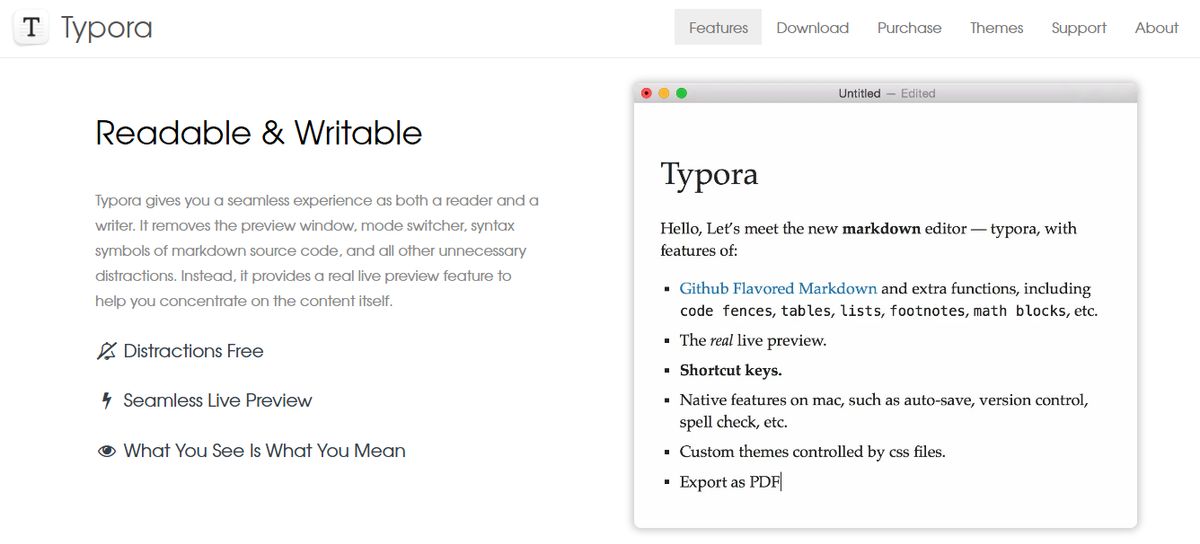
Typora is a smooth markdown editor (text-to-HTML conversion tool) geared towards content creators and engineers who prefer seeing a live preview of the final document to help concentrate on the content. Not only is it a markdown editor—its powerful outline organization system allows you to quickly go through the document and jump to any section with one click. The jump from Microsoft OneNote to Typora could shock some users if they’re unfamiliar with markdown editors. It’ll feel like you’re spending too much time figuring out the app instead of doing actual work.
Pros
- Formats such as OpenOffice, LaTeX, MediaWiki, Epub, and more can be imported or exported
- Custom paper themes
- Focus & Typewriter mode
Cons
- No free plan is available
- Not suitable for collaboration with others
Pros and Cons of Evernote

The Good Stuff: The Pros of Evernote
User-Friendly Design
Evernote offers a simple, intuitive interface that makes organization easy. The clean design makes it easy to create new notes and find what you need. If you want to go beyond essential note-taking, Evernote has a helpful tutorial to help you get started.
Free Version Available
Evernote offers a free plan for individual users that never expires. The free version lets you take notes, organize them, and access them from two devices. You can also search within notes, sync your data, and use Evernote's mobile document scanner.
Easy to Learn
There is a short learning curve when it comes to using Evernote. Users can get the hang of the basics in just a few minutes. After that, it’s easy to explore and discover how to use the more advanced features that can help you stay organized and boost productivity.
Strong Search Features
The search functionality in Evernote is impressive. It can help you find notes quickly, even if you have thousands of them. The search feature can find keywords within documents and images, making it easy to locate precisely what you need, even if you can’t remember which note it’s in.
Mobile Document Scanner
Evernote includes a mobile document scanning feature that’s available on all of its plans. The scanner can digitize handwritten notes, receipts, business cards, and printed documents. Once scanned, you can search for keywords within the documents and organize them into your Evernote folders.
Customizable Home Dashboard
Evernote’s home dashboard allows you to organize your notes and tasks in a way that works for you. You can add, remove, and rearrange customizable widgets to create a layout that suits your preferences. Evernote’s dashboard also features a helpful overview of your tasks and notes.
Calendar Integration and Task Management
Evernote includes a built-in task manager to help you keep track of your to-do lists. You can create tasks within notes and organize your notes by the tasks they relate to. Evernote also lets you create task lists and set reminders for your tasks. In addition, you can integrate Evernote with Google Calendar to help you stay organized.
The Not-So-Good Stuff: The Cons of Evernote
Pricey Paid Plans
Evernote’s free plan is minimal, and many features are confined to higher-tier paid plans. The next step up from the free plan is the Evernote Personal plan, which costs $8 per month when billed annually. The Evernote Professional plan costs $15 per month when billed annually. Compared to other note-taking apps, Evernote’s paid plans are expensive.
Limited Syncing on Free Plan
With Evernote’s free plan, you can only sync your notes across two devices. You must upgrade to a paid plan if you want to use Evernote on more than two devices.
Syncing Issues
Some users report syncing issues with Evernote. Notes may take a while or won’t sync properly across devices, which can be frustrating.
Related Reading
- Slite Alternatives
- Roam Research Alternatives
- Joplin Alternatives
- Notion Knowledge Management
- Coda Alternatives
- SiYuan Alternatives
- Logseq Alternatives
Research 10 Times Faster with Constella
If you are looking for an alternative to Evernote for research, Constella is an excellent choice. Constella has an infinite canvas that lets you capture and connect research notes and files effortlessly. The more you learn about Constella, the more it resembles an AI-powered digital research assistant. This tool helps you build and navigate a personal knowledge base without the constraints of traditional folder structures.
Constella transforms how you capture, find, and connect your ideas, perfect for busy knowledge workers and researchers limited by conventional note-taking tools. Research 10 times faster with Constella's AI notes manager.
Related Reading
Want more insights like this?
Subscribe to get short productivity tips and useful summaries of new tools every week.
Want more insights like this?
Subscribe to get short productivity tips and useful summaries of new tools every week.