
When you're knee-deep in debugging, the last thing you want is to waste time picking the right coding assistant. Windsurf and Cursor are both popular AI tools that integrate with your code editor and can help you write code faster. But what's the real difference between them? In this article, we'll unpack Windsurf vs Cursor so you can make an informed decision and get back to coding in no time.
Horizon.ai's new AI desktop assistant is a great place to start. This tool will help you make your decision by providing a clear overview of the differences between Windsurf and Cursor as you use it.
A Quick Overview: What Are Windsurf and Cursor?
What Is Windsurf?
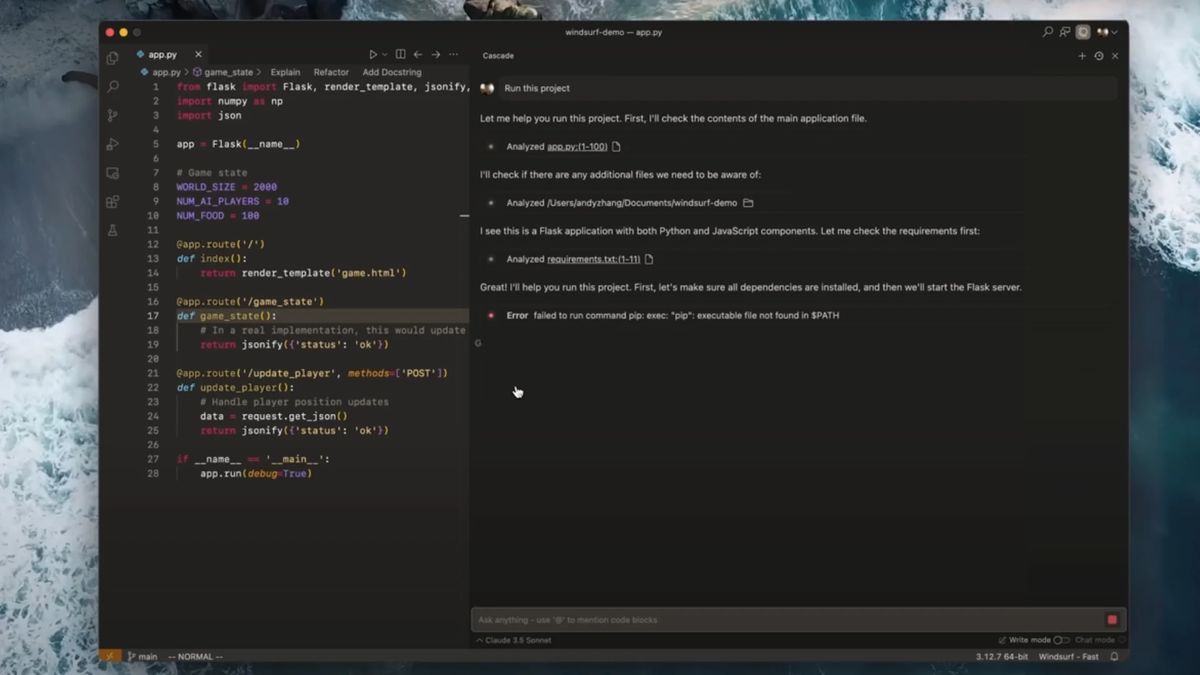
Windsurf is an AI coding assistant that helps developers navigate large and complex codebases.
It started gaining attention in late 2023, especially among engineers dealing with:
- Deeply nested code
- Circular dependencies
- Overlapping module ownership
Backed by OpenAI, Windsurf uses advanced language models combined with code analysis to provide meaningful insights across entire projects.
For example, it can help developers understand how modules connect, data flows, and where changes might ripple. Windsurf is particularly useful for teams working on large projects, as it integrates with existing workflows and automates many tedious tasks.
Key Features of Windsurf
Windsurf offers several features to help developers work smarter. It has intelligent, context-aware code search that spans multiple files and repositories and can generate code that respects architectural boundaries.
The tool analyzes code in real time and provides suggestions on:
- Refactoring
- Test generation
- Documentation
It also integrates smoothly with popular IDEs like VS Code, JetBrains, and cloud platforms, and provides workflow automation capabilities, including pull request assistance and issue linking.
Strengths and Weaknesses of Windsurf
Windsurf shines when it comes to understanding large, complex codebases. It has deep integrations with team workflows and continuous integration/continuous deployment pipelines.
The tool supports multi-repository, multi-language environments.
It can:
- Automate boilerplate test creation
- Generate docstrings based on function signatures and usage patterns
- Update README sections during pull request creation
Limitations of Windsurf for Agile and Solo Development
On the downside, Windsurf has a higher setup and learning curve compared to simpler editors. Developers may experience latency when working with very large projects or poor network conditions. Windsurf is also less suited for rapid prototyping or solo developers needing quick feedback loops.
Pricing Overview for Windsurf
Windsurf’s pricing is structured around team size and feature tiers. The Pro plan is available at $15 per month. The Team plan comes at $30 per month and includes dedicated support, custom integrations, and compliance features such as SOC2 and GDPR readiness.
What Is Cursor?
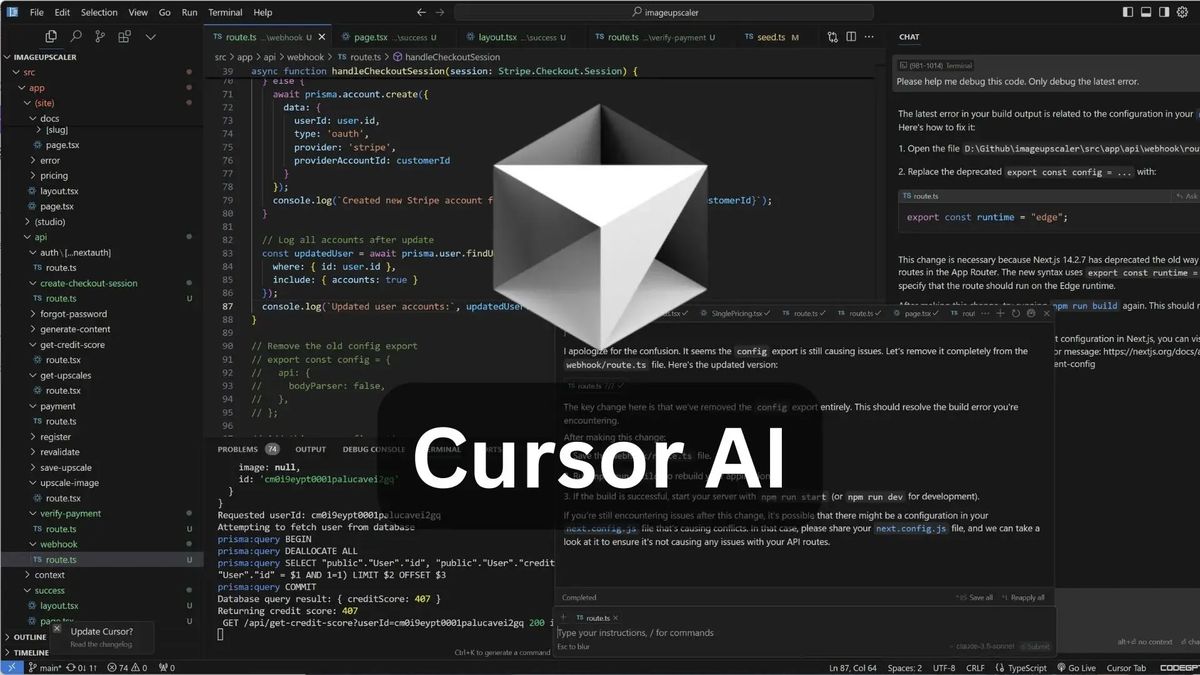
Cursor is an AI coding assistant designed to speed up software development, especially in the context of projects with multiple files. It is a fork of the popular code editor Visual Studio Code that brings advanced language model capabilities directly into the existing editor workflow.
Cursor's target users are solo developers and small teams looking for a tool to enhance their existing IDE experience.
Key Features of Cursor
Cursor's features help developers quickly navigate and write code within their existing IDE. The tool provides inline code generation and completions with full LLM context. It offers AI-powered refactoring and function decomposition suggestions, as well as natural language search across your repo.
Cursor enables multi-file edits with persistent context, so developers can make changes across files without losing track of their logic. The tool even comes with built-in GitHub Copilot support to enhance its code completion capabilities.
Strengths and Weaknesses of Cursor
Cursor is fast and familiar for anyone coming from VS Code. Its autocomplete and inline suggestions feel natural, even in large files. The tool excels at quick iterations and prototyping and is better suited for developers who prefer single-IDE workflows with minimal context switching.
Cursor’s Limitations in Complex and Collaborative Environments
On the downside, while multi-file edits are possible, logic breaks down in more abstract codebases. Cursor lacks a real agent concept, so everything is single-step unless prompted repeatedly.
The tool also lacks native collaboration or real-time team support. Code review capabilities are shallow compared to tools that focus on repo-wide understanding.
Pricing Overview for Cursor
Cursor offers a generous free tier with access to core features. Paid plans like the Pro Plan come at $20 monthly and unlock larger context windows, higher request limits, and better model access.
Enterprise plans are available at $40 per user per month, but are mostly relevant for teams needing custom policy or security layers.
Related Reading
- Best AI Personal Assistant
- Best AI Coding Assistants
- Best AI Scheduling Assistant
- Best AI Voice Assistant
- Best AI Tools for Product Managers
- Best AI Tools for College Students
- Best AI Recruiting Tools
- AI Tools for Literature Review
- Best AI for Essay Writing
Feature-by-Feature Windsurf vs Cursor Comparison

AI Agent Capabilities: Cursor’s Agent Mode vs Windsurf’s Cascade
Agentic code execution means having an AI agent that can autonomously perform multiple coding tasks in sequence , like:
- Reading files
- Writing code
- Running commands
- Making decisions about next steps
Rather than just answering questions or generating single code snippets, these agents can complete entire workflows from start to finish.
Prompt, Preview, Apply: Code Modification Workflows Compared
Both Cursor and Windsurf offer this capability, but with different approaches and trade-offs.
Cursor’s Agent Mode and Windsurf’s Cascade actually work quite similarly in their basic flow:
- You give a prompt
- Watch the agent make edits live in your codebase
- Choose to accept or reject the changes through different previews
Both tools show you exactly what code is being modified before applying changes.
When AI Stalls: Managing Terminal Execution in Cursor and Windsurf
The main difference lies in their toolkit capabilities:
- Cursor offers broader tool access: Grep searches, fuzzy file matching, and advanced codebase operations.
- Windsurf provides standard tools: File editing, web search, and terminal commands.
Both support web search.
- Cursor’s implementation feels more integrated into the coding workflow.
- Terminal command execution is a shared weakness that can disrupt your coding flow.
Both tools sometimes get stuck waiting to determine if a command has finished executing. This matters because it breaks the autonomous experience ; you’re suddenly back to manually managing the AI instead of letting it work independently.
With Cursor, you can click “skip the terminal command” once you know the task is complete. Windsurf handles this less gracefully. When Cascade gets stuck on a terminal operation, I often have to interrupt the flow by typing “continue” to get it moving again.
Navigating Model Availability: Gemini Defaults vs. Claude Access Limits
Model access shows how each platform approaches AI capabilities differently.
- Cursor provides access to all frontier models through a credits system, and when you run out of credits, you can continue using them at API pricing plus a 20% markup.
- Windsurf takes a different approach ; they are currently promoting Gemini 2.5 heavily as the default for new users, but accessing frontier models like Claude 3.5 or 4.x requires BYOK (bring your API key) due to straining relationships with Anthropic.
From Passive Tool to Active Partner: Cascade’s Real-Time Context Handling
One thing I particularly appreciate about Windsurf’s Cascade is its live context understanding. If I’m manually editing code in an open file and then stop to ask Cascade to “continue,” it immediately understands where I left off and picks up the work from that exact point.
This creates a more fluid collaborative experience where the AI feels like it’s truly working alongside you rather than operating in discrete, separate tasks.
Context Understanding & Codebase Intelligence
Context in AI-powered IDEs refers to all the information the AI can see and process when generating code, including your current files, project structure, chat history, and previous edits. Think of it as the AI’s “working memory” that helps it understand your project and provide relevant suggestions. The context size is measured in tokens (roughly 750 words per 1,000 tokens).
Cursor
Cursor takes a developer-driven approach to context management. You manually curate what the AI sees using @ symbols to reference specific:
- Files
- Folders
- Code snippets
Cursor also automatically pulls in your current file and semantically similar patterns from your codebase, but you maintain granular control over what gets included.
Windsurf
Windsurf uses an AI-driven context system that automatically indexes your entire codebase through retrieval-augmented generation (RAG). Windsurf’s context engine builds a deep understanding of your project structure, past actions, and next intent without requiring manual file selection.
Managing Scope: How Cursor and Windsurf Handle Project-Wide Context
The practical implications become clear when working on different project sizes: Cursor’s @Codebase feature searches your entire project, but requires you to specify what to include. Windsurf’s automatic indexing handles project-wide context but may occasionally include irrelevant files.
Token Ceiling vs. Usable Context: The Hidden Constraints
Manual vs. automatic trade-offs: Cursor offers precision through manual curation, while Windsurf provides convenience through automation. Both tools remain frustratingly opaque about their actual context limits.
The theoretical context size depends entirely on the underlying model ; Claude 4 supports up to 200,000 tokens, while Gemini models can handle up to 1 million tokens. Neither IDE gives you access to the full model context, even when using these large-context models.
Real-World Context Handling Compared
According to various sources, Cursor’s practical context ranges between 10,000 and 50,000 tokens due to manual file selection limitations. Windsurf offers around 200,000 tokens through its RAG-based approach that automatically selects relevant code snippets. This gives Windsurf a notable advantage for understanding larger codebases without manual curation.
Context becomes a real bottleneck for serious development work because it includes everything: Current chat history, input/output tokens, and the full changelog of files edited during your session. When you hit the context limit mid-debugging or during complex feature implementation, you must start fresh and lose conversational continuity.
Cursor’s Summaries vs. Windsurf’s Memories: A Shallow vs. Sticky Approach
Cursor attempts to solve this with conversation history summaries, but summarizing 100,000+ tokens into a few paragraphs doesn’t preserve enough detail to continue meaningfully. Windsurf offers “Memories” that automatically save project facts to persistent workspace storage, which helps for smaller projects but doesn’t solve large-scale limitations.
Unlocking Cursor's Max Mode: High Context, Higher Cost
For complex projects requiring maximum context, Cursor offers Max Mode with up to 1 million tokens for compatible models. The catch is API pricing plus a 20% markup outside your subscription.
This makes it expensive for extended use but valuable for complex debugging sessions or large refactoring tasks. For example, I regularly pay a surplus for Cursor because I use MAX MODE for writing tasks a lot.
User Experience & Learning Curve
If you're a VS Code veteran, transitioning to Cursor or Windsurf is almost frictionless. Both IDEs build on the familiar VS Code foundation, so the core experience feels instantly recognisable. The onboarding process is nearly identical across both platforms.
On first launch, you’re offered three straightforward setup options:
- Import settings from VS Code
- Import settings from the competing IDE (a subtle nod to their rivalry)
- Start fresh
From Installation to Integration: What You’ll Need to Learn
Settings migration is generally smooth, though I did encounter keybinding issues when moving from Cursor to Windsurf.
Once you're up and running, the learning curve focuses on a few essential workflows:
- Opening Agent Mode (Cursor) or Cascade (Windsurf) for task automation
- Performing inline code edits
- Accepting or rejecting suggestions through diff previews
- Managing context and file selection
- Configuring rules or persistent memories
- Selecting appropriate AI models
Expect to spend about 30 minutes on documentation and another 30 minutes hands-on to get comfortable.
Getting Started as a New Developer: Environment and UX
For users new to VS Code, allow an additional two hours for environment setup. Python developers can reference our VS Code Python setup guide for step-by-step help.
Cursor offers a cleaner interface, with advanced configuration tucked away in dedicated settings pages. Windsurf exposes more controls directly in the main interface, which may be helpful for power users, but can be overwhelming for beginners.
When to Skip IDEs Entirely: No-Code Expectations vs. Reality
If you’re new to AI-assisted coding but have basic VS Code experience, Cursor may offer a gentler learning curve. For seasoned developers, the UI differences are minimal and mostly a matter of preference.
If you're looking for a fully autonomous, no-code experience, something closer to a "vibe-based" app builder, neither IDE will meet that expectation. In that case, you're better off exploring dedicated coding agents like Claude Code, which aim to eliminate direct code interaction.
Code Completion & Writing Assistance
Both Cursor and Windsurf go far beyond traditional autocompletion. Their AI-powered Tab systems predict multi-line code completions, correct errors in real-time, and suggest logical next steps, streamlining everything from boilerplate scaffolding to bug fixes.
Autocomplete Engines
Cursor uses a custom model optimised for code editing. Its Tab system doesn’t just suggest code insertions, it proposes full diffs, modifying existing logic around the cursor. Suggestions are shaped by recent file changes, linter feedback, and context from your current session.
Windsurf, by contrast, runs on SWE-1-mini, a lightweight in-house model tuned for speed. Its Tab system draws on a broader input stream, enabling suggestions that are more workflow-aware, including:
- Terminal history
- Clipboard content (with opt-in)
- Cascade chat messages
- Editor activity
Both support “tab-tab-tab” editing, letting you chain multiple completions to build out code rapidly. Cursor calls this Cursor Prediction, which also anticipates your following cursor location. Windsurf offers similar navigation via Tab to Jump.
Inline Editing and Commands
Inline editing is where the Cursor pulls ahead. Both IDEs offer a Cmd+K (or Ctrl+K) shortcut for inline edits, but Cursor’s implementation is more versatile. Cursor’s Cmd+K interface includes:
- Inline generation with no selection
- Inline editing for selected code
- Full-file generation via Cmd+Shift+Enter
- Quick Q&A via Option/Alt+Enter
Cursor also supports terminal command generation using the same Cmd+K interface. You describe what you want done; it generates the appropriate command. This unifies code and shell workflows into a single editing loop.
Windsurf supports inline edits through its Command feature, but for terminal-related prompts, you must switch contexts into Cascade chat. It’s functional, but less fluid.
Auto-Import & Prompt Sensitivity
Both IDEs offer automatic import handling:
- Cursor does this via its Tab suggestions.
- Windsurf uses Tab to Import, which adds missing imports without moving your cursor.
Quality of output in both systems still hinges on strong prompt engineering. One standard failure mode: overbuilding. Ask for a simple bug fix, and the IDE might hallucinate new features or entire files.
A useful prompt to avoid this:
“Solve this [bug/feature] in as few lines as possible, following the codebase’s architecture.”
Code–Terminal Integration vs Workflow Responsiveness
- Cursor provides a more comprehensive and unified experience, especially when switching between code and terminal workflows.
- Windsurf delivers faster completions and deeper workflow awareness, but requires more context switching outside the editor.
Integration & Ecosystem
Both IDEs offer similar integration capabilities that extend their core functionality. You’ll find shared support for documentation lookup, web search, and contextual augmentation across both platforms.
Standard integration features include:
- Model Context Protocol (MCP): Both IDEs can connect to MCP servers to interface with external tools and services.
- Web search: Search the internet or access documentation automatically or on demand.
- Documentation access: Use @docs to reference APIs or external documentation directly.
- Image understanding: Upload screenshots, wireframes, or design files to add visual context.
- URL context: Paste a link to extract and use the content as context automatically.
Windsurf: One-Click Deployment and Preview Feedback Loops
Windsurf introduces an accessible deployment feature, App Deploys, designed for beginners and “vibe coders.” With a prompt like “Deploy this project to Netlify,” Windsurf handles the whole deployment process:
- Detects your project’s framework
- Builds and deploys the application
- Generates a public URL at .windsurf.build
- Offers a claim link to transfer ownership
Tightening the Loop: Previews and Promptable Deployment
This dramatically simplifies a task that typically frustrates new developers: configuring deployment pipelines. Instead of wrestling with build tools and platform-specific settings, your project can be live on the internet within minutes.
Windsurf also includes Previews, which let you view your running app inside the IDE or browser. You can click specific elements or errors and send them directly back to Cascade as context, tightening the feedback loop between coding and debugging.
Cursor: Context Control and Runtime Bug Detection
Cursor’s edge lies in its granular context system and new automated debugging tools. The @ symbol lets you control exactly what context is included during AI interactions, down to:
- Files
- Diffs
- Documentation
Cursor’s BugBot takes this further by detecting runtime errors and proactively suggesting fixes. This creates a lightweight but effective debugging workflow directly inside the editor.
Web Search: Parity Across Platforms
Web search works similarly in both IDEs. Windsurf uses @web for general queries and @docs for targeted documentation lookups. Cursor offers comparable functionality via @Web through its context system. Both IDEs can detect when a prompt requires web access and perform searches automatically, without requiring an explicit keyword.
Ease of Integration vs. Deployment Accessibility
For experienced developers, integration features are broadly similar; both connect to the same external services and support sophisticated workflows.
But for newer users or personal project developers, Windsurf’s one-prompt deployment and clickable preview-to-chat feedback can significantly reduce friction in getting work online and iterating on it.
Pricing & Value Proposition
Budget considerations matter when choosing an AI-powered IDE, especially as usage scales across teams. Both platforms offer free tiers with different approaches to paid upgrades.
These prices were correct at the publication date of this article:
Cursor Plans
Free
- Price: $0
- Includes:
- 200 completions
- 50 requests per month
- 2-week Pro trial
Pro
- Price: $20/month
- Includes:
- Unlimited completions
- 500 requests
- Access to Max Mode
Teams / Business
- Price: $40/user/month
- Includes:
- Privacy controls
- Single Sign-On (SSO)
- Centralized billing
Enterprise
- Price: Custom pricing
- Includes:
- Advanced security features
- Custom contracts
Windsurf Plans

Free
- Price: $0
- Includes:
- 25 prompt credits per month
- Unlimited Tab usage
- 1 app deploy per day
Pro
- Price: $15/month
- Includes:
- 500 credits
- Access to all premium models
- 5 app deploys per day
Teams / Business
- Price: $30/user/month
- Includes:
- Pooled credits
- Admin dashboard
- Priority support
Enterprise
- Price: $60/user/month
- Includes:
- 1,000 credits per user
- Role-Based Access Control (RBAC)
- SSO and enhanced context features
Managing Overages: Cursor’s Markups vs Windsurf’s Flat Credits
Cursor and Windsurf take different approaches to usage and cost management.
- Cursor uses a request-based model: when you exceed your monthly limit, you can either continue with slower requests or pay API rates with a 20% markup.
- Windsurf uses a credit-based system that deducts only for the initial prompt, no matter how many actions Cascade performs in response.
Frontier Model Access and Long-Context Support
Model access is where the two diverge most clearly.
- Cursor includes all major frontier models, including Claude 4, via its credits system. Max Mode extends support to projects requiring up to 1 million tokens, ideal for large-scale debugging or writing sessions.
- Windsurf defaults to Gemini 2.5 and supports Claude only via BYOK (bring your API key), due to a strained partnership with Anthropic.
Value For Money Analysis
Choose Cursor if you need access to Claude 4, work with large codebases that benefit from Max Mode, or prefer a request-based system where you only pay after exceeding limits.
Choose Windsurf if you’re budget-conscious, need built-in deployment tools, work on smaller projects, or prefer the predictability of monthly credit allocations.
Pricing Value: Individual Efficiency vs. Team Complexity
For individual developers, Windsurf offers more substantial value at $15/month compared to Cursor’s $20. The inclusion of one-click deployment easily offsets the $5 difference in time saved alone.
For professional teams, the deciding factor is often model access. Cursor’s built-in support for Claude 4 and deep context options make it better suited for complex, long-context workloads. Windsurf excels in rapid prototyping and shipping, especially when deployment is part of the development loop.
Long-Term Costs Depend on Workflow, Not Just Price
That said, both platforms can become costly if your usage consistently exceeds base limits. In the long run, your workflow and usage pattern, not just the monthly price, will determine which platform offers better value.
Speed & Performance
When it comes to speed, Windsurf usually feels faster. It responds quickly, especially in autocomplete and short-form tasks. Its lightweight UI and background handling make it ideal for rapid coding loops.
Cursor may feel slightly heavier, especially when loading large files or processing multi-file edits. It compensates with richer suggestions and a more thoughtful code flow. Some users report Cursor being lightning-fast for raw completions.
Debugging & Code Review
Windsurf includes basic AI-powered debugging support. Highlight a buggy section, and the chat can suggest fixes. It’s good for quick issues and general guidance, but doesn’t go very deep.
Cursor adds a layer of sophistication with tools like Bug Finder and inline “Fix with AI” buttons. These features allow for targeted debugging and faster iteration on complex errors.
Special/Unique Features
Windsurf brings visual magic with tools like:
- Visual Copilot (Figma to code)
- Supercomplete (diff-style completions)
- Cascade system for memory
These features shine in frontend-heavy or visual tasks, setting it apart from many Windsurf alternatives that lack this level of design-to-code integration.
Cursor is packed with productivity tools:
- Composer for generating/refining code
- Notepads to hold context
- Auto-generated commit messages
- A “do everything with AI” experience, including refactors, doc writing, and formatting
Windsurf feels focused. Cursor feels like an entire AI vibe coding platform.
Customization & Extensibility
Both editors are based on VS Code, so they support most existing extensions. Cursor is known for deeper customization. It supports custom rules, command templates, and flexible AI prompt tuning. Windsurf stays closer to a plug-and-play model.
It works well out of the box, which is great for developers who don’t want to tweak settings endlessly. If you’re the “set it and forget it” type, Windsurf fits. If you want full control, Cursor delivers.
My Recommendation
Before deciding, consider these questions:
What’s your development focus? Complex, production-grade applications benefit from Cursor’s advanced context tools. For rapid prototyping or personal projects, Windsurf’s streamlined approach is likely a better fit.
How vital is model access? Cursor includes Claude 4 by default. Windsurf requires a bring-your-own-key setup, which may be a dealbreaker if you rely on Anthropic’s models.
What’s your deployment reality? If you’re new to deployment or prefer minimal setup, Windsurf’s one-click publish is a significant time-saver. More experienced developers may already have deployment pipelines in place, making this less of a draw.
How flexible is your budget? The $5 difference between Pro plans matters less than your usage patterns. If you regularly exceed limits, additional costs, whether credits or overages, will matter more in the long run.
Why I Chose Cursor (and Why You Might Not)
I lean toward Cursor. I work on larger, more complex projects where Claude 4 access and Max Mode’s extended context are essential. I’ve also used Cursor longer and built workflows around its @-symbol system and context controls.
That said, it handles small projects just as well, so the versatility is a strong plus. But that’s my use case.
Best for Beginners Today, But Watch This Space
If you’re just starting, learning to code, or building for fun with fast iteration cycles, Windsurf may suit you better, especially with its built-in deployment loop.
Looking ahead, the two platforms will likely converge. Windsurf is likely to improve its context tools. Cursor may simplify deployment. Either way, this competition is a win for users.
Try Both Before Committing
Use Cursor’s two-week Pro trial to test Agent Mode on a real-world refactor. Try Windsurf’s deploy-once-and-chat-back loop by spinning up a quick web app. The platform that feels more natural is probably the right one, regardless of price or features on paper.
Related Reading
- AI Language Learning Tools
- AI for Grant Writing
- AI Tools for Executive Assistants
- AI Tools for Financial Advisors
- AI Tools for Journalists
- Best AI for Medical Students
- JetBrains AI Assistant vs Copilot
Try Horizon for Free. Experience the Future of Work Today
Meetings can be a drag. You have to sit still for long periods, keep your mind on the discussion at hand, and then, if that wasn’t bad enough, take notes. Horizon erases the need to take notes in meetings and lets you focus on what matters: “the conversation itself”.
The first time you use Horizon, you’ll feel like you have superpowers. This AI assistant listens to:
- Your meetings
- Transcribes discussions live
- Generates summary notes, prompts
- Actionable follow-ups
All visible to you alone. No more frantic note-taking or lost details. Horizon’s seamless prompts and confidential notes keep you sharp while staying completely undetectable. Discover a new level of productivity and confidence in any meeting.
Experience Horizon today.
Related Reading
Want more insights like this?
Subscribe to get short productivity tips and useful summaries of new tools every week.
Want more insights like this?
Subscribe to get short productivity tips and useful summaries of new tools every week.