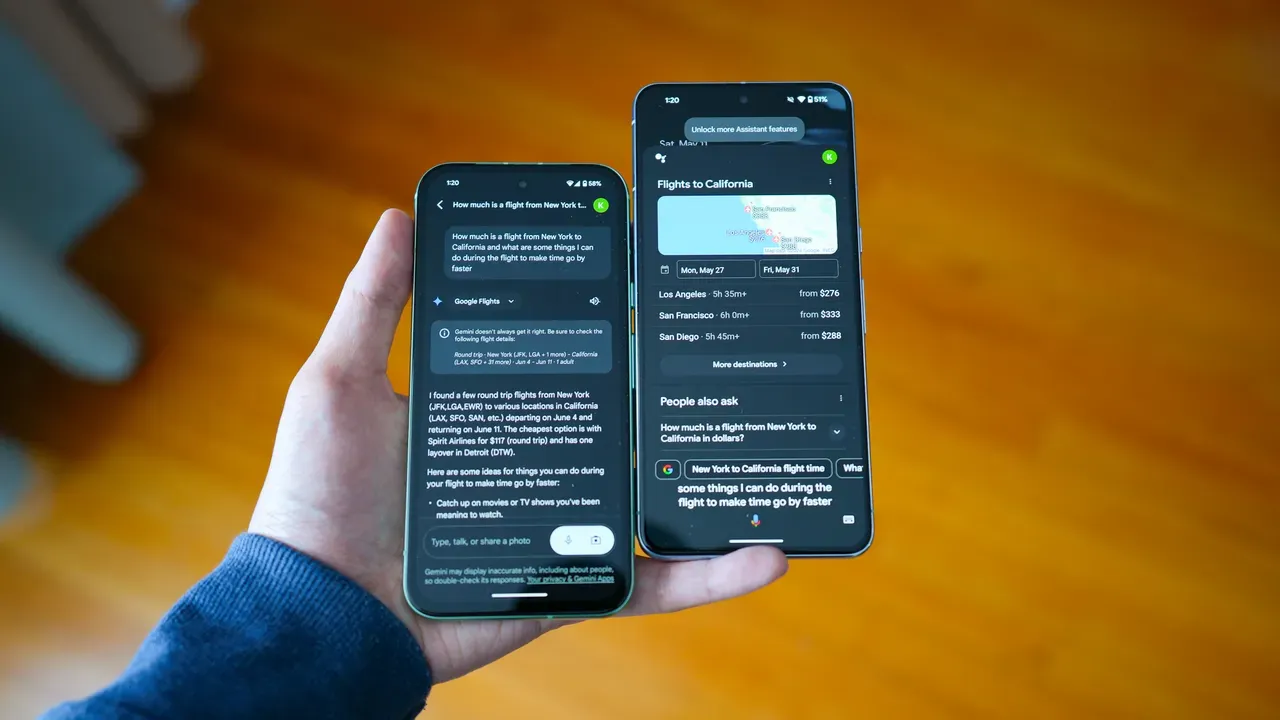
Imagine asking your voice assistant for tomorrow’s schedule and getting an answer that feels like it knows you so you don't need to repeat details or explain the context. That’s the real question in the Google Assistant vs Gemini debate: which one truly understands your intent, remembers past interactions, and adapts to your habits? In this comparison, we look at how each AI handles intent recognition, memory and context retention, response accuracy, speed, follow-up questions, and integration with your apps and smart home. You’ll see which assistant reads your intentions faster and helps with fewer prompts. And you want to experience context-aware AI firsthand. In that case, Horizon’s AI desktop assistant brings natural language understanding, proactive suggestions, and seamless app integration to your computer, letting you test which AI fits your workflow without technical hurdles or tedious setup.
What is Google Gemini and What Does It Do?
Google Gemini is a family of large language models developed by DeepMind and released by Google starting in October 2023, with features and broader rollouts continuing through late 2023 and into 2024.
The models span several sizes and builds, often called:
- Nano
- Pro
- Ultra
And target both everyday users and developers. Gemini generates direct answers, long-form text, code, and multimodal outputs that include image and audio understanding and generation. It acts as a generative AI engine rather than a standalone app, and Google positions it as a core model that powers new search experiences and product features.
Where Gemini Fits in Google: Role and Ecosystem
How does Gemini interact with Google services and products? Google uses Gemini as a central generative model across:
- Search
- Workspace
- Android
- Chrome
- Photos
- Maps
It powers the Search Generative Experience and provides answers, summaries, and suggested next steps inside search results. Google Assistant continues to serve as the hands-free voice interface and device controller, while Gemini supplies the advanced generative and multimodal intelligence behind conversational answers and content creation. Developers access Gemini through Google Cloud and APIs, and businesses can integrate it into apps and workflows with tools and SDKs.
What Gemini Does: AI Search, Natural Language, and Integration
Gemini provides AI AI-powered search that synthesizes information and returns conversational answers instead of just links. It uses deep natural language understanding to follow context across turns, interpret user intent, and generate long-form content like:
- Reports
- Articles
- Email drafts
The model reads many file formats, understands images and audio, and can generate code in Python, Java, and other languages. It plugs into Google Docs, Gmail, and Chrome to act as a writing assistant that suggests phrasing, edits, and outlines. It also feeds suggestions into Assistant for more natural conversations and richer responses.
How to Turn Off Google Gemini: Three Fast Steps
- Visit gemini.google.com
- Click on Activity
- Click Turn off or Turn off and delete activity
After you complete those steps, Gemini should stop appearing at the top of Google search results. You can also manage additional activity and privacy settings from the same account controls page.
Features and Capabilities: What Gemini Can Read, Write, and Run
Gemini handles plain text, documents, spreadsheets, presentations, images, and audio files. It performs code generation, code explanation, and simple debugging for languages such as Python and Java. The model supports multimodal prompts that mix text and images so you can ask about a screenshot or request edits to a photo.
For developers, Google exposes API endpoints and tooling for integrating Gemini into apps, chatbots, and internal tools. Smaller Gemini Nano models can run with lower latency and on device-style deployments, while larger Pro and Ultra variants run in the cloud for heavy-duty tasks.
When comparing Google Assistant vs Gemini, remember that Assistant provides voice-driven actions and device control while Gemini supplies the underlying generative intelligence for richer conversational and creative outputs. How would you like to use Gemini in your workflow or product?
Related Reading
- Best AI Personal Assistant
- Best AI Coding Assistants
- Best AI Scheduling Assistant
- Best AI Voice Assistant
- Best AI Tools for Product Managers
- Best AI Tools for College Students
- Best AI Recruiting Tools
- AI Tools for Literature Review
- Best AI for Essay Writing
What is Google Assistant and What Does It Do?
First released in 2016, Google Assistant is a virtual assistant that responds to spoken questions and commands. It came out on Pixel phones and Google Home smart speakers as Google moved from a search-first model to a voice-first assistant that could act on behalf of the user.
The assistant connects to the internet to find information, answer questions, and perform tasks like setting reminders and providing audio-based stories and games. Developers later added tools so third-party apps could create custom Actions for the assistant.
What Google Assistant Was Built To Do
Google designed the assistant to understand natural language, keep context across follow-up questions, and complete actions on devices. It aims to be hands-free and context-aware, so you can ask follow-up questions and expect coherent replies.
The assistant combines speech recognition, natural language understanding, and integration with Google services to handle search, navigation, calendar events, and more.
Core Capabilities: Voice Commands, Smart Home Control, and Personalized Assistance
Voice commands let you control apps, make calls, send messages, and ask for directions. Smart home control covers lights, locks, thermostats, cameras, and routines that run multiple devices with a single command. Personalized assistance uses your:
- Calendar
- Location
To surface commute times, boarding passes, and reminders. It also entertains with music, podcasts, games, and audio-based stories. The assistant can follow context, handle multi-turn conversations, and perform tasks with third-party integrations.
Where You Can Use Google Assistant: Devices and Platforms
Google Assistant runs on Android phones and tablets, iPhone and iPad through the:
- Google app
- Pixel devices
- Nest speakers and displays
- Wear OS watches
- Chromebooks
- Android Auto
- Google TV
- Chromecast
Many third-party smart speakers, displays, and appliances also include Assistant built in. Developers can integrate Assistant via the Assistant SDK in apps and hardware to extend voice controls to more devices.
Everyday Use Cases: How It Helps You Each Day
Ask a simple question on your commute to get traffic and ETA. Tell the assistant to set a reminder or add an event while you cook. Use voice to turn off lights, change the thermostat, or lock the front door.
Start a playlist on your living room speaker or cast a show to the TV. Use translation, shopping lists, and timers in the kitchen. The assistant reduces friction for routine tasks and saves time during busy mornings or hands-occupied chores.
How to Turn Off Google Assistant? Quick Steps
- Open the Google Assistant app on your smartphone.
- Tap Settings or the profile picture, then find Google Assistant settings.
- Tap General.
- Tap the toggle to turn off Google Assistant.
- After you switch the toggle off, the device will stop responding to the wake phrase.
- Test the device by saying the wake phrase to confirm it no longer responds.
Related Reading
- AI Language Learning Tools
- AI for Grant Writing
- AI Tools for Executive Assistants
- AI Tools for Financial Advisors
- AI Tools for Journalists
- Best AI for Medical Students
- JetBrains AI Assistant vs Copilot
Google Assistant vs Gemini
Gemini handles complex, open-ended queries and creative tasks far better than the Google Assistant. It uses large language models and generative AI to generate long answers, write and revise text, produce code, and create images. Gemini understands natural human phrasing without carefully scripted voice commands, and it supports multimodal inputs so you can send text plus photos or screenshots for visual analysis.
Gemini can search the web for recent information and summarize articles, and it can access opt-in personal data through Extensions to read Gmail, Drive, and other Google services. On devices with the Gemini Nano model, some processing runs on the device, while Gemini Pro and Ultra run in Google data centers to deliver higher quality responses.
Advantages and Disadvantages Compared to Google Assistant
Gemini answers a far broader range of factual and creative questions and supports back-and-forth spoken conversations with interruptions and topic changes through Gemini Live. It can parse images, read video transcripts on YouTube to answer questions about a clip, and convert messy content into structured tables.
The trade-offs include slower responses for complex tasks and limited availability on non-smartphone devices like smart displays and wearables. Google Assistant remains faster for quick voice commands, works broadly across smart speakers and IoT products, and still supports Pixel-specific features such as screen translation and read aloud natively. Gemini may be less suitable if you rely on routines tied to alarms or location triggers in the Clock app.
Core Technology and Model Differences
Google Assistant relies on lightweight natural language processing and voice recognition optimized for low-latency command execution across devices. Gemini is built on a family of large language models with generative AI capabilities.
The Gemini lineup includes Nano for on-device use, Pro for server-side work, and Ultra for the largest workloads. Those models enable deeper reasoning, text generation, code assistance, and multimodal understanding that the Assistant was not designed to deliver.
Voice Interaction and Conversation Flow
Which tool listens better to natural conversation? Google Assistant detects wake words, understands many accents, and responds quickly to short requests.
Gemini supports voice input but shines in extended, conversational sessions where you can interrupt, change direction mid-exchange, and ask follow-up questions that the model holds in context. Gemini Live creates a more human-like chat experience while Assistant stays focused on discrete voice tasks.
Multimodal Abilities and Content Generation
Gemini handles multimodal prompts. You can attach photos or screenshots for object identification or scene interpretation, and ask for step-by-step help based on the image.
Gemini also generates code, converts text into tables, and creates images with AI. Google Assistant does not offer the same level of image understanding or content generation beyond basic responses and device control.
Ecosystem Integration and Permissions
Google Assistant integrates deeply across Google Home, Maps, Calendar, and smart home devices and supports many third-party services for smart speakers and IoT control. Gemini integrates closely with Google Workspace through opt-in Extensions that let it read:
- Gmail
- Docs
- Sheets
Speed, Latency, and Use Case Fit
Assistant prioritizes speed and predictable short responses for tasks like calls, reminders, timers, and controlling smart home devices. Gemini often takes longer because it builds richer, context-aware replies and performs heavier analysis.
Choose Assistant when you need immediate, low-latency voice actions and simple automations. Choose Gemini when you need research, creative drafting, or complex reasoning.
Automation, Routines, and Device Control
Google Assistant supports routines and automations that trigger at times or when you arrive at locations and links to Clock app events. Gemini has gained some automation support but lacks specific routine triggers and cannot yet start music playback inside a routine in all cases.
If your daily workflow depends on time or location-based automations, the Assistant remains the more reliable choice.
Privacy, Permissions, and Account Data
Gemini Extensions can access private Gmail messages and Drive documents if you opt in. That enables personalized assistance but requires deliberate permission management.
Google Assistant also accesses account data for tasks like calendar events, but tends to apply narrower, task-specific access patterns. Review permission prompts and Google account settings when you enable either assistant.
Subscription Tiers and Advanced Model Access
Google One AI Premium unlocks Gemini Advanced, labeled Gemini 2.0 Pro, and includes two terabytes of storage. The subscription improves response quality and adds features like workspace integrations and priority model access.
The base Gemini experience remains free on Android and iPhone for most features. Google Assistant remains free across devices, with some services requiring separate subscriptions, such as YouTube Music Premium for ad-free playback.
Availability and Device Compatibility
Gemini currently ships on Android and iOS mobile apps and some Pixel devices, where Nano runs on the device. Google Assistant remains present on a much broader set of hardware, including:
- Nest smart speakers
- Smart displays
- Watches
- Cars
- Other IoT devices
That makes Assistant the primary voice agent for multi-device home setups, while Gemini focuses on immersive mobile and workspace assistance.
How They Overlap and Where They Differ
Both can set reminders, place calls, and control certain phone features. Both accept voice input and provide spoken responses on mobile. They differ in aim:
- Assistant focuses on immediate, task-oriented interactions and broad device coverage.
- Gemini focuses on context-rich, AI-driven reasoning and creative or technical tasks.
You can replace Assistant with Gemini on phone platforms, but doing so will route wake word and corner swipe actions to Gemini rather than the Assistant. On other hardware, you will remain on Assistant.
How They Can Work Together or Replace Each Other
Do you need both? Yes, in many setups. Keep Assistant for home speakers and quick voice automations, and use Gemini on your phone for long-form drafting, research, or workspace tasks.
If you choose to replace Assistant on your phone, Gemini will handle wake word activations there, and you can switch back in settings if you prefer the original Assistant. Desktop or bright display use will still fall back to the Assistant on supported devices.
How to Replace Google Assistant with Gemini on Mobile
Install the Gemini app from the Play Store on Android or enable Gemini inside the Google Search app on iPhone. If the Play Store blocks the app, use trusted third-party sources like APKMirror to sideload the APK, then grant permissions and enable the digital assistant feature during setup. After installation, choose Gemini as the default digital assistant so the wake word and swipe gestures open Gemini.
How to Revert from Gemini to Google Assistant
Open the Gemini app, tap your profile, go to Settings, and find Digital assistants from Google. Select Google Assistant to restore the previous assistant. Note that reopening the Gemini app can reassign the assistant behavior, so repeat the change if needed.
Which One to Choose for Different Users and Tasks
- Who benefits from Google Assistant? Users who want a free, fast voice assistant that works across smart speakers, watches, cars, and home devices, and who rely on routines and time or location triggers.
- Who benefits from Gemini? Professionals, creators, and power users who need generative AI, multimodal inputs, deep document analysis, code generation, and Workspace integrations.
- Does subscription matter? If you want Gemini Advanced, a Google One AI Premium plan unlocks higher-quality responses and additional features.
Practical Questions to Ask Yourself Before Switching
- Do you rely on smart home automations and wearable integrations?
- Do you need time or location-triggered routines?
- Do you want richer, conversational AI for drafting, summarizing, and researching?
Answering these will guide whether to keep the Assistant, switch to Gemini on mobile, or use both in parallel.
Related Reading
- Cluely Review
- Cluely Pricing
- Cluely Alternatives
- Granola AI Reviews
- Windsurf vs Cursor
- Can AI Write Code
- How to use AI as a Personal Assistant
- Top AI Tools
Try Horizon for Free − Experience the Future of Work Today
Horizon sits quietly in your meetings, capturing audio, running speech recognition, and turning live discussion into usable text. It produces concise summaries, extracts action items, and surfaces clever prompts you see privately.
That means no frantic note-taking, fewer missed decisions, and the ability to respond with confidence while the conversation moves on. Want to stay present and still get everything documented?
How Horizon Compares with Google Assistant and Gemini for Meetings
Google Assistant handles voice commands, device control, and quick answers. Gemini represents Google AI research in large language models, with strong generative and multimodal skills. Horizon combines real-time transcription accuracy and meeting-oriented natural language understanding with personalized prompts and private notes.
Where Google Assistant focuses on device actions and Gemini focuses on broad conversational depth, Horizon fine-tunes models for meeting intelligence, speaker diarization, and actionable follow-ups. Which capability matters more for your team, command and control or deep conversational analysis tailored to meetings?
Privacy and Control: Your Notes Stay Yours
Horizon isolates meeting audio and notes so only you can see them. We use encryption in transit and at rest, strict access controls, and configurable retention rules.
For teams that require on-device processing, we can run core speech recognition locally to limit cloud exposures. This setup contrasts with generic assistants that route more data through general-purpose services and aims to give you a clear choice over data flow and compliance requirements.
Real Time Workflows: From Live Transcript to Action
Horizon converts speech to text, tags speakers, identifies decisions, and generates follow-ups in seconds. Clever prompts suggest questions, clarifying points, and next steps you can use right away.
The system uses prompt engineering and fine-tuned models to keep suggestions relevant to meeting context and to reduce hallucination. You can push action items into your task list, calendar, or messaging apps without leaving the meeting interface.
Integrations: Works Smoothly with Google Meet, Zoom, and Workspace
Horizon plugs into Google Meet, Zoom, Microsoft Teams, and calendar systems. It pulls meeting context from Google Workspace so summaries reference the proper documents and prior notes.
Unlike a generic voice assistant that triggers routines across devices, Horizon focuses on embedding meeting intelligence into the tools you already use and on surfacing follow-ups where they will be executed.
Behind the Tech: Speech Models, Large Language Models, and Latency
Horizon layers a high-accuracy speech recognition engine over a meeting-optimized NLU pipeline and LLM-based summarizer. For short latency needs, we use small models on device or edge instances.
For deep synthesis, we route context to larger models that offer multimodal capabilities similar to advanced systems like Gemini Pro. That mix improves speed and accuracy and reduces needless cloud calls while keeping summaries rich enough to act on.
Accuracy and Context: Avoiding Generic Responses
Horizon prioritizes context window management and domain-specific fine-tuning so the summaries and action items stay grounded in the meeting. Where a general assistant might give a broad answer or a large model might hallucinate, Horizon uses verification steps, cross-checks against meeting documents, and confidence scores before creating actionable follow-ups.
Use Cases That Gain the Most: Sales, Hiring, and Strategy Meetings
Sales teams get precise follow-ups and step-by-step reminders. Recruiters get interview notes and candidate highlights without extra admin. Executives get decision logs tied to calendar entries. Every use case benefits from reduced admin time and more transparent accountability captured in the transcript and action list.
Deployment and Adoption: Quick Pilot, Low Friction Rollout
Install once, approve the necessary permissions, and run a pilot with a small team. Horizon captures meetings, shows private prompts, and provides analytics you can measure.
Teams typically see faster adoption when the tool reduces meeting overhead and links summaries directly to existing workflows. How many meetings could your team run with fewer interruptions?
Want more insights like this?
Subscribe to get short productivity tips and useful summaries of new tools every week.
Want more insights like this?
Subscribe to get short productivity tips and useful summaries of new tools every week.