
Finding time to get everything done is a challenge that most of us can relate to. Whether it’s juggling a growing number of meetings and tasks at work, managing personal commitments, or a combination of both, it can feel overwhelming. The good news is that scheduling assistants can help lighten the load. This article will help you find the best AI scheduling assistant that saves time, reduces manual planning, and allows you to stay on top of meetings and tasks effortlessly.
Horizon’s AI desktop assistant is one of the most advanced scheduling solutions out there. With this tool, you can eliminate the busywork of planning and focus on what truly matters.
What is an AI Scheduling Assistant?

AI scheduling assistants are tools that can manage your calendar on your behalf. They use artificial intelligence to streamline scheduling tasks like:
- Booking meetings
- Sending reminders
- Handling calendar conflicts
- Coordinating across time zones
For instance, if you have a busy calendar and need to find a meeting time with a colleague, an AI scheduling assistant can search for openings on both of your calendars to suggest the best times, thereby reducing the need for back-and-forth emails to find a meeting time.
Why Use an AI Scheduling Assistant?
AI meeting managers save time by generating a personalized weekly schedule. This is just one of the reasons why many people opt to use an AI scheduling tool. But there’s a lot more to it. Here’s an overview of some of the benefits of having AI scheduling assistance:
- Increased productivity: It frees up your time to focus on more critical tasks through automatic schedule generation.
- Seamless integration: Many AI schedulers will easily integrate with tools you might already use, such as Slack and Google Calendar.
- Adaptability: An AI schedule maker adapts to your preferences and patterns for a completely tailored approach to automated scheduling. This helps you schedule your tasks, for example, studying.
- No more conflicts: Through automated rescheduling, you’ll never have to worry about overlapping meetings and one-to-ones.
- Time blocking: Many AI scheduling assistants will automatically block out time slots for tasks so that you can focus on those higher-priority tasks.
- Calendar syncs: Whether you’re working across multiple calendars or need to improve team collaboration, AI-powered scheduling can sync numerous calendars and meeting schedules.
What Else Can AI Scheduling Assistants Be Used For?
Aside from scheduling appointments and sending you essential reminders automatically, an AI schedule maker can be used for a range of purposes. Here’s how versatile these tools can be:
- To-do lists: Many AI scheduling assistants can also help with setting up to-do lists based on your priorities and tasks for the day, making your life more organized.
- Email management: Since your email often connects with your calendar, many scheduling assistants also come with email management capabilities. This can help you sort and categorize your inbox.
- Analytics: Gain personal scheduling insights, thanks to AI’s ability to capture data on your time management.
- Customer support: AI assistants like Agentforce have built-in customer support features, including chatbot services, that take care of more than just your calendar.
- Personal assistant: Many AI tools provide you with a personal assistant (sometimes referred to as an agent). They are often capable of guiding you through a range of scenarios via interactive role-playing and coaching, while also offering help in other areas, such as marketing campaigns.
Related Reading
- Best AI Personal Assistant
- Best AI Coding Assistants
- Best AI Voice Assistant
- Best AI Tools for Product Managers
- Best AI Tools for College Students
- Best AI Recruiting Tools
- AI Tools for Literature Review
- Best AI for Essay Writing
25 Best AI Scheduling Assistants
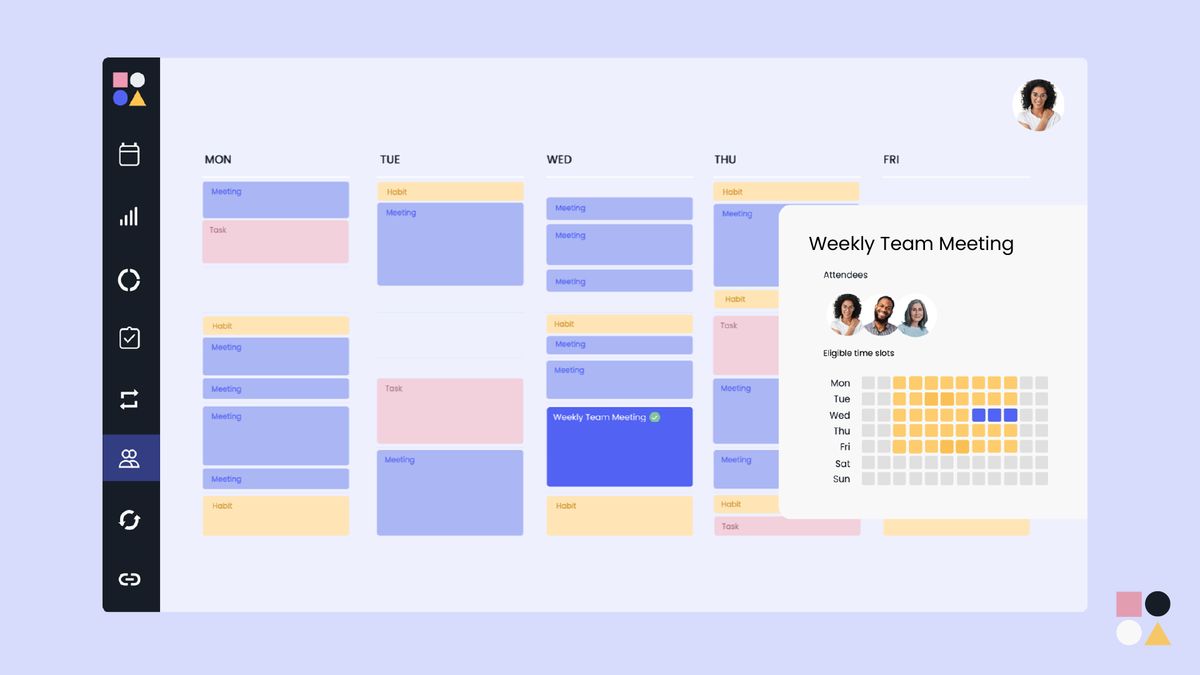
1. Horizon
Horizon is your invisible meeting notes and real-time intelligence assistant, working behind the scenes to boost your performance in every conversation.
- It listens to meetings.
- It transcribes discussions live.
- It generates summaries, thoughtful prompts, and actionable follow-ups.
All is visible to you alone. No more frantic note-taking or lost details, Horizon's seamless prompts and confidential notes keep you sharp while staying completely undetectable. Discover a new level of productivity and confidence in any meeting. Experience Horizon today.
2. Reclaim (Web)
Strengthening habits is all about consistency, and Reclaim.ai is a great AI calendar assistant to help you build that consistency.
- It looks good.
- It works even better.
- It has the right balance between power and complexity.
Personalized AI Scheduling
During onboarding, you set up your work hours, integrate your habits, and choose how the AI engine should prioritize your tasks. It does a great job explaining what's going on behind the scenes, so you'll never wake up to a completely different calendar and wonder what happened (that confusion was pretty familiar with many other apps I tested).
All the action is on the Planner screen. It has a calendar view in the center with three lists on the right side:
- Priority habits
- Open tasks
- Low-priority habits
Customizable Focus
You can keep track of what's left to do with just a glance, which is excellent for maintaining your focus as you work. I also loved the customization options available for each habit. In addition to the start and end times, you can pick an ideal time and set the level of defensiveness the AI engine should have when rescheduling.
Smart Task Integration
If you set it to Always free, it'll let Fred from accounting grab those 30 minutes easily; if you set it to Busy, it won't let even the president in. You can enter all the tasks you have to tackle manually, and Reclaim will automatically schedule them on your behalf. Better yet, you can integrate a wide range of task management apps and turn on sync, automating the whole process.
Deadline Defense & Rescheduling
As it populates your near future, it'll keep an eye out for deadlines, defending the time needed to complete critical tasks from an out-of-the-blue 1:1. Speaking of 1:1s, Reclaim empowers your weekly catch-ups by rescheduling any recurring meetings if someone has to cancel, finding the best time slot for both, and sending the appropriate notifications.
Habit Reinforcement
If you're having a hard time sticking to your morning meditation or that brisk afternoon walk, Reclaim will get you back on track easily, without scheduling headaches.
Pros
- Manages recurring events well.
- Quickly reschedules and adjusts your calendar when it detects a conflict.
Cons
- Native task management is clunky.
3. Clockwise (Web, Chrome, and Firefox extensions)
Clockwise's #1 objective is to create time for you by organizing more focused blocks, reducing conflicts when scheduling meetings with others, and providing statistics to help you track your progress.
Customizable Focus & Breaks
Clockwise has numerous knobs and levers, making it the most customizable engine on this list. The onboarding experience lets you fine-tune the balance between meetings and focused work. When I finished setting up my account, Clockwise blocked three hours of continuous focus work every day and two hours of fragmented work time.
My 45-minute lunch break hovers somewhere between noon and 3 p.m., depending on meetings and deadlines.
Flexible Scheduling & Optimization
Where will it land? Who knows? And there's one special treat you get during your first week with the app: Clockwise frees up a 30-minute break to enjoy a cup of coffee. To adjust settings anytime, click 'Your ideal day' on the dashboard and set everything, from when you should have lunch to how much travel time to reserve for a meeting away from the office.
Team Collaboration & Integrations
While Clockwise feels strong for solo players, it's designed for teams. When you connect it to Slack, it updates your status based on what's on your calendar and prevents non-urgent messages from pinging you. And the Asana integration lets you assign tasks to your calendar, so you can go there to fill up your plate and come back to Clockwise to bite it bit by bit.
Are you unsure if it's improving your productivity? Visit the Analytics dashboard, with a count of:
- All schedule assists
- Meeting conflicts resolved
- A breakdown of focus hours created
If you want to implement a no-meeting day, there's a specific setting you can tick on to try that out.
Pros
- Thorough onboarding experience
- Plenty of in-app context and explanation
Cons
- Can't be used with personal Google accounts, only Workspace
4. Motion (Web, iOS, Android)
Motion is an AI calendar that crashed into a solid project management app. The result? A great Scheduling engine coupled with advanced task tracking, ensuring you never miss a deadline. The user experience suits productivity enthusiasts, keeping all critical information readily accessible. On the left, you have a list of all your upcoming tasks, scrollable deep into the future.
Dynamic Calendar Adjustments
The bulk of the screen displays the calendar, featuring day/week views. Need to schedule something quick? Click and drag anywhere on the calendar to slot that emergency. If it lands on top of any event, Motion will shuffle my to-dos to make everything fit neatly, but be patient—after major edits, you'll have to wait a moment for the engine to sort everything out.
Collaborative Workspace Setup
Clicking on the Projects & Tasks tab lets you create your workspace. With that done, be sure to invite your team over, add my projects, and start assigning tasks. You can see everything in a list or a Kanban view. Anything you add here will be automatically added to your calendar, as expected.
Personal Task Prioritization
If you're not a manager, this dashboard will appear more straightforward: click on 'My Tasks' and immerse yourself in deep work. What surprised me here was the variety of settings available for each task. You can assign four types of priorities, ranging from ASAP to Low, which will determine how early the task appears on your calendar.
Flexible Deadlines & Risk Alerts
You can also set whether the task has a soft or hard deadline, allowing the engine to be more strict or lenient as the date approaches. If you ever lose your rhythm, the dashboard will display a warning showing the number of tasks at risk of missing their due dates, prompting you to adjust the task details or increase your pace, whatever makes the most sense.
Enhanced Project Management
The project management features extend further, including task notes, subtasks, task labels, and an activity feed where you can leave comments for my team to review. Another thing I liked was the possibility of adding project and task templates, which, considering the numerous controls available for both, really helps speed things up.
Intelligent Meeting Prioritization
While Motion campaigns for fewer meetings on the app's marketing pages, it still allows you to create meeting templates and assign a priority to each type of meeting, with the more urgent ones having greater power to displace other meetings. This makes it a complete scheduling assistant.
Pros
- High visibility for tasks
- Great task priority controls
Cons
- A bit too complex
5. SkedPal (Web, iOS, Android)
Time-blocking: the art of placing tasks on your schedule so you can do what you need to do. This is the main advantage, but there are others: you'll know how long each task takes, you can group up-to-dos based on cognitive intensity or topic, and you'll have a more organized day in general.
Fast, Interactive Onboarding
SkedPal is the best app to support you through this. With a thorough and interactive onboarding process, you'll have all the skills you need to start using it in under 20 minutes. The app features a collection of videos and hands-on tutorials to help you interact with the app. You can add all the tasks I have to do: enter the name, followed by the duration and due date in natural language.
Effortless Natural Language Task Input and Time-Blocking
For example, if I write "Send outline 5m due Friday," the app will recognize that this task takes five minutes and you have until Friday to do it. Due dates are color-coded with the task, so you can see at a glance if you need to pick up the pace. The time-blocking feature takes a bit of getting used to because you have to set it up first; once you do, it's a breeze to use.
Customizing Your Schedule with Time Maps
Click on your profile picture at the top right of the screen and then click on Time Maps. SkedPal already separates your day into Mornings and Evenings so you can use those to funnel your tasks into time slots. Nevertheless, when you click Add, you can create a new time-blocking label and color the corresponding calendar regions.
Prioritizing Tasks with Color-Coded Time Slots
You'll notice you can paint in different colors: green slots fill up first, yellow next, and red are the last resort. This lets you customize how much the app will cram my tasks in a single day or push it out to the following week. To assign tasks to a time map, after you write the duration and due date in natural language, type a forward slash, and choose the one you want to lock it to.
If you're going to delve into the details, you can also set up time budgets. For example, I've decided to allocate five hours every week to studying no-code development—whether that's in one sitting or one hour a day, depending on my schedule. SkedPal lets you create and keep track of these time budgets.
Pros
- Great onboarding
- Easy natural language input
Cons
- The time blocking feature takes some getting used to
6. Katch (Web, WhatsApp, email inbox)
There's a problem with scheduling links: you may be giving away your availability, so people may think you're not that busy, or worse, they'll start clogging up my days with meetings that could have been handled via email. Katch will help you leave the scheduling pages behind and instead handle all of it in your inbox.
Effortless Meeting Setup
Create your account, connect your calendar, set up your availability, and you're ready to go. You won't be spending time on the app's dashboard; most of the action takes place as you message people. When chatting with anyone in an email thread, you can CC assistant@gokatch.ai and ask to set up a meeting. It'll come back to you with a message like this one:
Hello Miguel, I've found some potential time slots for your meeting next week. Monday, July 22nd at 9:30 am BST Monday, July 22nd at 12:00pm BST Tuesday, July 23rd at 9:30 am BST Please let me know which time works best for you, or if you need more options.
When the other person in the thread replies with their preferred time and date, Katch will handle the meeting invitations, complete with video conferencing links. Dealing with a busy lead? The AI can handle it well.
It will:
- Offer alternative times based on your availability
- Reschedule the meeting to a more convenient time
- Cancel it altogether
AI-Powered Scheduling and Meeting Management
If you log back in to the app dashboard, you'll be able to see a timeline of all the attempts—it's cool to see how the process works from behind the scenes. While email is the primary method for getting my meetings on the calendar, Katch also offers a WhatsApp assistant to help you manage them on the go.
You can text or send a voice message to reschedule meetings, move them forward if you're running late, or get a quick rundown of your day's schedule.
Pros
- AI interprets intents very well.
Cons
- Only works with Google Calendar
7. Trevor (Web)
Trevor is simple. It won't reshuffle your entire day for emergencies, and it doesn't have advanced controls, but it does offer a streamlined user experience that makes sense and a set of AI features that help you schedule your tasks in the best calendar slots. Start by connecting your calendar.
Integrating Trevor with Your Existing Calendar
Trevor picks up events you’ve already scheduled, but it won't mess with those. Instead, it creates a dedicated calendar to add your tasks. You can toggle it on or off in Google Calendar. This means that it won't reorganize all my events, allowing me to maintain a degree of control over my scheduling while still benefiting from the advantages of AI.
Organizing and Scheduling Tasks
It's time to add your tasks to the list on the left. They get categorized with the hashtag #inbox, but you can create other categories by clicking on the three-dot menu. When I have all my tasks ready, I click and drag each task to the calendar. Trevor will suggest the best times to schedule each activity by outlining the specific time and place where you should drop off that task.
A Zen-Like Scheduling Experience
Trevor learns as you use it to build your schedule, getting a little better every time. There's a zen experience here. It has to do with the soft colors and the way you:
- Add all your tasks first
- Drag them to your schedule
- Turn on the day view
- Forget about everything else that's not there
Personal Reflections and Plan Options with Trevor
I used it for an entire day, and the time passed quickly, helping me reach the end of my day with a feeling that I had spent less energy. This is my subjective opinion, so try it out and see if it fits your workflow. The free plan is quite generous. If you want Trevor to learn more quickly and accurately, an affordable paid plan is available.
If you value simplicity and losing yourself in my tasks, Trevor will put you on the path to deep work, minus the monumental effort.
Pros
- Very intuitive
- Simple controls to help you schedule and manage tasks
Cons
- Requires a bit too much interaction
8. Kronologic (Web)
Kronologic stands out on a different plane compared to the other tools on this list. It's designed to help sales teams schedule more calls with interested leads, thereby increasing conversion rates throughout your sales pipeline. To fully explain what it does, I'll walk you through a few situations.
Self-Serve vs. Scheduled Access
I've been testing software for a while. Most of it involves self-service registration, leading to a free trial or a free plan. But every now and then, there are a few apps that require filling out a form and waiting for a phone call to schedule a demo. And that's the beginning of the touchpoint roulette:
- Will they call me in five minutes?
- Two days from now?
- Will it take one phone call? Three?
Automated Meeting Scheduling
It's impossible to know. After having a sales team from a CRM app call me at 2 a.m. in the cold British morning, I wish these apps would use Kronologic. Instead of filling out the form and placing that lead on a queue, so a sales representative can pick it up whenever they are available, the app automatically schedules a date and time when both parties are likely to be available.
AI-Powered Rescheduling
If the lead objects via email, Kronologic's natural language processing features will detect if there's a rescheduling intent and, if so, will update the invite to match. Sales team involvement during this process? If you want, zero. This is the beginning of what Kronologic's AI engine can do.
High-Density Lead Outreach
Let's imagine you've put together a list of 200 interested leads. It'd be great to schedule a call with them as soon as possible. But do you want to get your sales team in a frenzy trying to get hold of everyone? Within the app, you can create a meeting type with the email template and set the AI behavior to High-density scheduling.
Optimized Conversion Scheduling
Emails will be sent to these leads, inviting them to a meeting at a specific time and date within a set period. Most meetings will overlap, but since the app tracks conversion rates, it knows your exact percentage. So, even though you sent out 200 invitations for meetings in three days, not all of them are interested. You can identify and speak with all the leads that are available.
While Kronologic is an excellent fit for sales teams and larger companies, it now offers pricing tiers and features for both individuals and small businesses, along with a Calendly-style scheduling flow, allowing your leads to block a time slot in your calendar.
Pros
- Automated meeting scheduling
- Can replace Calendly
Cons
- Parts of the UI could be better
9. Scheduler AI (Web)
Scheduler AI is another app where actions occur in your emails and messages, rather than on a dashboard. With it, you'll be able to schedule 1-on-1s or group meetings, and quickly book demos and discovery calls from your site or landing page. It works great individually or for sales team, helping busy organizations focus on running meetings, not scheduling them.
Once you set up your account, keep the scheduler@scheduler.ai email address at hand whenever you need to schedule a meeting. To begin scheduling, CC that email, and add the following sentence: "Scheduler, find us a time next week".
Automated Meeting Coordination
The scheduler will review your calendar and send a reply to you and your contact, suggesting the best time. It will pre-reserve that slot until the meeting is confirmed, ensuring you don't get double-booked. If the other half of the 1-on-1 meeting needs to be rescheduled, the Scheduler can handle the email interaction until a new time slot is found.
If your sales process involves group meetings to gain the buy-in of all decision-makers, finding the time to make it happen can be challenging.
Intelligent One-on-One Scheduling
Similarly, when handling one-on-ones, the Scheduler will suggest times based on the data it finds on your calendar. Better yet, when your leads connect their calendar, Scheduler can read both and find the best option. If it doesn't, it'll notify you of the conflict, so you can start troubleshooting the meeting manually.
Keyword-Triggered Meeting Types
One notable feature is the ability to create meeting types and associate them with specific keywords. For example, suppose you frequently meet with people over coffee. In that case, you can set up a meeting type in the dashboard, specify the typical duration, and indicate whether you need to allow some buffer time before and after.
Intent-Based Scheduling Flexibility
Then, all you have to do is mention coffee during the scheduling process: "Scheduler, find us a time to have coffee next week." You can add as many as you'd like and set up whichever keywords make sense for the event type. This flexibility in interpreting intent and converting it into scheduling actions sets Scheduler AI apart from the competition.
Omnichannel Integration
You can use it with your Gmail account, on Slack, integrate it into your website or web forms, and even use it in text messages.
Scheduler AI pros:
- Great for all kinds of meetings
- Includes meeting troubleshooting for group meeting scheduling
Scheduler AI cons:
- Not a lot of controls available on the dashboard yet.
10. Clara AI
Clara is an AI scheduling assistant that simplifies the process of scheduling meetings. I tried Clara by adding it to my email workflow, and I was impressed by how it handled all the back-and-forth to find a time to meet. Clara interacts via email, so it feels like a real assistant managing my calendar. Just CC Clara on an email, and I can delegate the scheduling altogether and focus on the important stuff.
Key Features
- Automatic Reminders: Clara will follow up with meeting participants to confirm times and dates. This feature saved me from having to chase responses and made sure the meetings were scheduled on time. For example, if someone didn’t respond to a proposed time, Clara would politely nudge them and keep the scheduling process on track.
- Natural Language Processing: Clara speaks natural language, making interactions seamless and human-like. I found this extremely useful when coordinating with clients who appreciated the personal touch. Clara can understand and respond to various scheduling requests, which has added a level of professionalism to my communication.
- 24/7 Availability: Clara is always available to manage my schedule, regardless of the time zone. This was a lifesaver when working with international clients. I could schedule a meeting at any hour without worrying about delays or time zones, knowing Clara was handling the coordination in real-time.
- Calendar Integration: Clara integrates with multiple calendar systems and adds confirmed meetings to your calendar. This integration meant I never had to manually input meeting details, reducing the chance of errors and double bookings. It was nice to see my calendar update automatically as Clara managed my schedule.
- Customizable Settings: Clara enables users to set their scheduling preferences, including preferred times and locations. I customized Clara to prioritize afternoon meetings and added phone numbers and meeting links to the invites. This way, my scheduling needs were met exactly.
Pros
- Time Saver: Clara saved me a ton of time by handling all the scheduling tasks. The automatic reminders and calendar integration enabled me to focus on essential tasks without getting bogged down in scheduling logistics.
- Professionalism: The natural language processing made Clara’s interactions professional and polite. My clients would comment on how smooth and efficient the scheduling process was and it helped my reputation and made a good impression.
- 24/7 Support: Clara’s 24/7 availability ensured that scheduling requests were answered promptly, regardless of the time zone. This was extremely useful when working with international clients, as it provided timely responses and prevented delays.
Cons
- Lack of Human Touch: While Clara’s natural language processing is excellent. It’s a machine and sometimes misses the nuances a human assistant would catch. Occasionally, I had to jump in to clarify or adjust meeting details manually.
- Costly: Clara’s pricing might be too high for small businesses or individual users. While the time-saving benefits are great, the cost would be a barrier for those on a tight budget.
- Learning Curve: Setting up and customizing Clara to my needs presented a small learning curve. It took some time to configure the settings and understand how to utilize the tool to its full potential.
11. Agentforce
Reddit users seem to be asking the bigger questions when it comes to Agentforce, wanting to know if it’s the next big thing. Many comments suggest it could be. Reddit recommendation: “Agentforce is really easy to set up via just typing out what you want it to do. Tweak and refine based on an outcome and you get a good end result faster,” said heartlessgamer.
Top 3 Features
- Integrated with Salesforce CRM
- Real-time collaboration with other teams
- Built-in analytics
Agentforce is part of the Salesforce offering, which means that discussions about this AI scheduling assistant on Reddit can often be found on Salesforce threads. It promises to combine humans, AI, and data to deliver the best user and customer experience.
12. Reclaim.ai
Reclaim schedules meetings, tasks, and personal habits using AI-powered time blocking. Who is it for? Great for freelancers, teams, or anyone who wants more intelligent control over their time without needing to change tools.
Reclaim is built for people who treat their calendar like a command center. It plugs directly into Google Calendar and, working as an AI scheduler, quietly organizes your day by auto-scheduling habits, breaks, and focus time, so you don’t have to.
Strategic Buffer Time & Habit Building
One of the standout features is Buffer Time, which adds breathing room between meetings. It saved me from jumping from call to call and gave me time to regroup or prep. Reclaim also features a handy Habit Builder, which allows you to set aside time for personal goals, such as:
- Reading
- Workouts
Flexible Focus & Team Coordination
I used it to block off weekly writing hours, and it stuck, because the tool adapts around other commitments. For teams, features such as Round Robin scheduling and shared templates simplify booking across different roles. If you’re in sales or support, this makes availability coordination feel smooth.
Intelligent Scheduling Links & Time Insights
You can also use Reclaim’s scheduling links to let people book time with you without manually checking calendars. It tracks how you spend time on breaks, travel, or meetings, and sends performance reports every week. These insights helped me identify areas where I was overcommitting or neglecting focus time.
Even though Reclaim isn’t built for complex project tracking, it integrates with tools like Asana, ClickUp, or Todoist to bridge that gap.
Pros
- Tracks personal and team time usage
- Built-in performance reports for weekly reviews
- Reclaim works well without changing your workflow
Cons
- Not ideal for visual project management
- Calendar view can feel cramped for complex schedules
13. Calendly: Best AI Calendar for Client Meetings and Automated Reminders
What does it do? Calendly helps you schedule meetings, automate reminders, and collect payments with minimal setup. Who is it for? Great for freelancers, consultants, and client-facing teams who need a simple way to book time and minimize no-shows. Calendly is one of those tools that just works.
Streamlined Scheduling Setup
It’s not trying to be a full-blown project manager; it’s built to make scheduling fast, clean, and reliable. Within minutes of signing up, I connected my calendar, set a few availability rules, and published links for various event types, including:
- Intro calls
- Deep-dive sessions
Advanced Customization Options
There’s a surprising amount of customization for a scheduling tool. I could limit how far in advance people can book, set buffers between meetings, and even add questions to screen clients before a call. The branding options were useful, too, though they’re locked behind paid plans if you want to remove the Calendly logo.
Personalized Reminders & Workflows
One area where it stands out is reminders. Both email and SMS nudges performed well in testing, and the variables you can add, such as the invitee's name or meeting link, made them feel more personal. On the automation side, pre-built workflows let me send follow-ups after meetings, but you can build custom flows too if needed.
Extensive Integrations & AI
Calendly also connects with most tools people already use, Zoom, Slack, Google Meet, Salesforce, HubSpot, PayPal, Stripe, and even Zapier. Whether you're collecting payments, logging CRM activity, or syncing with marketing tools, the integrations make it all effortless. AI is the newest addition.
Features like schedule optimization and predictive time blocking are currently in early access, with plans to personalize work-life balance suggestions based on how you use your calendar.
Pros
- Flexible payment and CRM integrations
- Powerful reminder and follow-up automation
- Clean, professional booking experience for clients
Cons
- Branding limited on free plan
- AI features still in early access phase
14. BeforeSunset AI: Best for deep work with focus modes and daily planning
What does it do? BeforeSunset helps you plan your day and focus with AI-driven task modes and distraction-free features. Who is it for? Ideal for solo professionals seeking a serene workspace with AI-powered organization and comprehensive support for deep work. Before Sunset keeps things simple, yet effective.
Streamlined Daily Planning
It’s a daily planner with built-in focus tools, all wrapped in a clean interface that avoids the bloat you find in most productivity apps. When I signed up, I didn’t have to wade through tutorials or onboarding prompts. I just added a few tasks, hit “Plan My Day,” and let the AI get to work. You can choose from five planning styles, like Eat the Frog or Smart Balance.
Balanced Planning & Focus Tools
I found Smart Balance helpful; it spread my creative and admin tasks evenly without stuffing the schedule. The interface lets you drag tasks around or switch planning methods easily if the day shifts. Where the tool really shines is in its Oasis Mode. It turns your screen into a:
- Distraction-free workspace
- Complete with ambient music
- A Pomodoro timer
- A visual task board
Focused Work & Customization
I played a jazz loop and completed writing without switching tabs. It’s not just a gimmick; it kept me focused. The AI assistant also suggests subtasks and tracks completed to-dos, though the suggestions aren’t perfect. Prefer control? Toggle AI off anytime. Integrations are modest but functional; Slack, Outlook, Notion, and even Spotify are all supported for focus sessions.
Pros
- Zero onboarding friction for solo use
- Offers multiple task planning frameworks
- Focus Mode with ambient sound enhances deep work
Cons
- Subtask suggestions can be hit or miss
- Limited integrations compared to more advanced tools.
15. Sidekick AI: Best for Scheduling Through Email and Microsoft Teams
What does it do? Sidekick AI schedules meetings through email and Microsoft Teams with minimal manual input. Who is it for? Great for solopreneurs and small teams that rely on Outlook or Teams and prefer a quick, email-driven scheduling approach.
Automated Meeting Management
Sidekick AI is designed for individuals who spend excessive time responding to meeting requests. Its standout feature, Forward to Schedule, lets you forward any scheduling email to a Sidekick address, and it handles the rest.
- It reads the request.
- It checks your calendar.
- It suggests a few curated time slots.
- It books the meeting without requiring a reply from you.
Seamless Meeting Coordination
When I tested it, Sidekick picked up on the details smoothly, coordinated the back-and-forth, and finalized the invite. It’s a subtle touch, but not having to scroll through my calendar to reply made a noticeable difference in my workflow. The tool integrates seamlessly with Microsoft Teams, making it especially useful for companies embedded in Microsoft’s ecosystem.
Reliable & Controlled Scheduling
I set up a few test meetings using Teams and found the experience to be reliable, which is not something all AI tools consistently achieve. Customization is simple but effective. Instead of sharing your full calendar, you send invitees only the most relevant slots. It feels more personal and controlled compared to typical scheduling links.
Nevertheless, Sidekick hasn’t evolved much in recent years. The platform handles basic scheduling well, but lacks advanced automation or integrations found in newer tools. If your needs are more dynamic or multi-platform, you may outgrow it quickly.
Pros
- Quick setup with minimal learning curve
- Sidekick is great for Teams-based workflows
- Reliable performance across all calendar tools
Cons
- Limited innovation or recent feature updates
- Not ideal for advanced or multi-user scheduling workflows
16. Akiflow: Best for Structured Daily Planning with Strong Integrations
What does it do? Akiflow centralizes your tasks and calendar for structured daily planning with deep integrations. Who is it for? Great for professionals who manage tasks across multiple apps and want to stay organized with time blocking. Akiflow brings order to the chaos of scattered to-do lists and notification overload.
Akiflow pulls tasks from tools like Slack, Gmail, Notion, and Todoist into one clean dashboard, making it easy to plan your day instead of chasing it.
Intuitive Time-Blocking
Once everything’s imported, you can drag and drop tasks directly onto your calendar. I found this simple time-blocking approach surprisingly grounding; it’s not just task management, it’s creating a map for your day. You can:
- Snooze tasks
- Assign durations
- Use keyboard shortcuts to quickly add and adjust items
Daily Review & Conflict Alerts
One subtle but helpful feature is the daily shutdown ritual. Akiflow prompts you to review what’s done and preview what’s next. It helped me mentally close the loop instead of staying in work mode all evening. Akiflow also syncs with Google Calendar, and it flags scheduling conflicts or when you’re trying to overbook your day.
Focused Control and Integrations
Akiflow won’t automate everything like an AI assistant, but it gives you control and clarity. While it doesn't offer extensive automation or AI scheduling like Lindy.ai, it excels in the fundamentals. If you've used tools like Zapier or IFTTT before, you'll feel right at home.
I linked Akiflow with:
- Google Tasks
- Discord
- Evernote
- Spotify
- YouTube
It's surprisingly flexible. You can even build custom integrations and automate tedious tasks without any coding. It fits right in if you’re building a workflow around multiple tools.
Pros
- Powerful cross-app task syncing in real time
- Keyboard shortcuts speed up daily planning
- Daily review helps reinforce work-life balance
Cons
- No built-in AI scheduling or automation
- Higher monthly pricing may not suit casual users
17. Otter Assistant: Best for Transcribing and Summarizing Meetings in Real Time
What does it do? Otter Assistant transcribes and summarizes meetings in real time with searchable notes. Who is it for? Ideal for students, remote teams, and professionals who rely on:
- Meetings
- Lectures
- Interviews for critical info
Otter Assistant feels less like a recording tool and more like a quiet teammate who’s always listening.
- It transcribes live meetings with high accuracy
- It breaks down conversations into clear sections
- It allows you to interact with the transcript while the meeting is still in progress.
Real-time Transcription & Actionable Insights
During my testing, I used it with Zoom, and Otter not only captured who said what but also built summaries, assigned action items, and allowed me to drop in comments, all in real-time. You can jump through the transcript, edit speaker labels, and correct phrases instantly. It’s excellent for fast-paced team syncs or detailed lectures where focus matters.
Active Meeting Participation & AI Chat
The Otter Meeting Agent takes it further by actively joining calls and responding to voice commands. You can ask it to draft emails or follow-ups during meetings, which helps reduce post-call chaos. Otter AI Chat also enables you to query past meetings, perfect when you missed a call or just need quick context from last week’s discussion.
The clean layout has built-in agendas, searchable notes, and snapshot support for visual materials like:
- Slides
- Infographics
Effective Summaries & Integration Limitations
A friend of mine even tested it during a biomechanics lecture and found the automatic summaries surprisingly sharp. Nonetheless, Otter could improve its integrations. It works with Zoom, Teams, Meet, and Dropbox, but issues occasionally arise, especially during longer Zoom calls. File upload limits on the free plan can also be restrictive if you rely on external recordings.
Pros
- Clean layout with snapshot capture for visuals
- Powerful post-meeting search and transcript editing
- Responsive voice commands and real-time summaries
Cons
- Limited automation and workflow integrations
- Upload restrictions can be frustrating for frequent users
18. Smart Scheduling
Smart Scheduling is a flexible and free appointment scheduling software designed to help businesses streamline their booking process. It proved extremely useful due to its simplicity and features, which made managing appointments very straightforward.
Key Features
- Online Booking System: Clients can book and change their appointments directly on your website. This was a lifesaver for me, as it reduced the number of calls and manual bookings, saved me a significant amount of time, and allowed clients to manage their schedules.
- Drag-and-Drop Calendar: The drag-and-drop calendar was another winner. I can: Add appointments Change times View my entire schedule at a glance
Seamless Booking Management & Reminders
It was super easy to keep track of bookings and make changes as needed. Automated Reminders Smart Scheduling’s automated reminder system reduces no-shows. I set up email and text notifications, and it was great to see that clients loved the reminders, which helped them keep their appointments.
Intake Forms
The intake forms facilitate the easy collection of data. Clients can fill in booking details and upload files, which automatically adjust the appointment price and duration. This made my workflow significantly smoother, and I had all the necessary information before each appointment.
Cross-Platform Access
I could access Smart Scheduling from any device. Whether I was on my phone, tablet, or computer, I could easily manage appointments, which was extremely handy when I was on the go.
Pros
- Free Plan: One of the best is that Smart Scheduling is free, with no trial period or credit card required. Ideal for small businesses or startups seeking to reduce costs.
- Easy to Use: The software is intuitive and user-friendly, even for those without technical expertise. During my testing, I found the layout simple and easy to learn, and I was up and running in no time.
- Reduces No-Shows: The automated reminder feature reduces no-shows. I noticed a decrease in missed appointments after setting up reminders, which helped keep my schedule more consistent.
Cons
- Limited Customization: Smart Scheduling offers numerous features, but customization options are limited. I wanted to change the look and feel of the booking page and AI calendar to match my brand, but found the available options to be limited.
- Basic Reporting: The reporting is basic. I need detailed reports, and I found the lack of advanced reporting tools to be a drawback. This may be a limitation for businesses that require in-depth analytics.
- Internet Dependency: As it’s a web-based tool, it requires an internet connection. There were times when my connection was slow and I couldn’t manage appointments, which could be a problem in areas with bad internet.
19. Kalendar AI
Kalendar AI is an AI tool that helps businesses generate new leads by looking at over 340 million customer profiles. It sends personalized invites to potential customers to automate and optimize the meeting scheduling and customer interaction process.
When I tried Kalendar AI, I found it streamlined my workflow so I could focus more on strategy and less on manual outreach. The integration with Calendly and Zoom made setting up meetings a breeze.
Key Features
- Automated Lead Generation: Kalendar AI can analyze millions of profiles to identify leads that match your specific criteria. I was able to set specific parameters, and the AI did the work, bringing high-quality leads straight to my inbox. This saved me hours I would have spent on manual searching.
- Personalized Invites: The tool sends personalized invites to potential clients. During my use, I observed a higher response rate due to these customized touches, which made outreach feel more human and less robotic.
- Calendar Management: Integration with popular calendar tools meant all my meetings were synced up. I loved how it managed appointments, reminders, and follow-ups, so I didn’t miss any meetings.
- Dedicated Account Manager: Having a dedicated growth account manager was a lifesaver. They helped with the setup, provided strategic advice, and ensured the tool was configured to meet my needs.
- Detailed Reporting: Kalendar AI tracks open visits and conversions. This allows me to adjust my approach based on what works best and achieve better results.
Pros
- Time-Saving Automation: The tool automated lead generation and follow-ups, saving me a significant amount of time. I could focus on strategy instead of getting stuck in manual outreach.
- High-quality Leads: The AI’s precision in targeting the right leads resulted in higher-quality interactions. The potential clients it identified were more likely to convert, making my efforts more efficient.
- Seamless Integration: Integration with Calendly, Zoom, and Slack meant my workflow was uninterrupted. Scheduling and managing meetings was a breeze; all the data synced up.
Cons
- Expensive: Kalendar AI, starting at $200/month, is on the higher end. This might be a barrier for smaller businesses or individuals with limited budgets.
- Steep Learning Curve: Although powerful, the tool has a moderate learning curve. It took me some time to figure out and use all the features effectively.
- Limited Customization: The AI does a great job but sometimes I wished for more customization options in the invites and follow-ups. The templates were rigid.
20. Google Calendar
Google Calendar is a great tool to manage your life, both personally and professionally. I’ve used it to manage meetings, plan events, and track tasks. It’s super easy to use if you’re already in the Google universe.
Key Features
- Cross-Platform: Google Calendar syncs across all my devices, so I never miss an event or meeting, whether I’m on my phone, tablet, or computer. This is extremely handy when I’m on the go and need to check my schedule quickly.
- Collaboration: Sharing calendars with team members has made project coordination a breeze. We can see each other’s availability, schedule meetings easily, and stay updated with real-time changes. This has greatly improved our workflow and reduced scheduling conflicts.
- Integration with Google Services: The integration with Google Meet, Gmail, and other Google services enables me to schedule video meetings, send invitations, and attach documents directly from the calendar. This saves me time and keeps everything in one place.
- Reminders: Google Calendar’s reminder feature means I never forget necessary appointments. I can set multiple reminders for events, allowing me to stay on top of my schedule and manage my time effectively.
- Custom Views: I appreciate the ability to switch between day, week, month, and year views. This flexibility enables me to plan both short-term tasks and long-term goals with ease, allowing me to see all my commitments at a glance.
Pros
- Easy to Use: Google Calendar’s interface is highly user-friendly. Even if you’re new to digital calendars, the learning curve is minimal, and the layout is clean and straightforward.
- Real-Time Syncing: Changes to the calendar update in real-time across all devices. This has been super handy, especially when working in a team, so everyone is always on the same page.
- Free: The basic version of Google Calendar is free and offers a wide range of features. This means it’s available to individuals and small businesses without a financial commitment.
Cons
- Privacy Concerns: Some users have reported that Google Calendar automatically imports birthdays and events from their contacts without obtaining explicit consent. This can be annoying and raise concerns about data privacy.
- Interface Overload: With multiple shared calendars, the interface can become cluttered, making it difficult to distinguish between events. More advanced filtering options would be helpful in this regard.
- Limited Advanced Features: Google Calendar is great for basic scheduling but lacks some of the advanced features found in dedicated project management tools. For more complex scheduling needs, this can be a limitation.
21. TimeHero
TimeHero is an intelligent scheduling assistant designed for small teams. It integrates with your favorite tools, such as Google Calendar, Slack, and Gmail, to:
- Help you build a realistic schedule
- Manage your workload in one place
While many other tools operate based solely on due dates, TimeHero understands potential roadblocks or disruptions in your schedule and offers timely adjustments, minimizing the risk of overdue tasks and ensuring high-priority projects receive the necessary attention.
Intelligent Task Auto-Allocation
As you populate TimeHero with tasks, it intelligently assesses your current workload and preferences to auto-allocate tasks, providing a clear picture of your day and everything you need to accomplish, in order.
For those who juggle numerous tasks across various projects, this AI scheduling tool is an absolute lifesaver, offering a birds-eye view of projects while ensuring detailed attention to individual tasks.
Boosted Productivity & Motivation
TimeHero also fosters a sense of accomplishment. By having tasks auto-arranged and seeing them get ticked off throughout the day, you get a clearer picture of your productivity levels. This feedback can be encouraging, providing that extra push on tougher days.
Best Features
- Takes care of your schedule
- Plans your days based on availability and priorities
- Detects risky projects and overloaded team members
- Auto-adjusts schedule whenever necessary
- Allows to add recurring tasks
- Tracks your workload and improves over time
22. Schedule.cc
Schedule.cc is an intelligent tool that helps reduce meeting back-and-forth with clients. You can embed it into your website, blog, or emails to automatically schedule appointments, including those that require payment upfront. This assistant’s one-click meeting arrangement functionality can significantly reduce the time and effort typically associated with setting up meetings.
Integrated Productivity Suite
Schedule.cc is a part of the 50-tool productivity toolkit you get access to with a single affordable subscription. Tools integrate well with each other to handle:
- Automation
- Marketing
- Collaboration
- Customer support
- Sales use cases for small businesses
Efficient Global Scheduling
Schedule.cc is designed to make your work more efficient. By reducing email exchanges and providing an intuitive interface, this tool streamlines the scheduling experience. It accounts for different time zones, making it a suitable solution for distributed teams and those working with clients from other countries.
Collaborative Calendar Management
If you’re trying to find a time that works for several people, the tool offers a collaborative platform where everyone can indicate their availability. What makes Schedule.cc a great assistant for calendar management is that it can handle multiple calendars, allowing users to avoid double-booking any time slots.
You can organize meetings, appointments, and tasks, or block out specific times for focused work.
Best Features
- Sets up meetings quickly
- Works well with different time zones
- Handles multiple calendars
- Easy to use minimalistic interface
- Automated reminders and follow-ups
23. HoneyBook
HoneyBook is an AI-powered client management tool for creative professionals. It offers a platform that can handle all your business operations in one place, from appointment scheduling and invoicing to automating day-to-day tasks.
Customizable Client Booking
With HoneyBook, you can set your availability and provide your clients with a direct booking link, allowing them to schedule a time slot that works for you. You can customize the booking page to match your aesthetic and only offer the communication types that you prefer.
Intuitive Setup for Creatives
Most HoneyBook users mention how intuitive and easy the platform is to set up in their reviews, even for those who are non-tech-savvy. HoneyBook understands that creative people care more about nurturing relationships with clients than learning technical stuff, so it provides an intuitive platform to handle the administrative side of your business.
Best Features
- Easy appointment scheduling
- Multiple session types
- Customizable templates
- Invoicing and payment processing
- Designed for creative professionals
24. Flowsavvy
Flowsavvy was originally designed for students, but it works well for anyone handling multiple projects at a time. Flowsavvy adds your to-do list to your calendar, giving users a clear view of what they need to do and when they need to do it. It does this through auto-scheduling. Auto-scheduling enables it to split tasks into pieces that don’t fit your current schedule.
This allows Flowsavvy to manage your workload across multiple days, rather than trying to fit individual tasks into a single workday. It also allows users to:
- Set due dates
- Track progress
- Color-code tasks based on when they are due
Best for: Professionals who want an intuitive interface to set up tasks and assign them on their calendars using smart scheduling features.
Pros
- Workload balancing allows users to split tasks over several days
- Recalculates the entire schedule with one click
- Simple user interface
- Color-code tasks based on their proximity to the due date to find priority tasks easily
Cons
- Concerns over calendar permissions when syncing to Google Calendar.
- Only works for task scheduling and not meetings.
- Issues of placement with new time blocks
- Lack of external task manager integration
25. Scheduleify
Scheduleify is a versatile schedule maker that helps individuals:
- Plan their days
- Create timetables
- Manage tasks
- Set reminders
- Set alarms
Scheduleify uses its AI to craft your schedule based on the specific rules you set. Scheduleify is as simple or complex as you make it. You can let it stay flexible with scheduling and work according to its own schedule, or create complicated rulesets based on how you want to manage each day.
It also adds statistical tracking features to the application, allowing users to track their progress for daily tasks and performance over time.
Best suited for: Individuals seeking a comprehensive solution for managing their daily schedules.
Pros
- Focus mode helps you focus on your current task by displaying only the information relevant to it.
- Statistics to measure your success over time.
- Alarms and notifications to keep you on track during the day
- Group relevant tasks using categories
Cons
- Can be overwhelming to set up at first.
- Need to set up rules to get the most out of the app
- Only available on Android devices Ads in the free version
Related Reading
- AI Language Learning Tools
- AI for Grant Writing
- AI Tools for Executive Assistants
- AI Tools for Financial Advisors
- AI Tools for Journalists
- Best AI for Medical Students
- JetBrains AI Assistant vs Copilot
What to Look for in an AI Scheduling Assistant?
Integration Capabilities: The Power of Connection
An AI scheduling tool is only as good as its ability to connect with your existing systems. Look for an AI scheduler that can integrate well with the software you already use. For example, if you regularly communicate on Slack, choose a scheduling assistant that works well with that platform.
The more the tool can integrate with your current systems, the smoother the transition will be and the more effective the software will be at enhancing your workflow.
Intelligent Time Blocking: A Smart Way to Schedule
Time blocking allocates time for high-priority tasks, keeping you focused and productive. An AI meeting scheduler with time-blocking capabilities can automatically find time within your calendar to accommodate existing meetings and tasks, making it easier to schedule around your busy life.
User-Friendly Interface: A Simple Way to Start Scheduling
You should also look for an AI tool with a user-friendly interface, especially if you don’t want to navigate a complicated setup. Compare the different options available to determine which interface best suits your style. An intuitive platform will make it easy to get started and simplify your scheduling tasks, so you can focus on more critical business functions.
Real-Time Collaboration: The Key to Teamwork
An AI scheduling assistant that can automatically connect with multiple calendars makes collaboration much easier. The AI schedule maker should be able to understand schedule preferences and adapt to varying needs. This will enable it to find a common available time among a group, simplifying the process of organizing meetings or events.
Related Reading
- Cluely Review
- Cluely Pricing
- Cluely Alternatives
- Granola AI Reviews
- Windsurf vs Cursor
- Can AI Write Code
- Google Assistant vs Gemini
- How to use AI as a Personal Assistant
- Top AI Tools
Try Horizon for Free − Experience the Future of Work Today
Horizon is your invisible meeting notes and real-time intelligence assistant, working behind the scenes to boost your performance in every conversation. It listens to meetings, transcribes discussions live, and instantly generates summaries, smart prompts, and actionable follow-ups, all of which are visible to you alone.
No more frantic note-taking or lost details. Horizon's seamless prompts and confidential notes keep you sharp while staying completely undetectable. Discover a new level of productivity and confidence in any meeting. Experience Horizon today!
How Can Horizon Help You Prepare for Meetings?
Horizon helps you prepare for meetings by pulling up relevant information, summarizing previous conversations, and providing intelligent prompts to use during your upcoming call. This way, you can enter any meeting with confidence, knowing you have the support of a powerful AI assistant.
How Does Horizon Help You During Meetings?
Horizon boosts your performance during meetings. The AI assistant works quietly in the background, transcribing conversations as they unfold. This means you don’t have to take notes, allowing you to focus on the discussion at hand. After the meeting, Horizon instantly generates a summary of the conversation, highlighting key details and action items.
What Happens After Meetings with Horizon?
Once a meeting ends, you can access Horizon’s notes to get up to speed quickly. The AI assistant’s notes will help jog your memory of the conversation and will allow you to respond to any follow-up messages with confidence.
Want more insights like this?
Subscribe to get short productivity tips and useful summaries of new tools every week.
Want more insights like this?
Subscribe to get short productivity tips and useful summaries of new tools every week.