
Consider you have an excellent idea for a blog post, video, or podcast. You get to work; before long, you have a few headings and random notes jotted down. What happens next? Life gets busy, and your notes are soon forgotten. Weeks or months later, you stumble across the remnants of your once-ambitious project.
They’re disorganized, incomplete, and make no sense out of context. If only you had a better way to manage your notes. This is where Second Brain Code like Obsidian and Roam Research shine. Both are powerful tools for jotting down ideas and organizing them in a way that lets you quickly pick up where you left off.
They’re handy for creators who want to build a second brain to capture their ideas and make notes that are easy to manage with artificial intelligence. This guide will compare Roam Research vs. Obsidian to help you choose the right one for your note-taking needs. As you’ll see, there’s much to consider when selecting these two apps. So, let’s get started.
What is Roam Research?
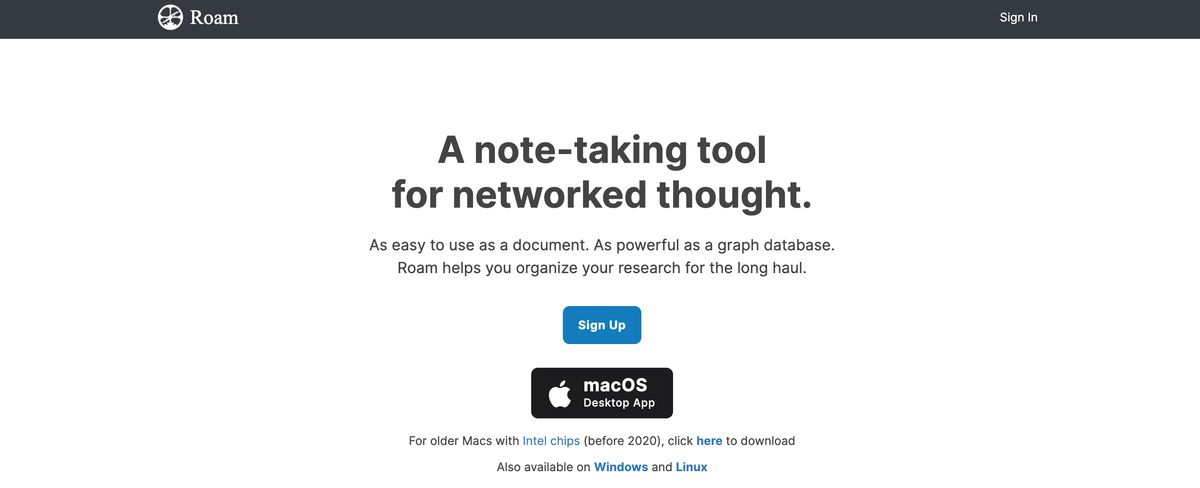
Roam Research is a sophisticated personal knowledge management tool tailored for serious note-takers. Focusing on connecting information, the software helps users capture information, organize their notes, and establish relationships between their findings using backlinks and a graph. Roam Research runs on desktop and web platforms.
Key Features of Roam Research
Roam Research includes several features that enable users to create organized, connected notes, including:
Bidirectional Linking
With Roam Research, you can connect notes using backlinks. This makes for smooth navigation between related ideas.
Graph Database
Roam Research allows you to visualize connections between notes in an interactive graph.
Block-Based Structure
Each content in Roam Research is a block that can be referenced, linked, and embedded elsewhere.
Page References and Tags
You can quickly reference and organize notes with page links and tags.
Query Functionality
Using powerful queries, Roam Research allows you to filter and retrieve specific notes.
Templates and Daily Notes
Users can create structured workflows with daily notes and custom templates.
Outline-Based Note-Taking
Roam Research employs a nested bullet-point structure for flexible organization.
Embed and Transclusion
You can dynamically embed blocks from other pages while updating them.
Collaboration
Share notes and collaborate in real time with others.
API and Integrations
Extend functionality with third-party tools and plugins.
Related Reading
- Second Brain Examples
- How to Build a Second Brain
- Tiago Forte Code
- Second Brain Notion Template
- Notion vs GoodNotes
What is Obsidian?

Obsidian is a note-taking app that uses Markdown files to help you build a networked knowledge base. It provides a customizable environment for creating, linking, and organizing notes, making retrieval intuitive and efficient.
Create Links to Connect Notes
Obsidian’s linking feature allows for the creation of direct connections between notes, enabling you to reference and navigate related content easily. You can keep track of text passages by linking them together. For example, a researcher could tag notes to organize their findings and create connections to revisit later. You can link to other notes and revisit ideas as you write, creating a web of interconnected information that helps eliminate redundancies and organize your knowledge. It’s like reference links in a research paper but on a larger scale.
Visualize Your Notes with Graph View
The Graph view in Obsidian provides a visual map of your notes and their interconnections, offering a unique perspective on your knowledge base. It’s a web of connected notes linked together. This is great for seeing relationships, organizing, and mapping ideas for brainstorming. The interactive maps highlight relationships for each note when you hover with your mouse.
Organize Notes with Canvas
Canvas in Obsidian is a flexible space where users can visually organize their thoughts and notes. The interface is similar to Figma, where you can arrange text boxes and images any way you conceive. You can visually organize and connect your notes in any layout. Teams can manipulate audio, video, photos, and PDFs in Canvas, use the workspace as work views for notes, and nest Canvas views inside Canvas.
Extend Functionality with Plugins
Obsidian supports a wide range of community-developed plugins that extend the app's functionality. There are over 1,000 plugins, and there’s quite a variety. They have plugins for exporting, working with HTML, software integrations, AI assistants, annotating, and more.
Sync Notes Across Devices with Obsidian Sync
Obsidian Sync is a premium service that offers end-to-end encrypted synchronization of your notes across devices. It ensures that your data is securely updated and accessible, whether you are working from your desktop, laptop, or mobile device.
Publish Notes Online with Obsidian Publish
With Obsidian Publish, users can share their notes and knowledge bases. This service transforms your Obsidian vault into a publicly accessible website where you can share ideas and information on a personal or professional platform.
Roam Research vs Obsidian Detailed Comparison

Core Philosophy and Approach: Understanding the Fundamental Differences Between Roam Research and Obsidian
Roam Research centers on networked thought, mimicking how the human brain connects ideas. It emphasizes a non-linear note-taking style that allows users to link ideas dynamically instead of organizing them hierarchically. The system is designed to be fluid and organic, helping users make unexpected connections between concepts.
On the other hand, Obsidian is designed as a local-first personal knowledge base where all notes are stored in plain text Markdown files. It is more structured and customizable, making it ideal for users who prefer a systematic way to build a digital second brain. It functions more like a file-based knowledge management system than Roam’s block-based approach.
Data Storage and Privacy: Who Owns Your Data?
Roam Research stores all notes on the cloud, requiring an internet connection for access. This means users do not fully own their data, and there could be potential privacy concerns. Collaboration is easier since everything is stored online.
On the other hand, Obsidian stores notes locally on the user’s device, ensuring complete control over data. Users can opt for third-party sync solutions (such as iCloud, Google Drive, or Obsidian’s paid sync service). Since files are in the Markdown format, they can be backed up quickly and used in other applications.
Linking and Note Connections: The Backbone of Note-Taking Software
Roam Research uses bidirectional linking as a core feature, allowing users to reference notes dynamically. Every note is structured as a document of interlinked blocks rather than a standalone file. A graph view provides a visual network of connected notes, making it easier to explore relationships between ideas.
Obsidian also supports bidirectional linking but focuses more on linking entire notes than content blocks. The graph view allows users to see connections between files, though some users find it less fluid than Roam’s approach. Users must structure their linking manually instead of relying on Roam’s more automatic linking system.
User Interface and Ease of Use: Which Tool Is Easier to Navigate?
Roam Research features an outliner-based interface, where every note consists of bullet points that can be nested and collapsed. This suits it best for daily journaling, research, and non-linear thinking. However, it lacks a traditional file system, which some users might find limiting.
Obsidian offers a more conventional note-taking interface, where each note is a separate file. Users can access a sidebar to browse folders and files, making it easier to navigate larger knowledge bases. Markdown formatting makes it great for writing long-form content.
Customization and Plugins: Go Beyond the Basics
Roam Research has limited customization options and mainly relies on CSS tweaks. It has no official plugin system, though there are some community-made extensions. The core experience is streamlined but not highly flexible.
Obsidian boasts extensive customization options via themes and settings. A robust plugin ecosystem allows users to add features like tables, kanban boards, calendar views, and AI integration. Users can modify Markdown files with scripts, making it a more developer-friendly option.
Collaboration and Sharing: Working Together to Improve Your Notes
Roam Research supports multi-user collaboration, making it ideal for teams. Users can share databases and work together in real time. However, it does not have granular access controls like Google Docs.
Obsidian is primarily a single-user application with no built-in collaboration. Users can manually sync files, but Roam's cloud-based approach is not as smooth. Collaboration is possible via third-party solutions (e.g., Dropbox or Obsidian Sync).
Task and Project Management: Which Application Does It Better?
Roam Research includes built-in task management features, such as TODO lists and daily journaling. Users can tag tasks and track progress over time, which makes it great for goal tracking and productivity workflows.
Obsidian lacks native task management but supports it through plugins (e.g., the Tasks plugin). It can be integrated with third-party task managers like Todoist or Things 3. Overall, it works better for static note-taking rather than dynamic task tracking.
Pricing: Calculating the Cost of Each Application
Roam Research operates on a subscription-based pricing model. It costs $15/month or $165/year, making it one of the more expensive note-taking tools. Obsidian is free for personal use. Obsidian Sync ($8/month) is optional for cloud storage. There’s also a one-time purchase for commercial use ($50+ per user/year).
10 Best Roam Research and Obsidian Alternatives
1. Constella: The Future of Note-Taking

Constella reimagines note-taking with an infinite canvas that lets you capture and connect ideas effortlessly. Whether you're a researcher trying to draw connections across numerous papers or someone who wants a more intuitive way to organize your thoughts and files, Constella's AI assistant helps you build and navigate your knowledge base without the constraints of traditional folder structures.
Constella transforms how you capture, find, and connect your ideas, making it perfect for busy knowledge workers and researchers limited by conventional note-taking tools. Research 10 times faster with Constella's AI notes manager.
2. Notion: The All-in-One Tool for Teams
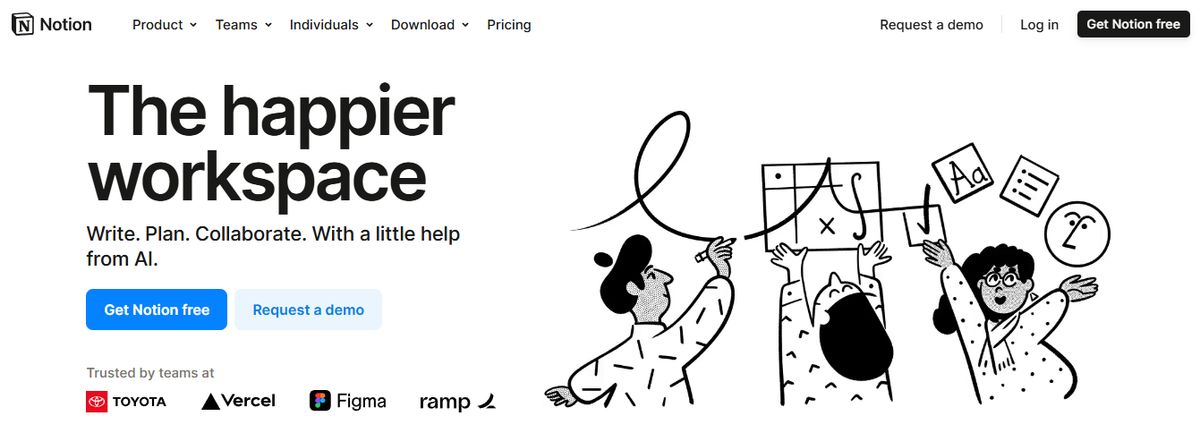
Notion is an all-in-one personal knowledge management tool for teams and organizations. It helps you collectively build a simple and valuable knowledge base with your team. In addition to text, it allows you to add or drag and drop images, videos, audio files, and even link pages in your knowledge base.
From managing client data and brainstorming ideas to tracking project milestones, Notion AI makes finding relevant information from your base easy. I also love how the AI writing tool provides note-editing and summarizing capabilities to enhance your knowledge base.
Pros
- Share knowledge, assign tasks, and collaborate in real time with built-in tools for teams and projects.
- Create and link structured databases to manage projects, track clients, and organize resources.
- Access 20,000+ templates for creating company wikis, meeting notes, etc.
Cons
- Limited functionality without an active internet connection hinders productivity during travel or outages.
- Using Notion’s mobile app might feel clunky and slow.
3. Evernote: The Original Note-Taking App
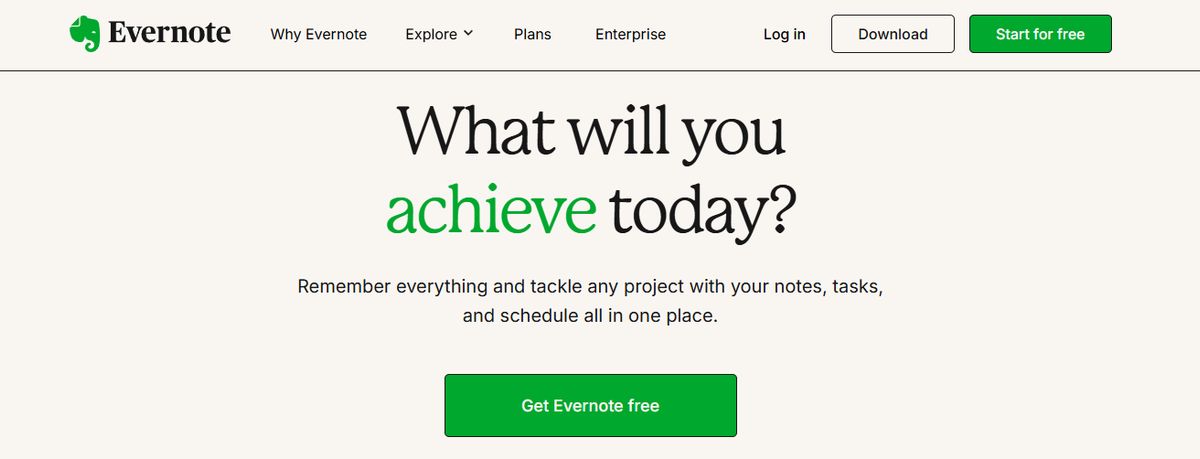
With Evernote, it’s a case of never forgetting your first love. I spent years tinkering with Evernote to build my ideal experience and workflow, but it never came together. From notes, tasks, and schedules to your favorite resources from the web, Evernote makes it easy to save anything you want on your chosen device. I could quickly integrate Evernote with ClickUp, Google Calendar, Slack, and Microsoft Teams, so all my standups, client meetings, and reminders automatically synced with Evernote.
The tool is also available offline, so it’s comforting to know I’ll still be able to access my notes if I’m camping or traveling without internet access. Evernote’s AI-powered search functionality is quick and intuitive. It works across PDFs, documents, and images, so searching through many notes and content is never an issue. The Tasks feature lets you outline project steps and assign responsibilities to others—a great way to collaborate with your team on the go.
Pros
- Save snippets from the web directly into their notes with Web Clipper.
- Scan, digitize, and organize paper documents with your phone’s camera.
- Edit notes and tasks in real time and keep all contributors on the same page.
Cons
- A limited free version that pushes users towards a premium subscription.
4. Document360: The Knowledge Base Tool
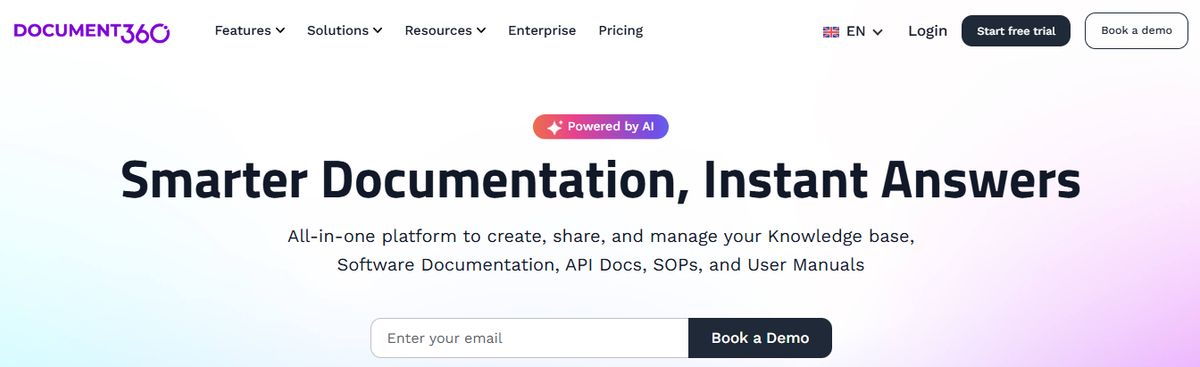
Another all-in-one workspace software for building customizable knowledge bases is Document360. This software helps you personalize your knowledge base with branded colors and create dynamic, searchable, multilingual user manuals, SOPs, how-to guides, and other documents.
Ideal for professionals seeking to streamline documentation processes, Document360 offers a user-friendly interface that caters to technical and non-technical users. Plus, it gives AI functionalities to simplify tackling all documentation needs.
Pros
- Improve the context and relevance of documentation with real-time AI feedback.
- Get insights into user behavior and content effectiveness to optimize knowledge management strategies.
- Connect with popular tools like Slack, Microsoft Teams, Zendesk, and Intercom to build a cohesive workflow across platforms.
Cons
- A few features are only available through costly add-ons.
- New users might require time to fully leverage the platform’s extensive capabilities.
5. Microsoft OneNote: The Note-Taking Powerhouse
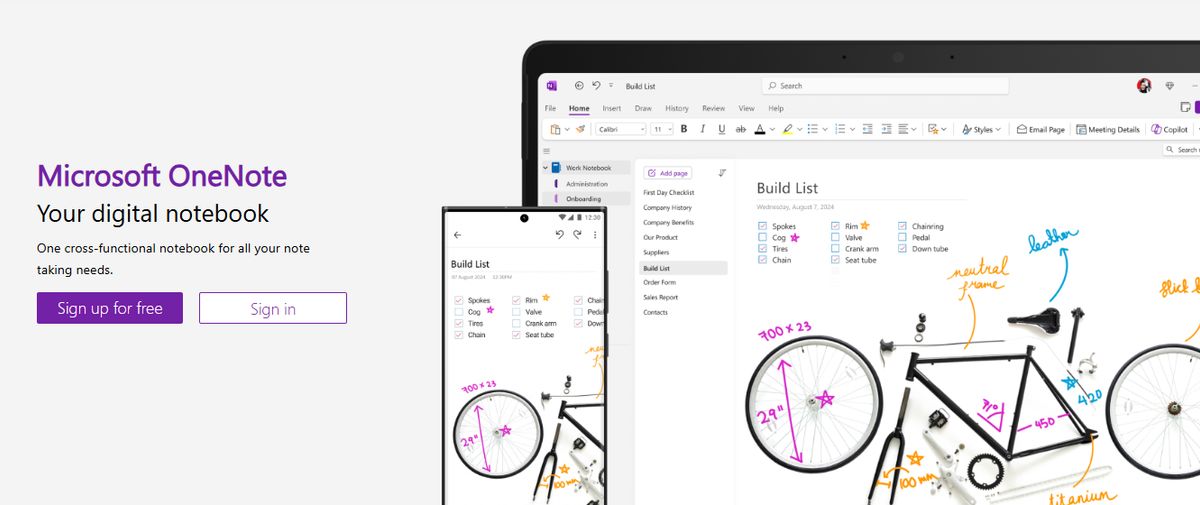
Microsoft OneNote provides note-taking tools for different inputs, including typing, handwriting, and drawing. You can incorporate content from the web directly into your notes, refining the research and documentation process. I’ve always found OneNote’s organization to be great. It’s so simple to get to what you’re looking for with the fewest clicks. The other thing I love is that the app is less rigid and more fluid across text, numbers, and images. You can quickly add a formula, a table, or an image to the same note.
I appreciate the fluidity of this approach—it feels like a natural note-taking and journaling experience. OneNote templates provide a convenient starting point for organizing your notes, whether planning a project, keeping track of tasks, or journaling. Our team tested its relatively smooth collaboration features. You can work in tandem (on grocery lists, party shopping, or work to-dos) with family members or your team, and your notes get updated in real time. The interconnectedness of the Microsoft suite always makes it its USP and its limitation—it depends on who you ask.
Pros
- Recreate the feel of a physical binder with separate sections and pages in the Digital Notebook Layout.
- Convert handwritten notes to typed text.
- Sync your notes across devices and platforms, keeping the continuity of thought intact.
- Access your notes even when you’re offline.
Cons
- Users need to have a Microsoft 365 subscription to access the tool.
- It provides integration mainly with Microsoft products, which is limited for users of other ecosystems.
6. TiddlyWiki: A Unique, Open-Source Tool
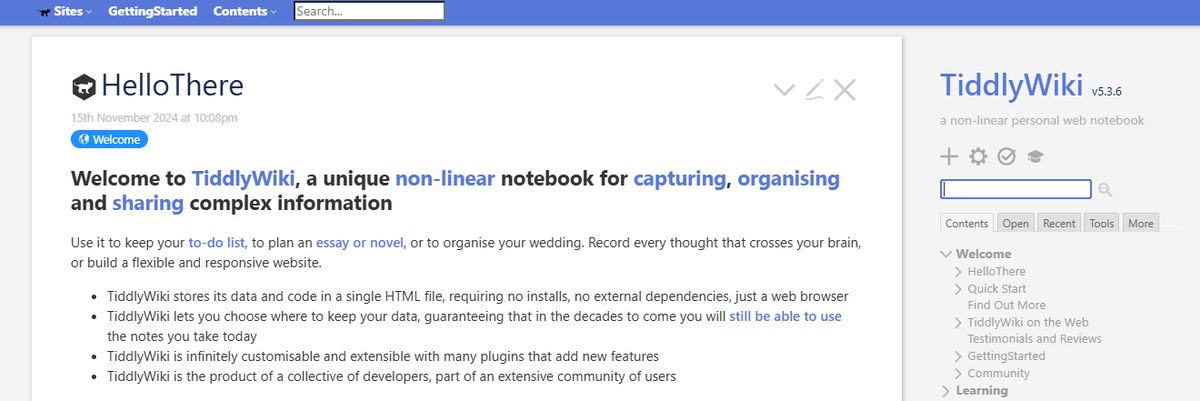
TiddlyWiki is a unique, open-source personal knowledge management (PKM) tool that allows professionals to capture, organize, and share information within a non-linear framework. It helps you plan and manage to-do lists, essays, novels, projects, etc. Functioning as a self-contained HTML file, it operates efficiently across various platforms without complex installations.
Pros
- Use the tool in different languages, with TiddlyWiki offering 20+ languages as plugins.
- Customize and modify the interface and functionality to align with your needs.
- Get help from the vibrant community of users and developers.
Cons
- Team collaboration in real-time is an issue because the tool is primarily designed for individual use.
- Task management through big files may create performance issues.
7. Apple Notes: The Simple Yet Effective Tool

Apple Notes is a simple but efficient note app that works across all devices. This could become your go-to tool if you’re deep into the Apple ecosystem. It’s still the most straightforward app if you work within the Apple realm—summon it anytime on your Mac from the bottom right corner, and it pops up earnestly. Syncing is mostly great; copying something on the phone and pasting it on your desktop is magic. The little things that boost the experience. Ask more of the app, and you’ll be disappointed.
Moving the text around, formatting, and indenting are not easy. Any more advanced use cases are not supported. You can save multiple types of content, including images, web links, handwritten notes, maps, PDFs, and sketches. I prefer Apple Notes’s scanning feature to scanning documents directly from my iPhone—there is no need for third-party scanners! The documents are saved directly within Notes as PDFs.
Pros
- Create notes, edit lists, organize notes into folders, and manage attachments.
- Pin priority notes on top for quick access.
- Add tags to sort and find notes easily.
Cons
- Limited to users within the Apple ecosystem.
8. Guru: The AI-Powered Knowledge Management Tool
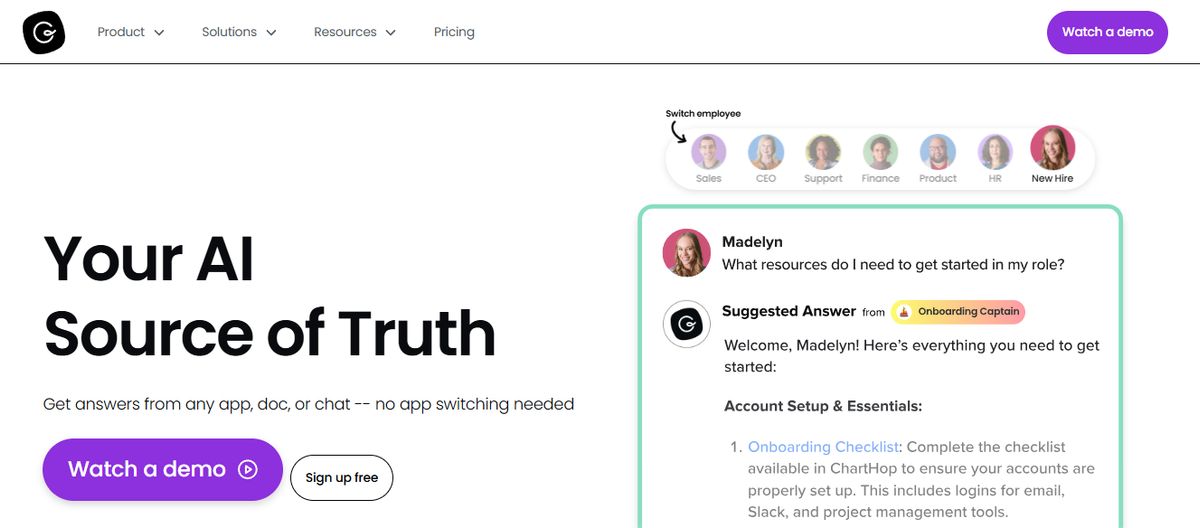
Guru is an AI-powered knowledge management platform that converts your company’s collective knowledge into a single, centralized, and up-to-date Wiki for your employees. The AI search feature provides instant, personalized responses to your employees’ questions, enabling them to get back to their assigned tasks with clarity.
Guru allows teams to maintain a single source of truth, ensuring that information is accurate, up-to-date, and easily retrievable—integral to improving operations and making informed decisions.
Pros
- Create a personalized intranet that serves as a centralized hub for company information.
- Connect to your existing apps, chats, and documents through AI.
- Provides role-based access control functionalities.
Cons
- Guru provides limited customization options compared to other software.
- There is a chance of outdated or duplicate content with the growth of the knowledge base.
9. Joplin: The Open-Source Note-Taking App
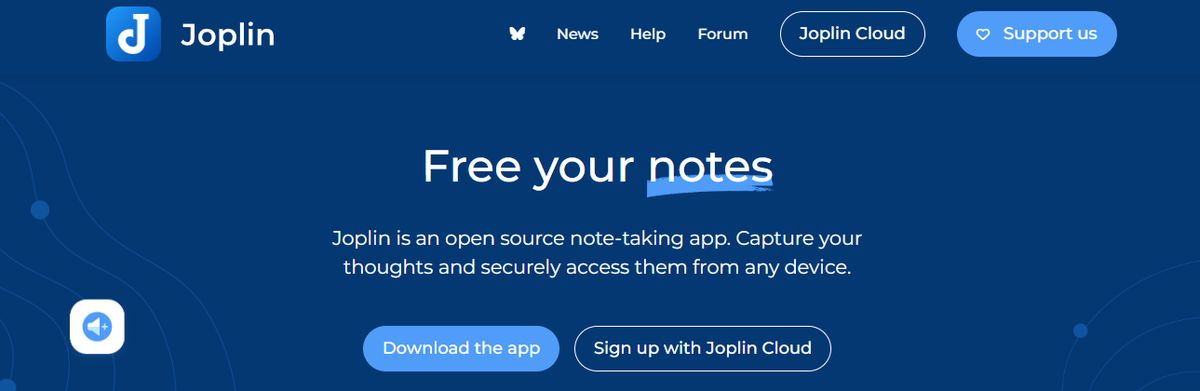
Joplin is an open-source note-taking application that helps you put your thoughts into words and securely access them across Windows, MacOS, Linux, and iOS. The tool supports multimedia notes, including images, videos, PDFs, and audio files. Its sharing and collaboration features are smooth. It allowed me to share my notes with friends, family, and colleagues and work alongside them on the notes without hassle.
There was also an option to save a note (on the internet) and share the link with others—an easy way to share task lists, company wikis, or meeting notes with a large group of people. Joplin offers extensive customization options through plugins, custom themes, and text editors (such as Rich Text and Markdown), ensuring you can tweak the tool to your liking. While it’s an open-source app, it maintains data privacy with End-To-End Encryption (E2EE). Your notes will be accessible only to you unless you choose to share them.
Pros
- Format your notes with Rich Text or Markdown.
- Save web pages or take screenshots directly with the Web Clipper extension (available for Chrome and Firefox).
- Work offline and take down notes on the go.
Cons
- The interface is not as user-friendly as some commercial options, limiting its appeal to less tech-savvy users.
- Syncing requires more setup than other mainstream note apps.
10. Logseq: The Open-Source PKM Tool
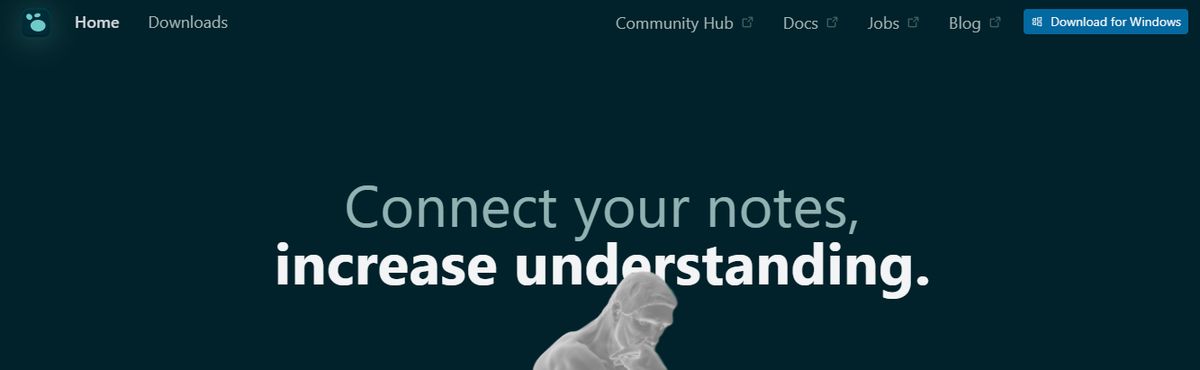
Logseq is a privacy-first, open-source platform for personal knowledge management. Built around an outliner-based structure, users can organize thoughts, notes, and ideas in a clean, hierarchical format. By creating a networked knowledge base using bidirectional links and tags, Logseq mirrors how the brain processes information, making it ideal for managing complex projects, writing, and learning.
Pros
- Visualize your notes and their connections with a graph view.
- Tailor your workflow with 150+ themes and 30+ plugins available through Logseq’s active open-source community.
- Store data locally on your device with the offline-first approach.
Cons
- As the data amount increases, Logseq can become glitchy.
- The mobile app is still evolving and currently has limited functionalities.
Related Reading
- Roam Research Alternatives
- Amplenote vs Notion
- NotePlan Alternative
- Amplenote vs Obsidian
- Heptabase vs Obsidian
- Notion vs Evernote
Research 10 Times Faster with Constella
Constella reimagines note-taking with an infinite canvas that lets you capture and connect ideas effortlessly, powered by an AI search that makes finding information instantaneous. Whether you're a researcher trying to draw connections across numerous papers or someone who wants a more intuitive way to organize your thoughts and files, Constella's AI assistant helps you build and navigate your knowledge base without the constraints of traditional folder structures. Constella transforms how you capture, find, and connect your ideas, making it perfect for busy knowledge workers and researchers limited by conventional note-taking tools. Research 10 times faster with Constella's AI notes manager.
Related Reading
Want more insights like this?
Subscribe to get short productivity tips and useful summaries of new tools every week.
Want more insights like this?
Subscribe to get short productivity tips and useful summaries of new tools every week.