AI Second Brain: the full guide
Live insights on your glasses from your conversations, your thoughts and everything you know. Here is how to set it up and get the most out of it, step by step.
- 1
Install the app
On your phone, open the Even app, go to the Even Hub tab, search for Constella (AI Second Brain) and tap Install.
- 2
Sign in
Open Constella inside the Even app and enter your email. We email you a 6-digit code; type it in and your glasses link on their own. New here? This creates your account.
- 3
Start a meeting
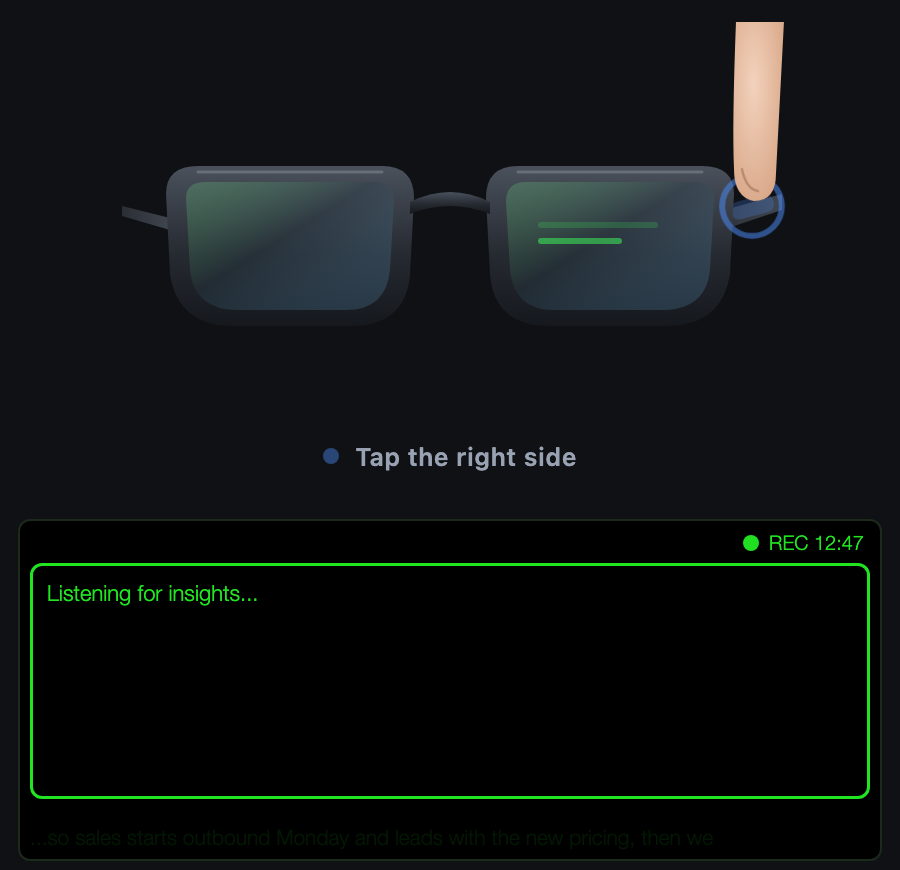
Open Constella on your glasses. It opens on Meeting. Tap the right side of your glasses to start recording, and double-tap to finish. The whole conversation is transcribed and saved to your notes. Keep your phone unlocked with the Even app open while recording.
- 4
Get AI cues
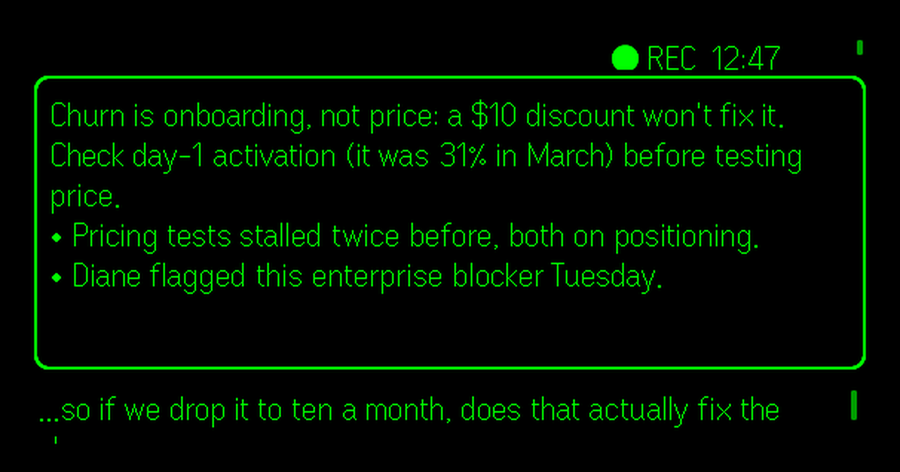
Just talk, with someone else or with yourself. After a sentence or two a short, specific tip appears in the card on your lens: a fact you forgot, a risk, or a pushback on your thinking. Try talking about a hard problem, a decision you have to make, or what happened this week.
- 5
Sync your memories
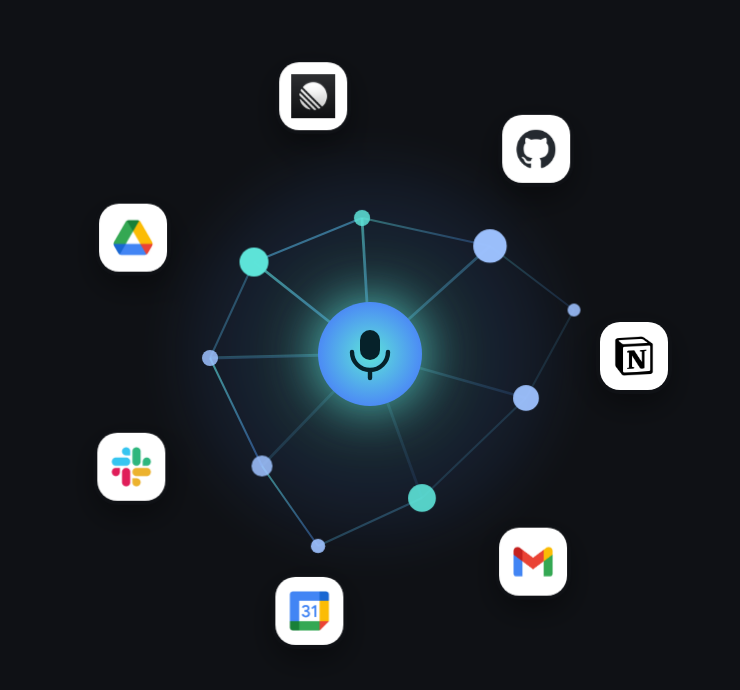
In the app, open Sync your memories (also in Settings, Integrations) and connect Gmail, Notion, Google Drive, Calendar, Slack and more. Syncing runs privately in your own container and takes a while; after that your cues draw on everything you know. Your first app is free for 24 hours. Ultra keeps up to 3 apps in sync: it starts with a 14-day free trial, then $19.99 a month, and you can cancel in Settings.
- 6
Ask your memory
On the home screen of the app, type a question in Ask your memory and tap Ask to chat with an AI that knows your notes, meetings and synced apps. Just typing searches your notes as you go.
- 7
See everything on the web
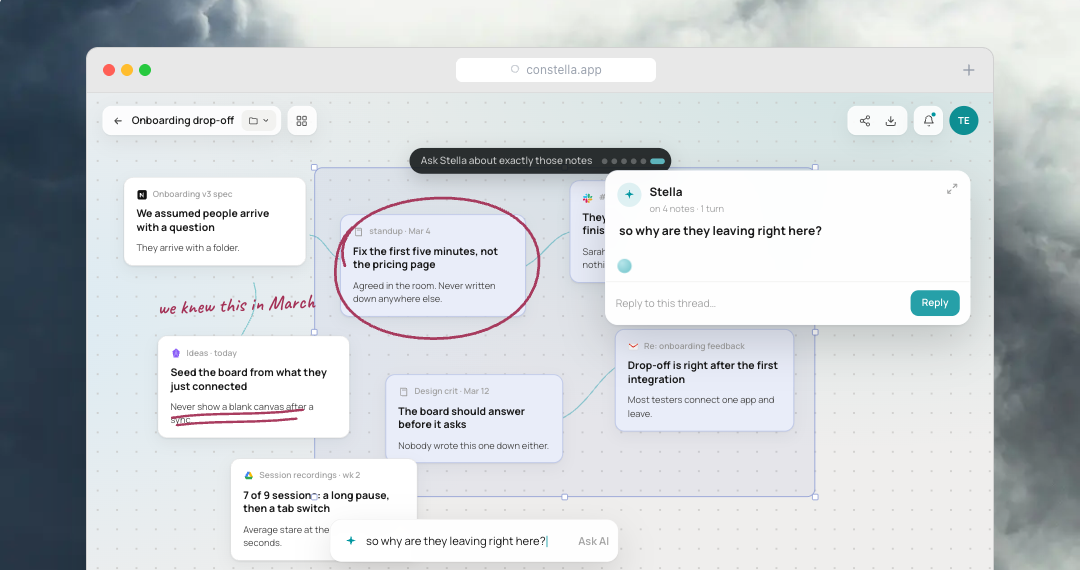
Go to the.constella.app on your computer and sign in with the same email. Your meeting notes, synced memories and connections are all there, on an infinite canvas with AI.
- 8
Use it in Claude Code or Codex
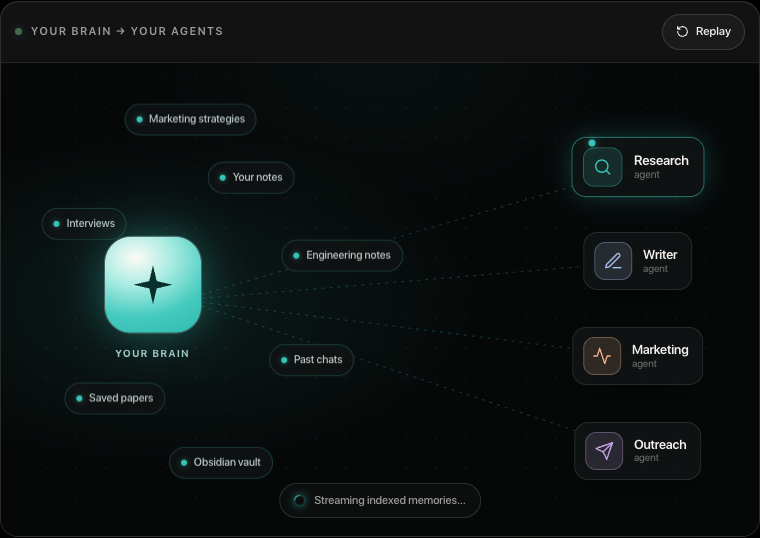
Tap the Claude / Codex logos next to Settings in the app (or in the web app) and copy the one-line setup. Claude Code and Codex can then search your memory, so everything you said in meetings helps your day to day work.
Troubleshooting
Still stuck? Email team@constella.app and we will help.